In this article
The most powerful part of Minecraft is your ability to express yourself in everything you do. Whether it's in pvp, building, or even just the way your character looks, creativity is such a massive part of the game. If you've found a skin you like, we'll help cover how you can change your character to match so you can look your best in-game!
Finding a Skin You Like
There are a lot of skins out there, especially for as long as Minecraft has been around.
These are mainly broken up into two main types, often also known as Steve & Alice:
Standard/Classic
Slim
The only difference between the skins is that the Slim version is, as its name implies, a bit slimmer! You'll mainly see some skinnier arms on the model, but your actual hitbox will remain the same, so there's no competitive advantage here!
Three of the most popular sources you can browse skins include:

The website you find your skin through is up to you! Though PlanetMinecraft is definitely the "ol' reliable" in terms of Minecraft content of the 3 sites listed.
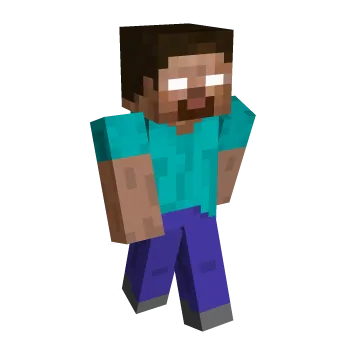
Once you find a skin you like, you'll want to download it as a PNG. You should then get a result similar to this classic Herobrine skin!
Applying a Minecraft Skin
Now that you have the skin you want, it's time to actually apply it to your account!
To do this, you'll want to head to the Change Your Skin page on Minecraft's website here:
You'll be asked to sign into your account first. Afterwards, you'll see the following page that shows your current skin, the option to select a cape, and more:
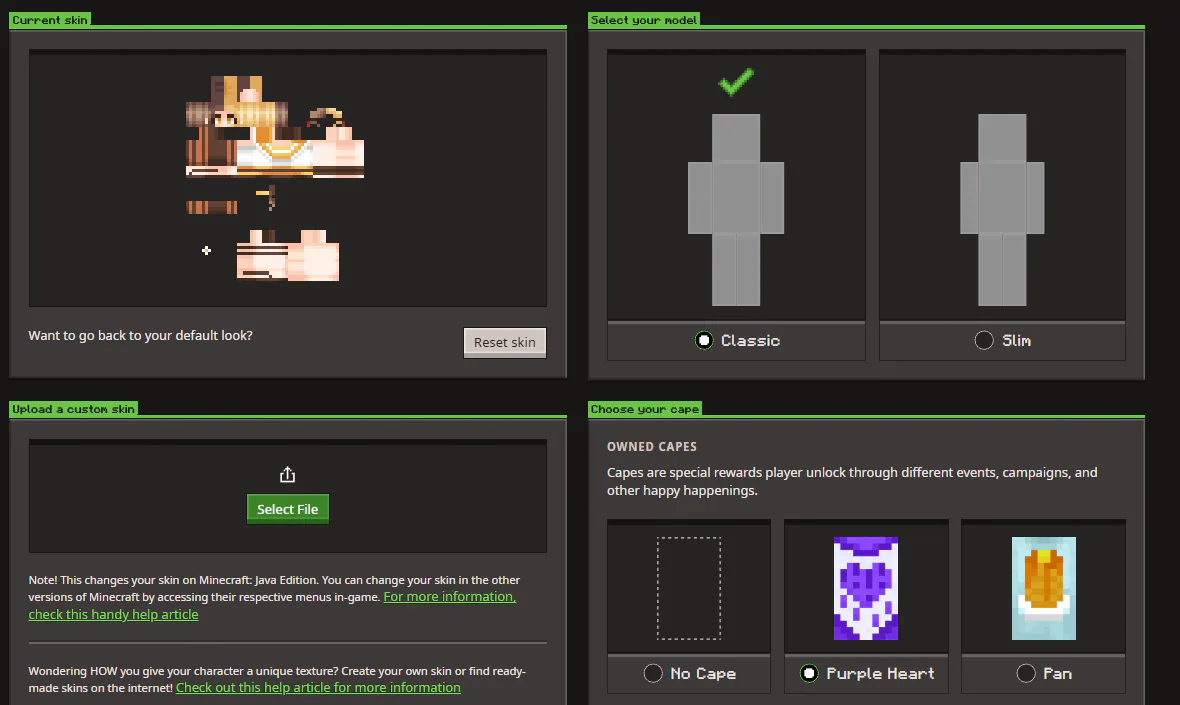
The bottom left box here is where you can select that skin PNG file that you downloaded earlier. Once you've done so, you'll be shown a brief preview and will be asked to confirm if you want to apply the skin.
After confirming, you're all set! You should see the Current Skin box update, and your skin will be updated in-game.
My Skin Isn't Showing In-Game
There are a few things to note if you are still having trouble seeing your Minecraft Skin in-game.
Restart Your Game: Make sure you restart your game! This is necessary to refresh your game and make sure it's loading the updated version of your account.
Make Sure Your Server Supports Skins: If you're playing on a multiplayer server, and you see a default skin still, make sure your server does not have online mode disabled. This bypasses Mojang's account system that gives you your skin.
Disable Any VPN/Proxy: Sometimes, being connected to any sort of VPN or Proxy may cause interference with Mojang's authentication servers. Try disconnecting, even if you're playing singleplayer, and restarting your game to see if your skin shows up without it.
The Waiting Game: If you've tried all of the above already, it'll often become a matter of time. Sometimes it can take a bit longer for your cache to update, so just keep playing for a bit and try restarting your game again later once you have the chance!