In this guide
How to use the Mod Manager and Mod Importer on your WindRose server
Login to your Kinetic Panel
Stop your server.
-1767383729764.png)
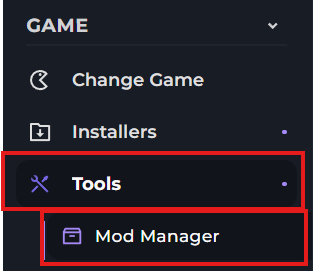
Click "Tools", then "Mod Manager" on the left side of the panel.
In the Mod Manager menu, you'll see multiple tools. All of which are labelled in the picture.
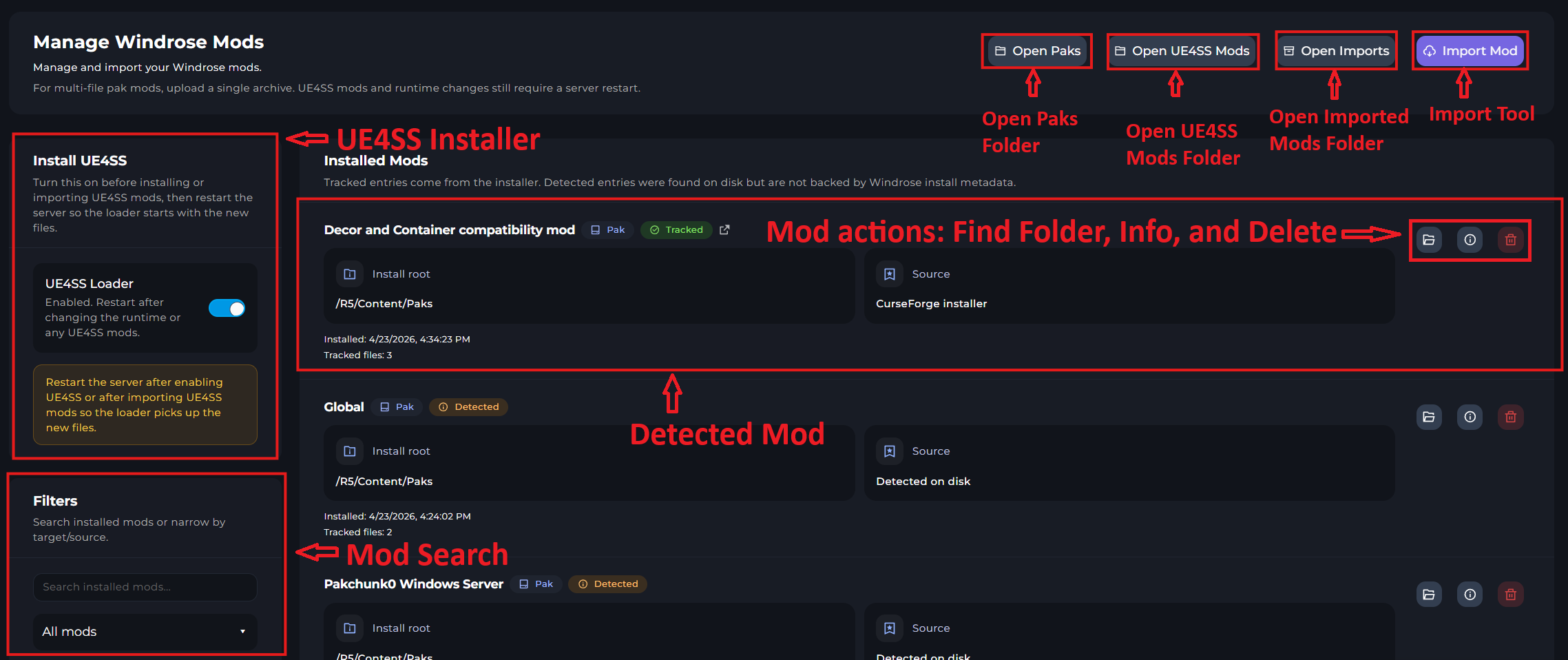
Mod Importer
As you can see from the picture above, there's a mod importer tool. Here's how to use it.
In the first page of the Mod Importer, either browse your files to find the mod, or drag-and-drop the mod into the box.
For the Purpose of the guide, I've already uploaded one mod.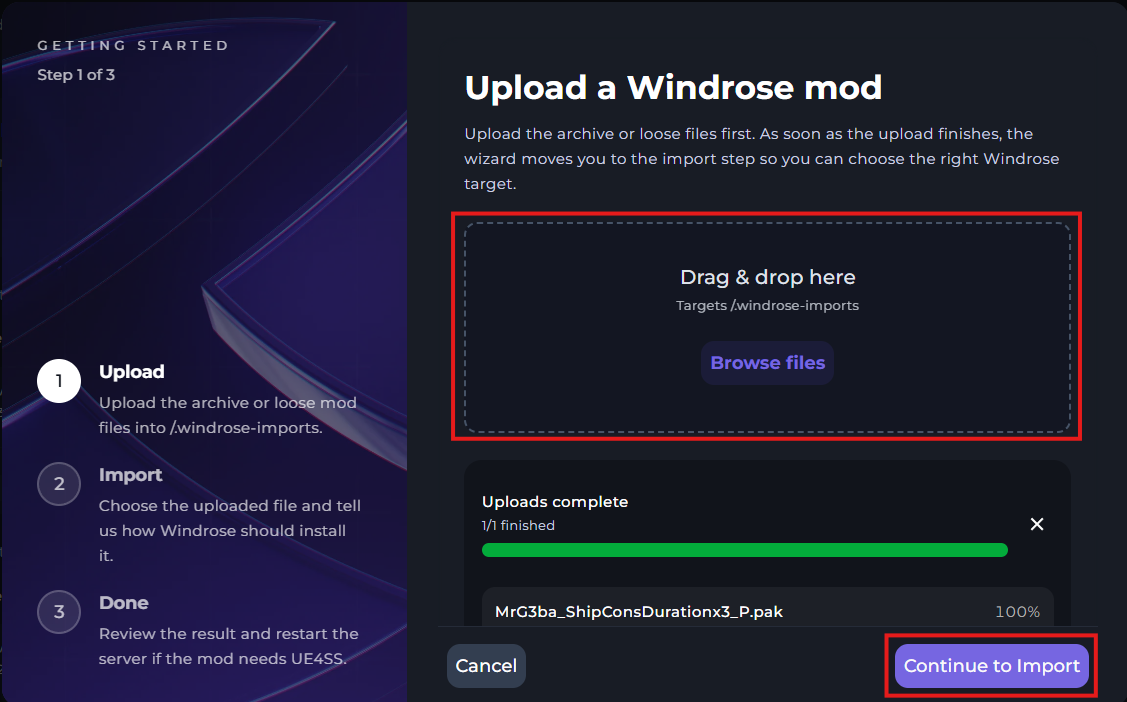
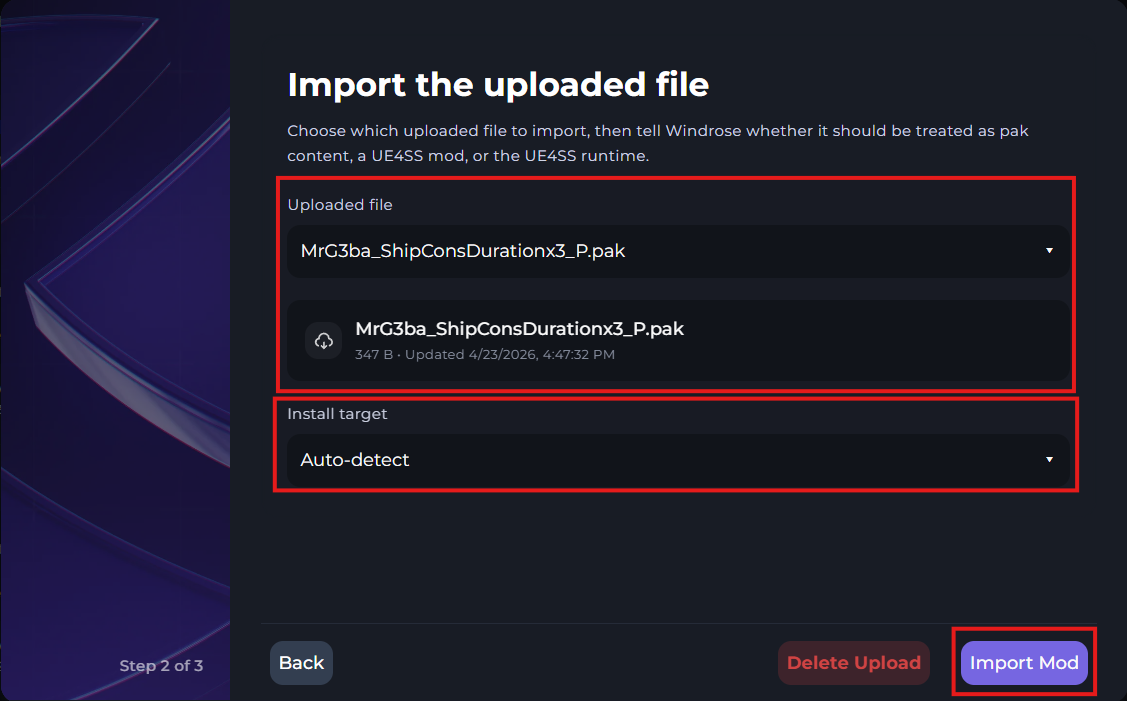
In the next step, you'll need to select which folder the mod goes in. In this case, I've selected "Auto-decect". But in the unlikely chance that the Auto-detect fails, you can select the folder yourself.
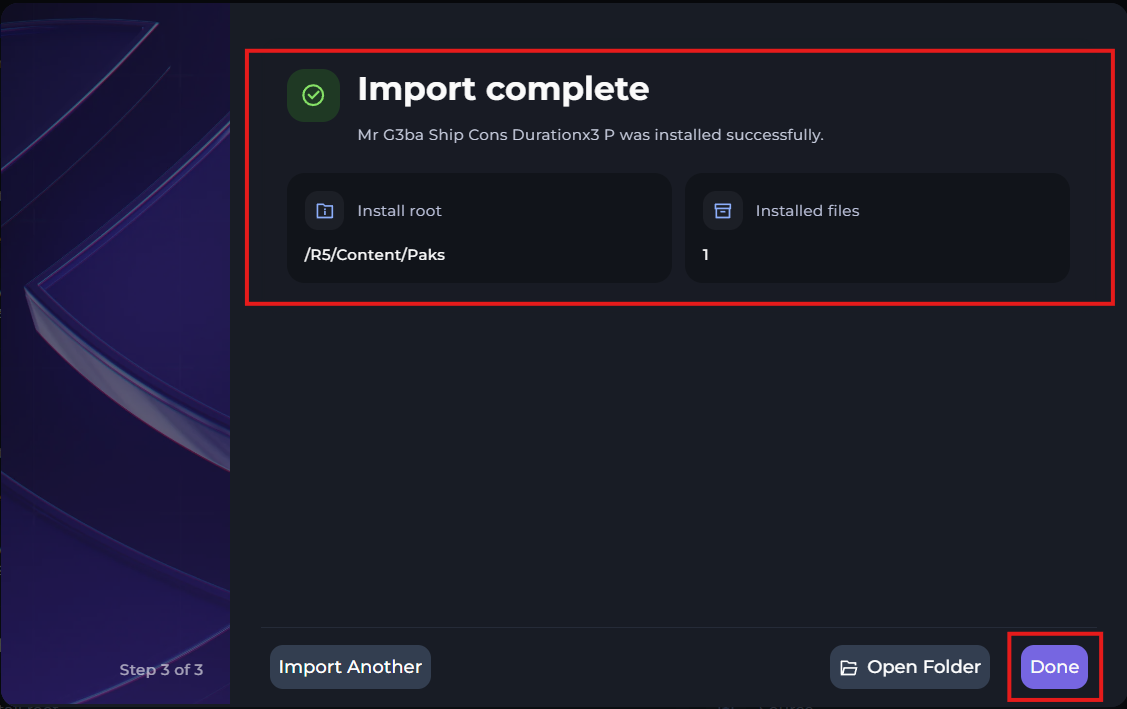
If the upload was successful, then step 3 will tell you that it was a success, and you can click "Done".