
In this guide
How to upload your own world to your Palworld server
Palworld World Importer:
Login to your Kinetic Panel
On the left side of the panel, go to "Tools", then "World Manager"
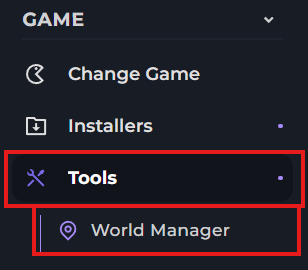
Within this menu, you have the option to either edit your existing world, or import a new one. For the purpose of this guide, we'll be importing a world.
Click "Import world"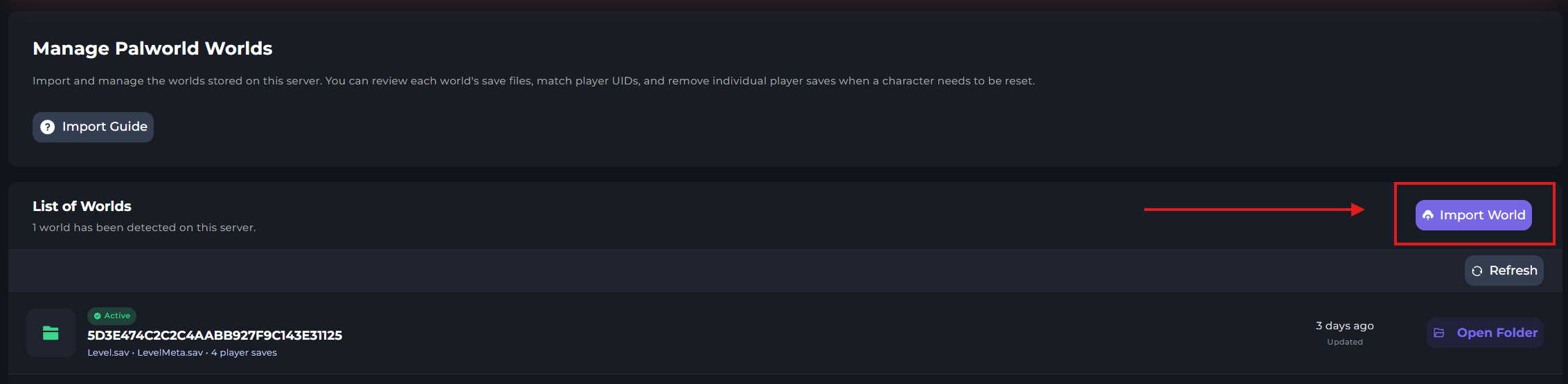
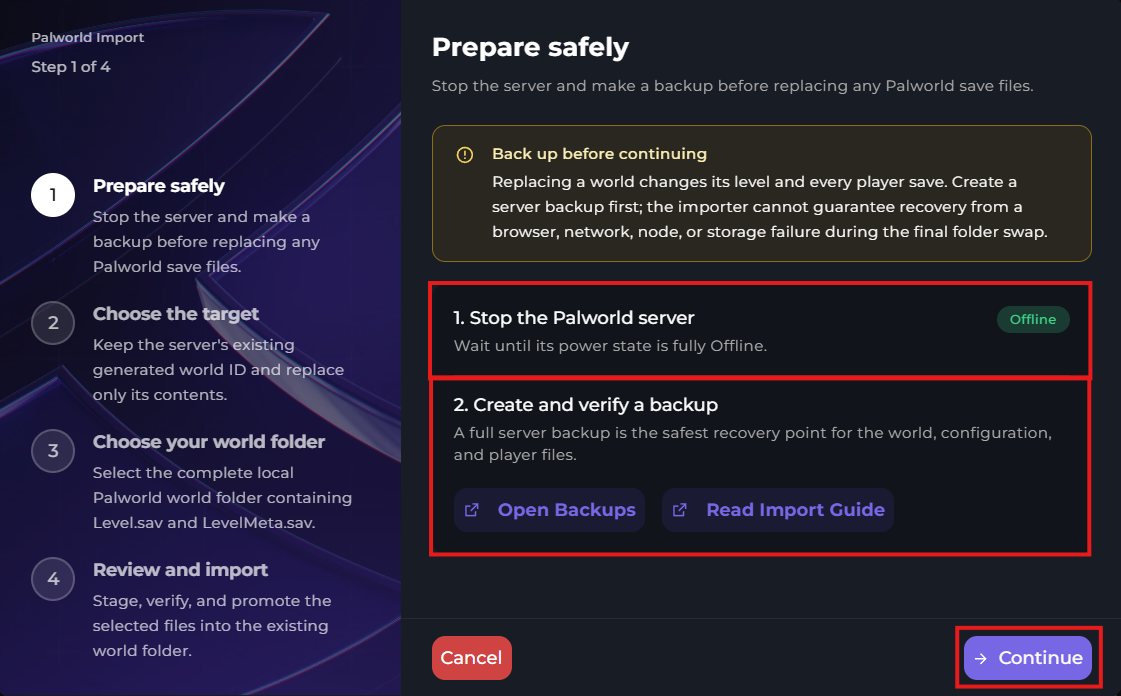
You'll now be met with the first step of importing your world. You will need to stop your server, and it's recommended that you first create a backup before continuing. Once you've done so, click "Continue".
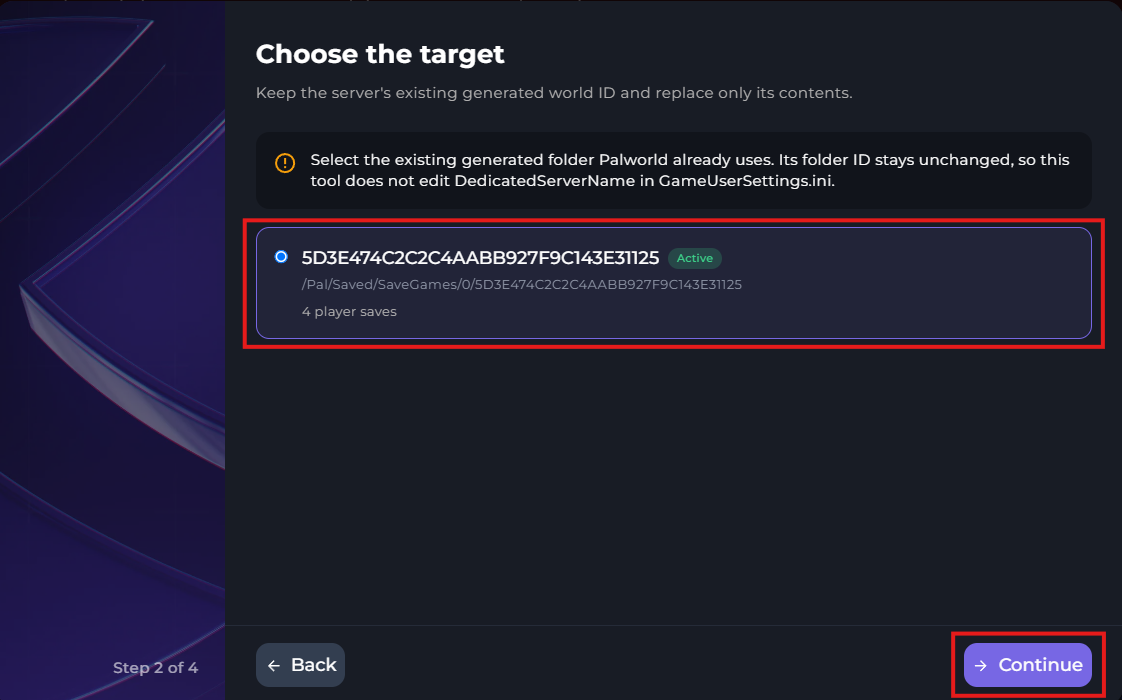
On the next step, you will need to select the world file that's currently within your servers files to target. This will replace the folders contents with your new worlds contents. This is required as Palworld will automatically select the existing world file.
Next, upload your world file. You can either drag and drop your world file, or select your world file through your file explorer by clicking "Choose World Folder".
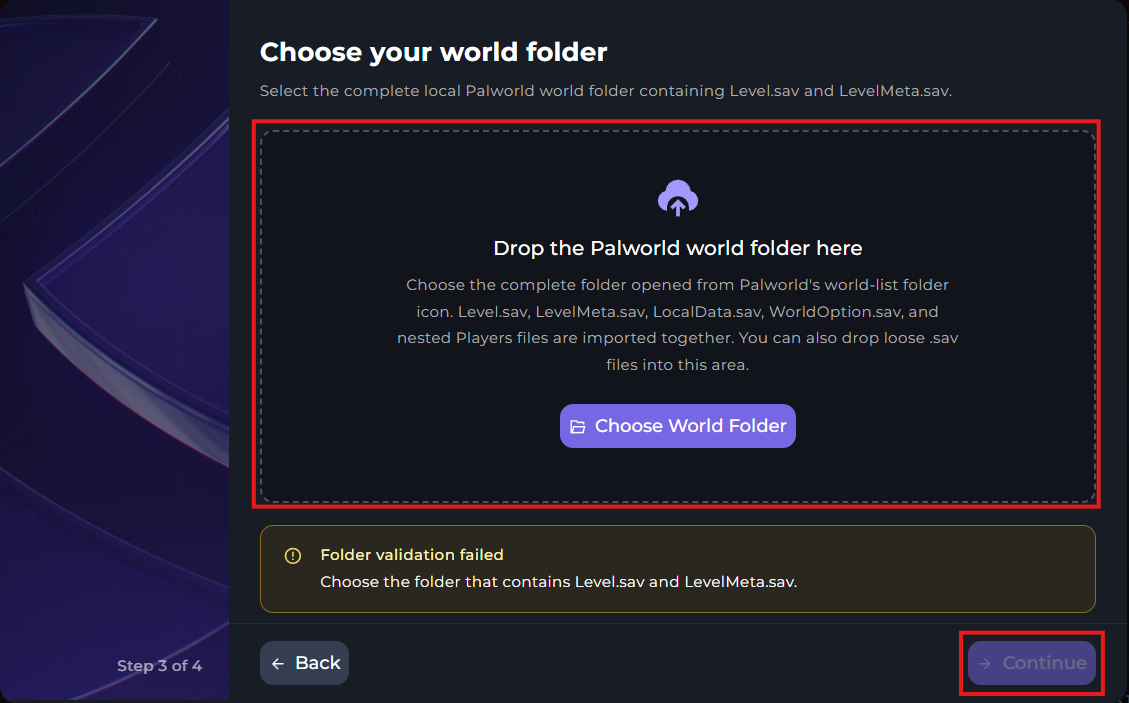
And finally, confirm that everything is correct by looking over what you see here, and click "Import world".
noticeIt's very important that you do not close this window while the world is importing. Otherwise, the import may fail.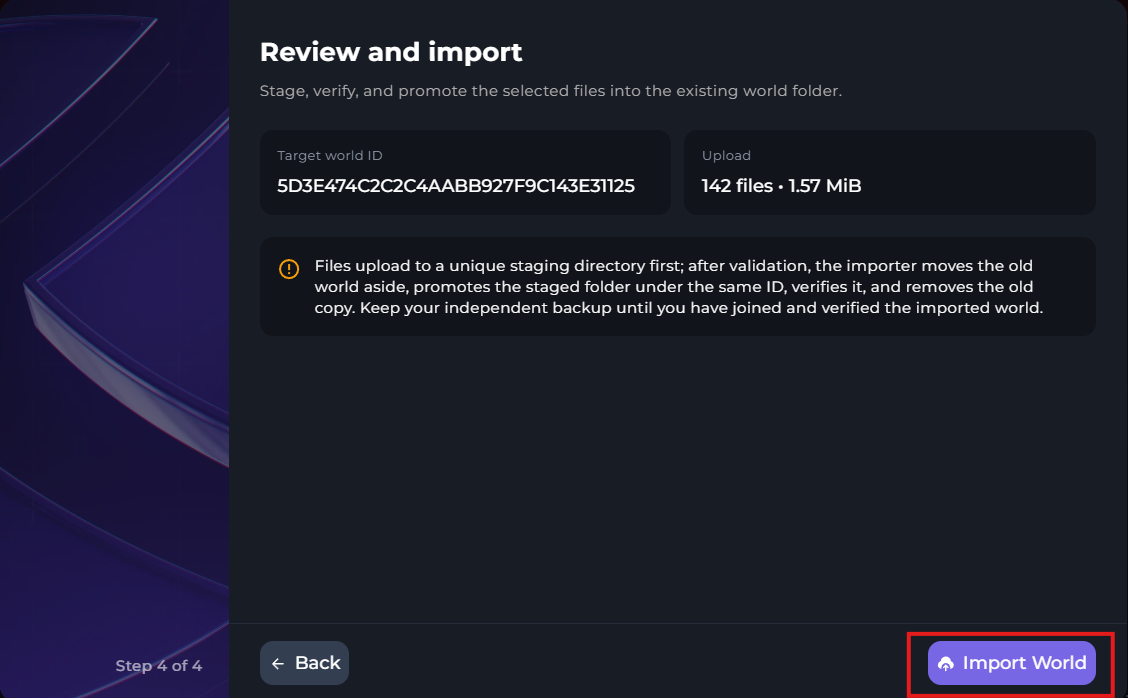
After the import is complete, start your server.
-1767462125511.png)
Manual Upload:
To begin, you will first need to get the world file that you wish to upload. For this example, we will be demonstrating how to access your steam game files, then find your Palworld save within them.
You will need to first open Palworld, then "Start game". You will then be able to view your worlds. Select the world file you wish to upload, then click the folder icon on the bottom left of the screen.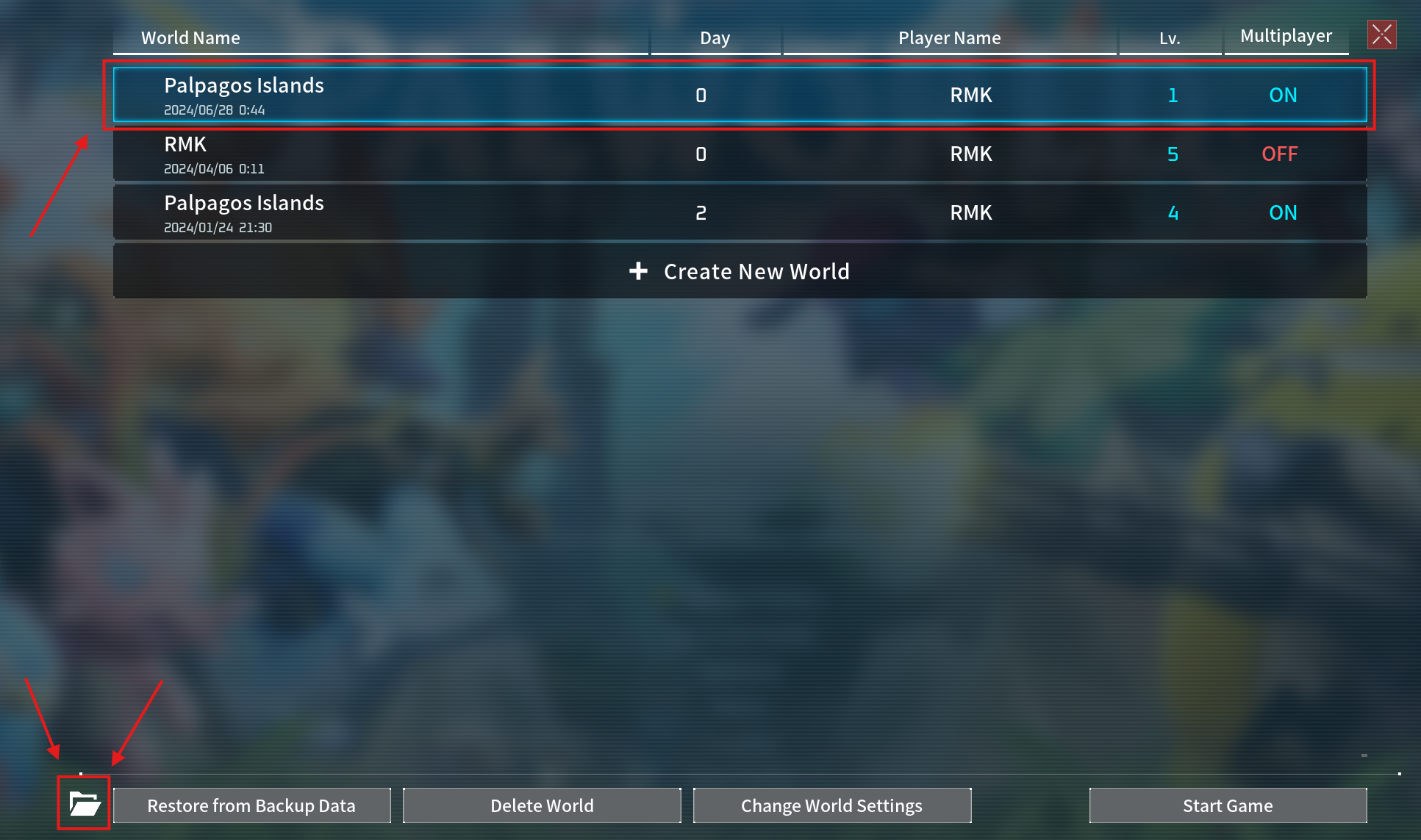
After you do this, you will be directed to the contents of the world folder. You will need to save these for later.
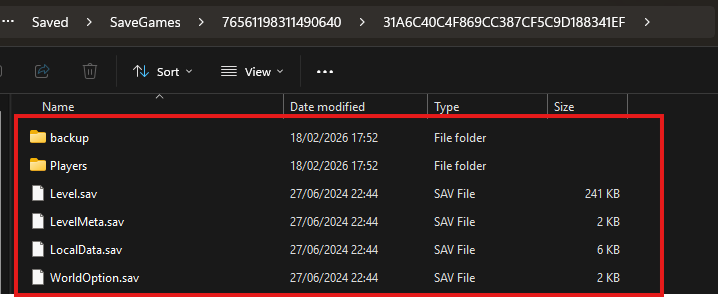
Now, login to your Kinetic Panel.
Stop your server.
-1767383729764.png)
Go to "File Manager"
-1770486606909.png)
Within File manager, go to the following folder directory:
Pal/Saved/SaveGames/0/(The randomly generated named folder)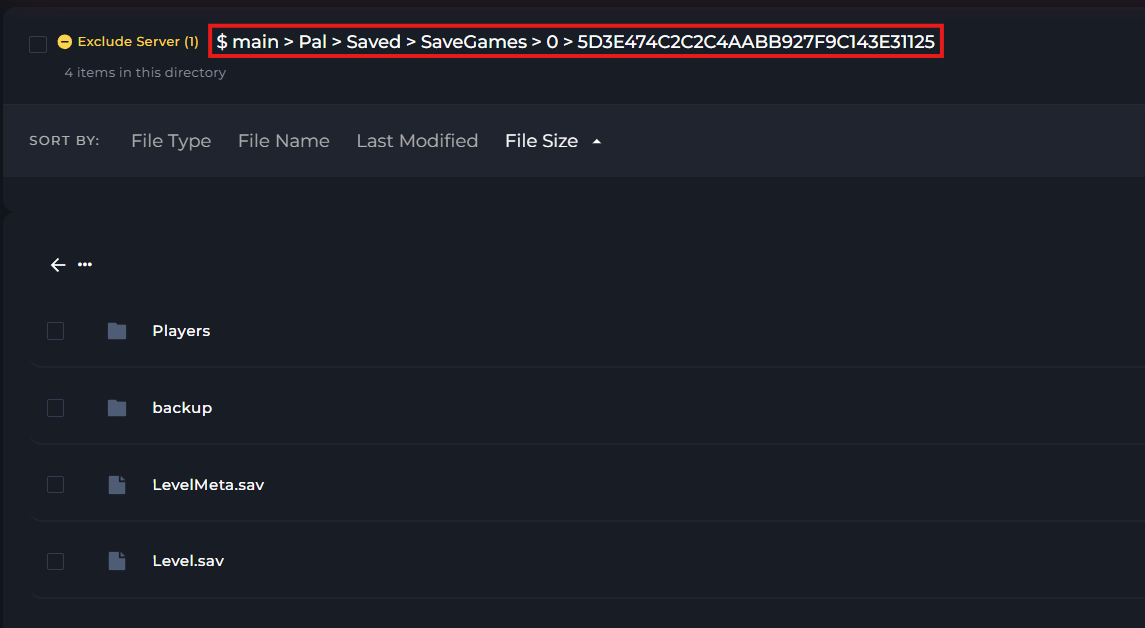
The files you see that are currently existing within the world folder on your server, must be deleted. Then, you will need to upload the files that you have within your windows file explorer. You can upload files by directly dragging and dropping the files into the panel's file manager.
You can delete files by either right clicking each file to delete, or select the check-boxes next to each folder then click "Move to Bin"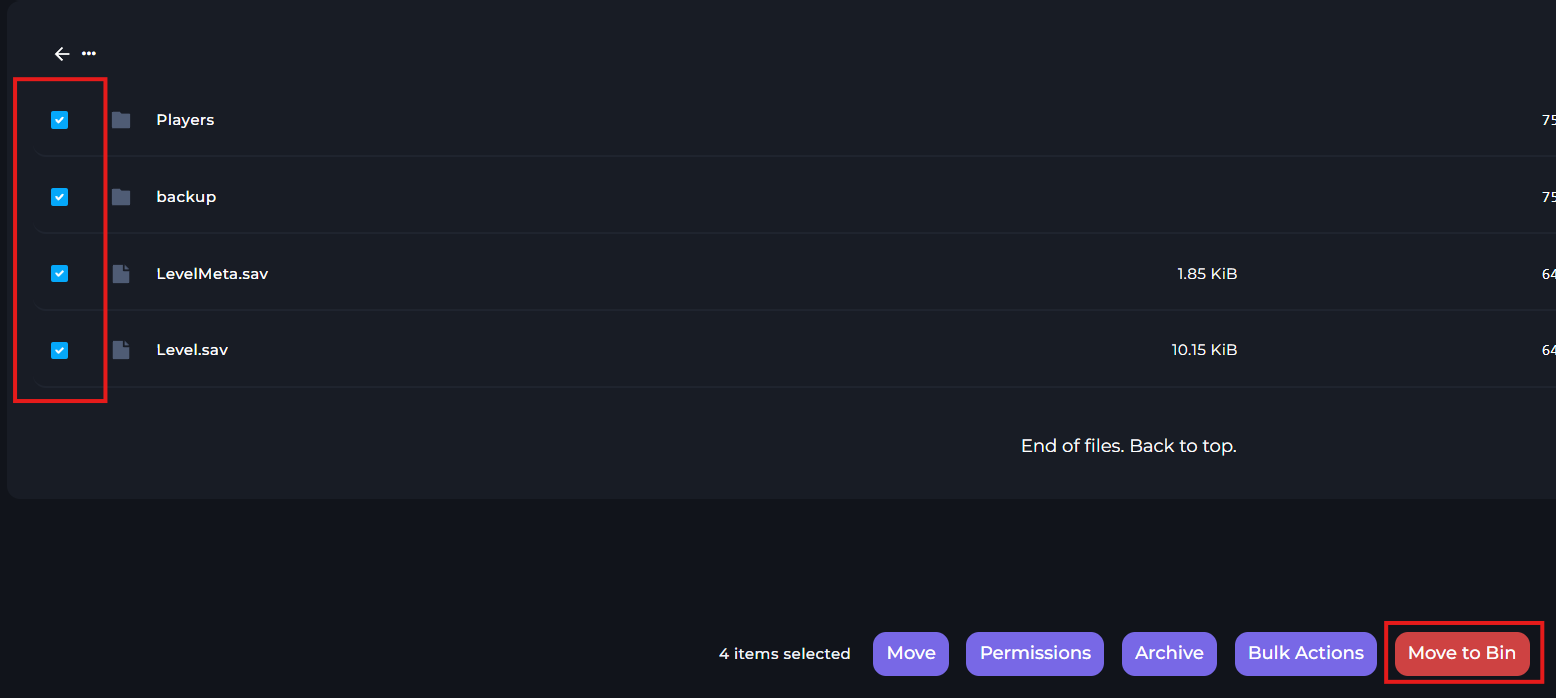
After you've uploaded the files from your own world, you can then start your server.
NOTICE
On the rare occasion that you join your server and find that the game is asking you to create a new player, this can be fixed.
Follow this guide.