
In this guide
How To Fix Your Palworld Player Saves On Your Server
In some cases, you might find that when you upload your own world to your Palworld server, it tells you to create a new player instead of playing where you left off. Here's how you fix it.
Login to your Kinetic Panel
Stop your server.
-1767383729764.png)
Go to "File Manager"
In file manager, go to the following file directory:
Pal/Saved/Savegames/0
In here, you will see your world folder, which you will need to download. You can download it by right clicking it, and click "Download".After you download your world folder, you might find that the file is zipped. To unzip it, right click the folder in your file explorer, and click "Extract All". It's recommended that you store the world folder in your Desktop for easy access.
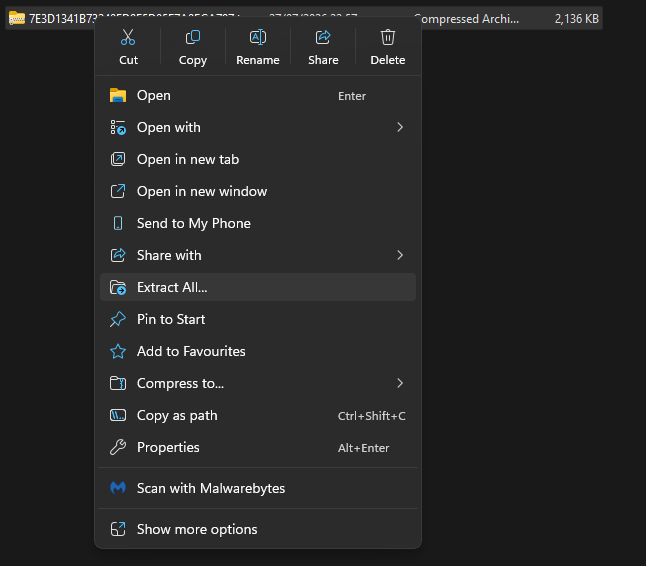
Now, you will need to download an application called pst. The download for this software can be found here on github.
You may need to extract the folder that gets downloaded.
After you've extracted it, enter the folder and click "Palworld Save Tools"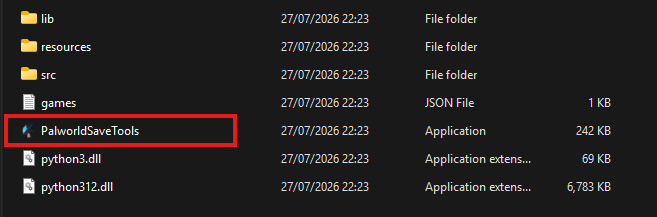
Now that you have the software open, click "Fix Host save"
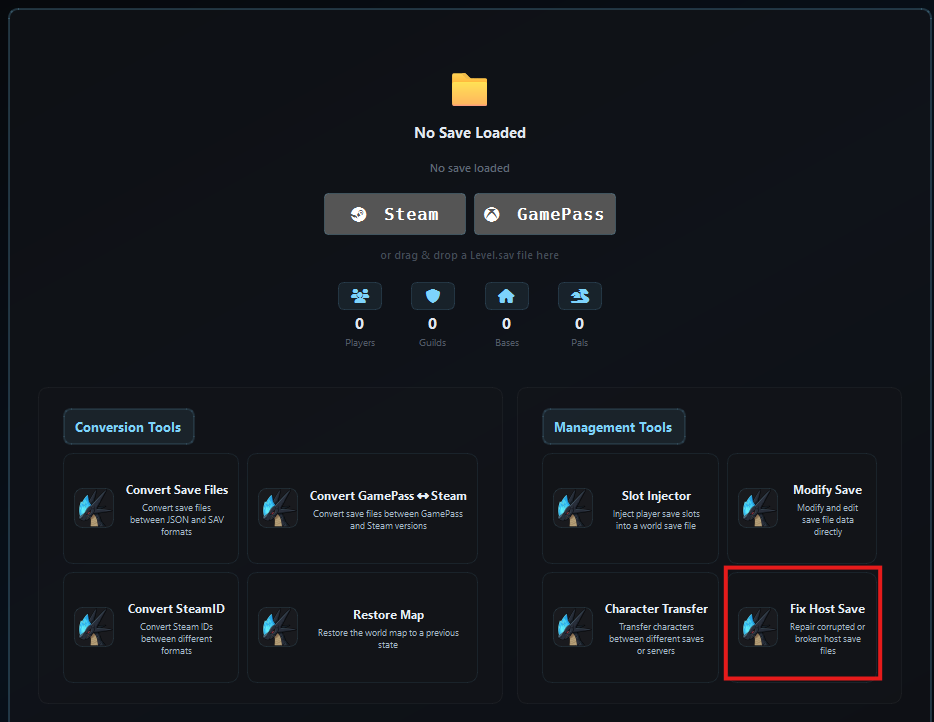
In the next menu, you will need to click "Browse", and find and select the Level.sav file that you recently downloaded. It will be located within your world folder.

After it's uploaded, you will need to select your original player data file on the left, and then select the new player data file that your server generated for you on the right.
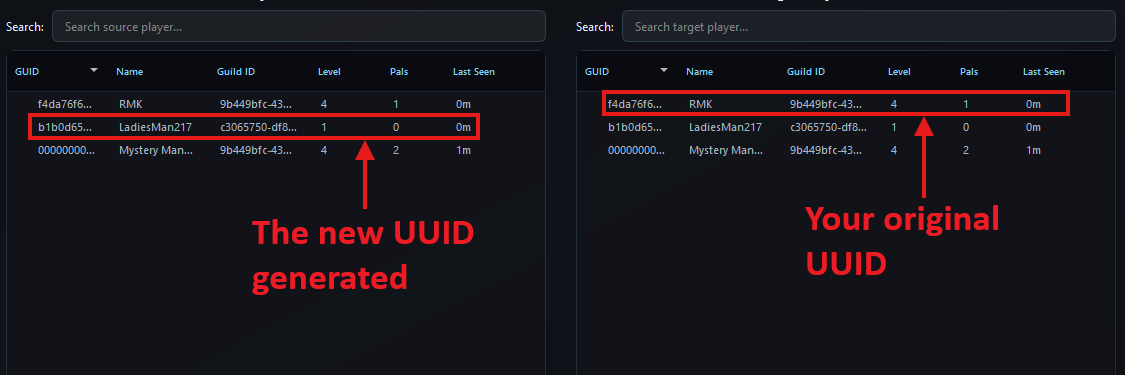
After you've selected the files, click "Migrate".

If the migration is a success, you will see a pop-up stating so.
Go back to your servers file manager, then go into your world folder.
Pal/Saved/Savegames/0/(YourWorldNumber)
You will need need to delete your "Players" folder, and your "Level.sav" file from your file world folder. Make sure to keep a backup of these files just incase.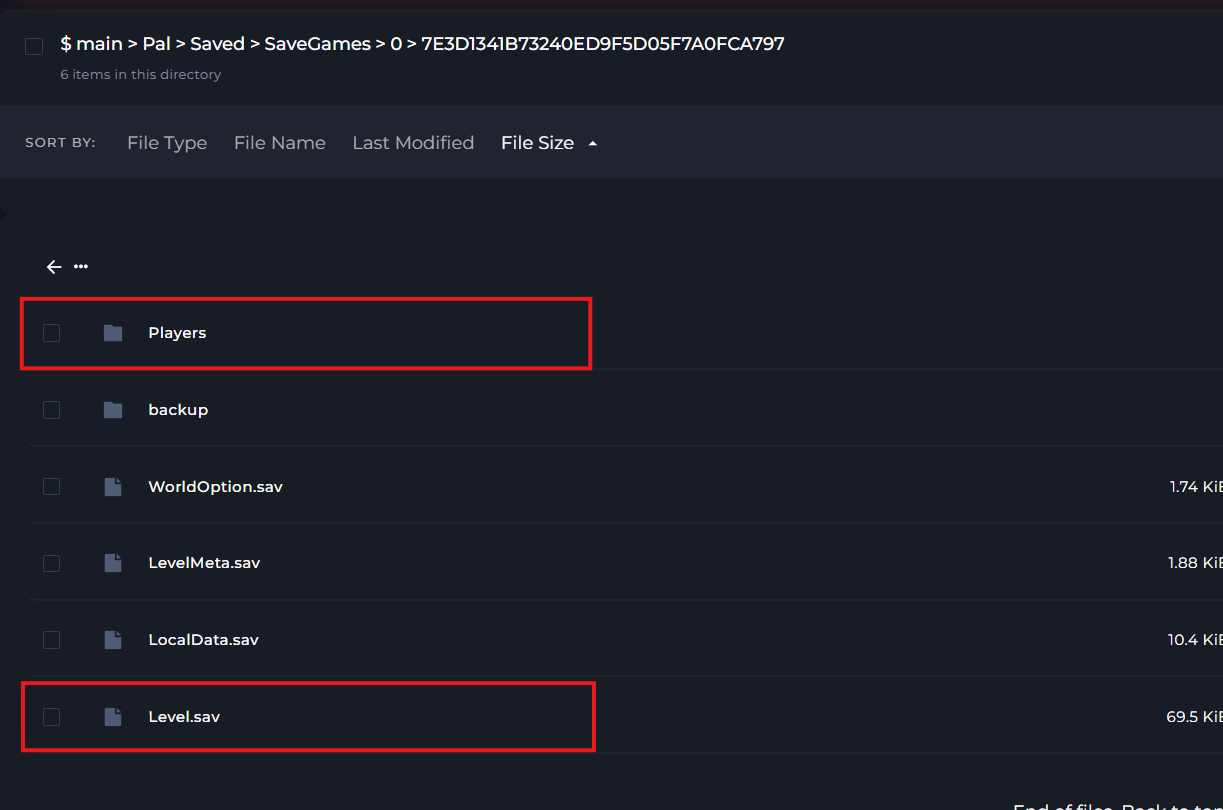
After you've deleted those, reupload your players folder and level.sav file from your computer. (The ones you downloaded before).
The level.sav file would have changed due to the migration that was done earlier.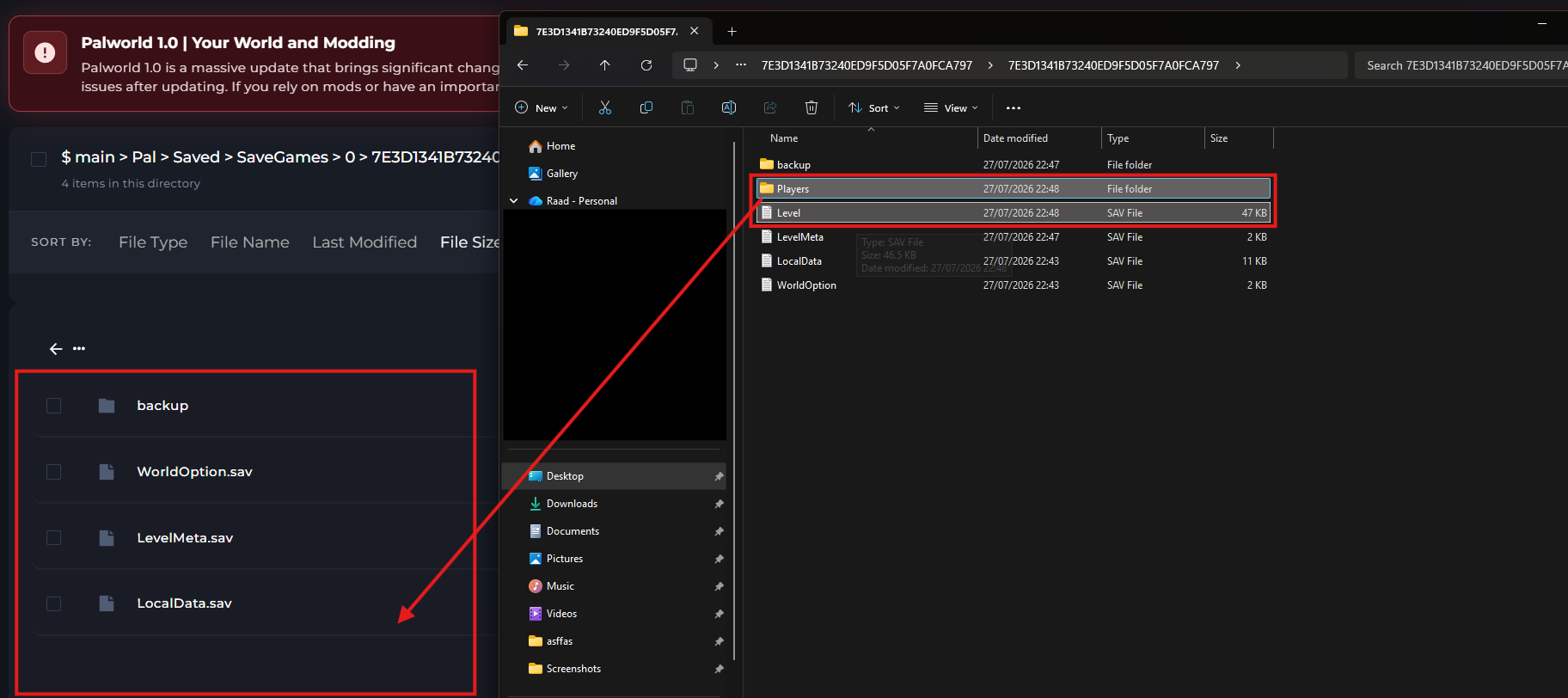
After those are uploaded, start your server.
-1767462125511.png) noticeThat's all there is to it! If you get confused or have any questions, feel free to reach out to us.
noticeThat's all there is to it! If you get confused or have any questions, feel free to reach out to us.