
In this guide
Transferring files between server splits
Sometimes, you may find that you may want to transfer files from a split server to another split. Whether this is because you want to move certain files, or transfer every file to another split or your main server so that you can delete a certain split. This guide will show you how to do that by either using backup files, or using the Kinetic Hosting SFTP software.
Transferring files using Kinetic SFTP software
The most simple method to transfer files between splits is by using the Kinetic SFTP software. Please follow these steps carefully on how to achieve this:
Find your SFTP information, to do this, please follow this guide.
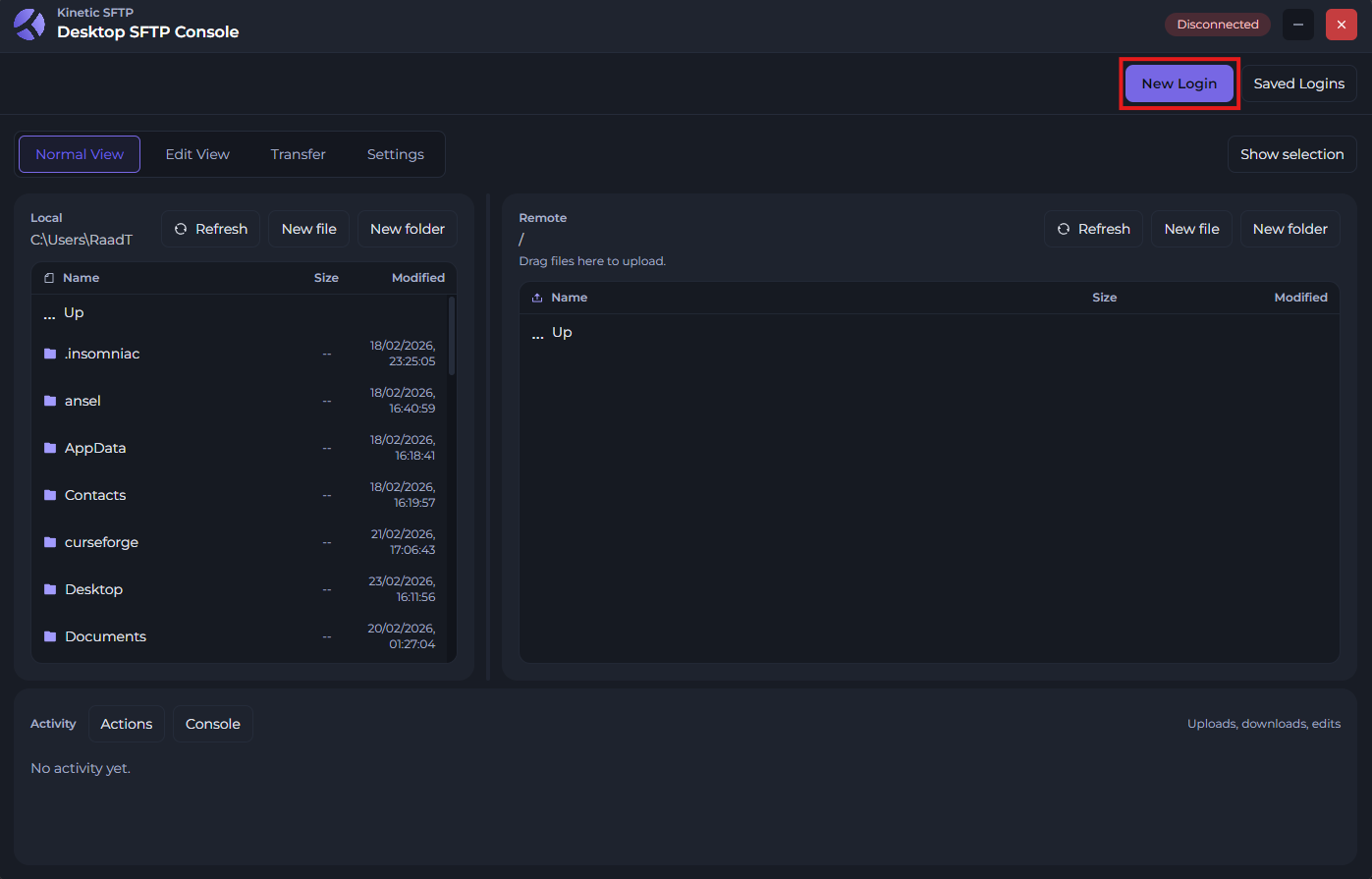
Once you open the Kinetic SFTP software, click "New Login" at the top right.
In the login page, please input your SFTP information, which can found at your file manager page on your Kinetic Panel.
For now, you'll need to input the SFTP information from the split server you want to take files from.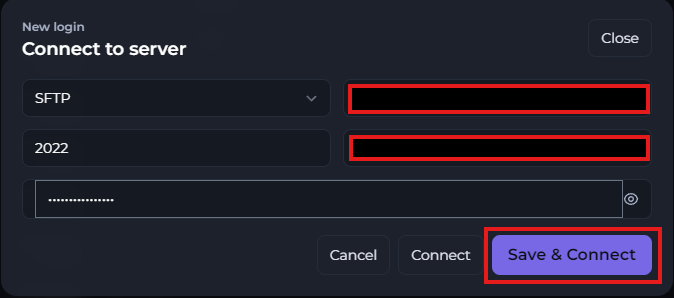
If you've inputted your information in correctly, you will see a "Connected" icon at the top right of the SFTP menu.

Now, click the "Transfer" tab at the top of the menu. Then, you'll need to input the SFTP information of the server to you want to move files to on the right side.
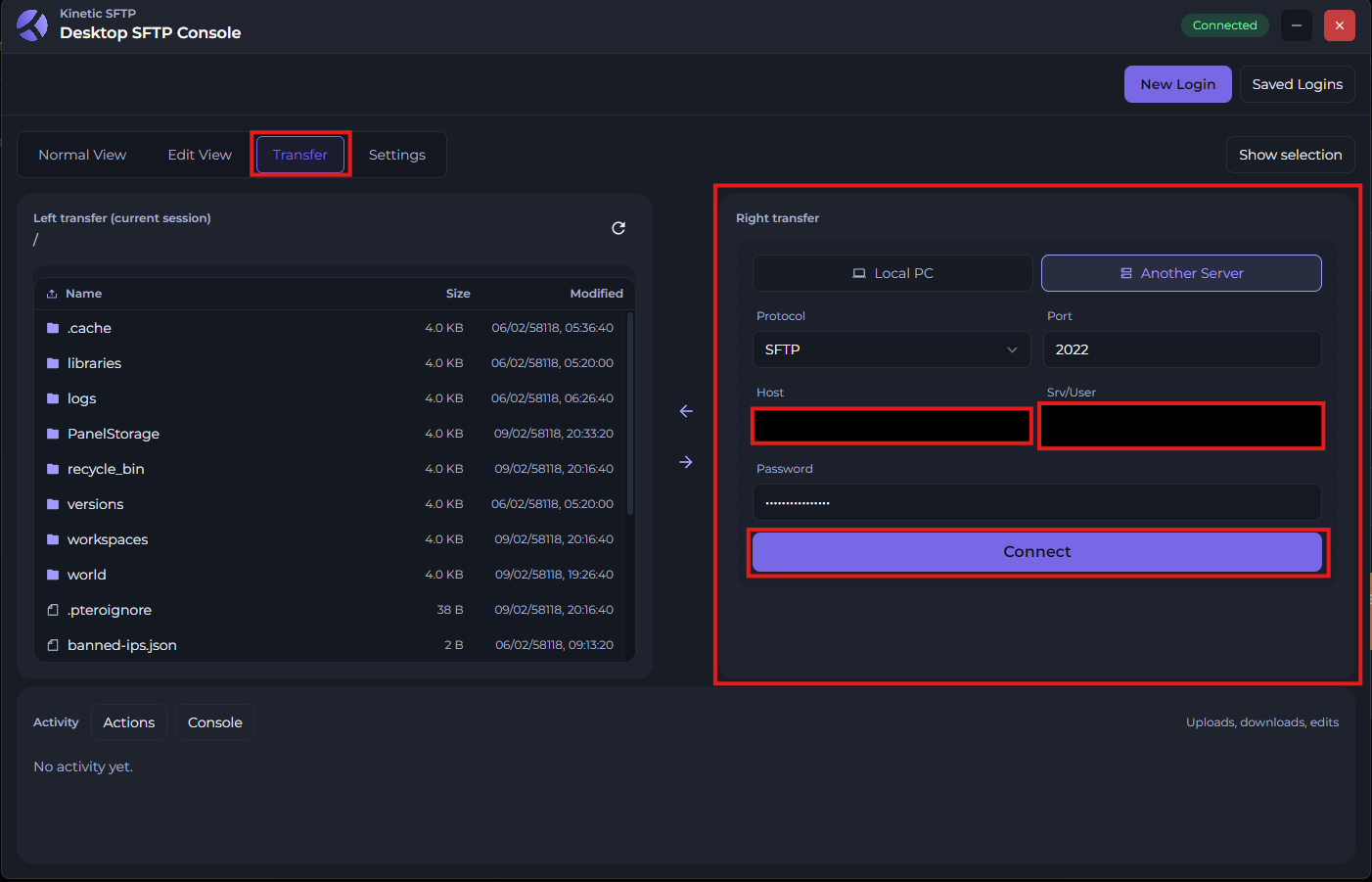
Once you've inputted the information, you should see the files that are present within the second server in that second box.
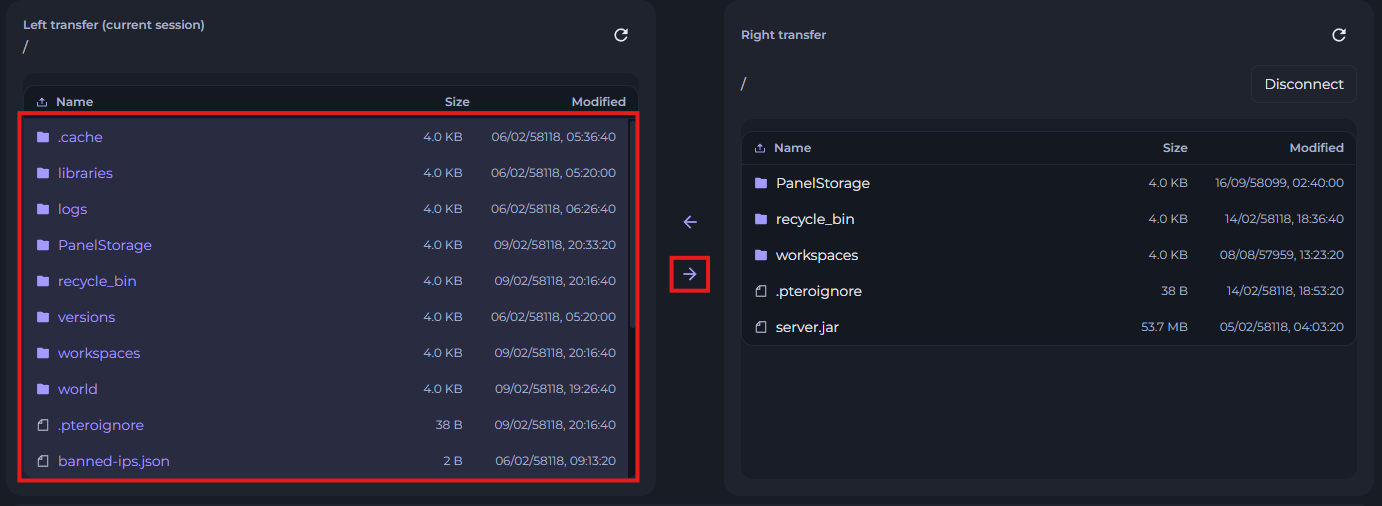
Now, your menu should look this this: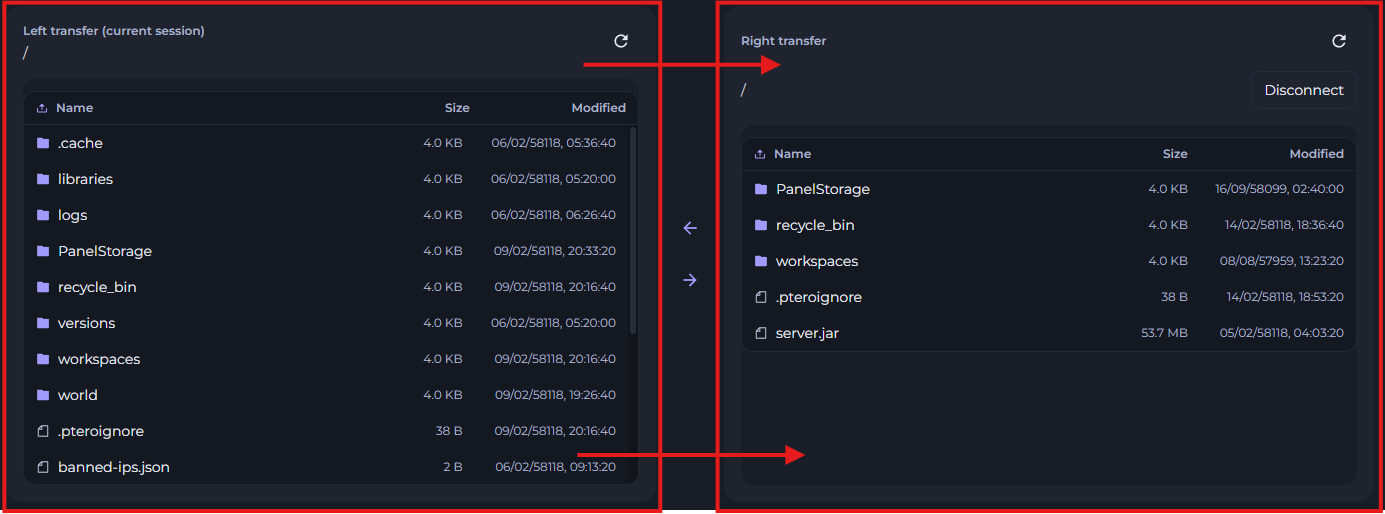
If everything looks good, you can now begin copying files to the second server by selecting the files from the left side by holding down "CTRL" and left clicking the files you want to copy over. Then, click the arrow icon below to transfer files to the second server split.
Transferring files using file manager and backup files
While this method is a bit more complicated, it's possible to download files to your computer and then manually upload them to your other split server.
To download files from one server, simply right click a file you wish to download, then click "Download"
However, if you want to download large folders, you may need to first archive the folder, then download the archive file.
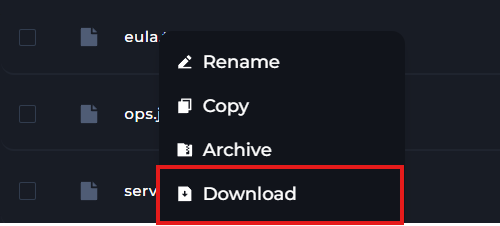
Downloading a folder:
-1771864692213.png)
-1771864716521.png)
How to create and download a backup
Login to your Kinetic Panel
Go to Backup manager.
-1770968431826.png)
Create a backup.
-1771864873041.png)
-1770968519141.png)
Once the backup is created, you can download the backup.
-1771864997742.png)
Once you have your backup file, you will be able to upload it to any other split you need, then un-archive it.