How to Upgrade/Downgrade a Server
Last updated 07 Jun 2025
Need a game server?
Spin one up fast with our feature-rich panel and seriously low prices.
To upgrade a server, head to the Billing Portal
2 Once you’ve logged in with your account information, you should see our billing dashboard. You'll see 4 boxes, one marked with services.

3 Pressing on this will take you to a new page with a list of all the services you have with Kinetic Hosting. Click on the service you wish to Upgrade / Downgrade.

4 You should now be directed to a page with the Packages we offer with the different server specifications and billing cycle. You can choose to upgrade your package as you would like.

You will want to Upgrade or Downgrade to the package you wish to have. If your server has 4GB and you want 8GB, you will want to select the 8GB Option.
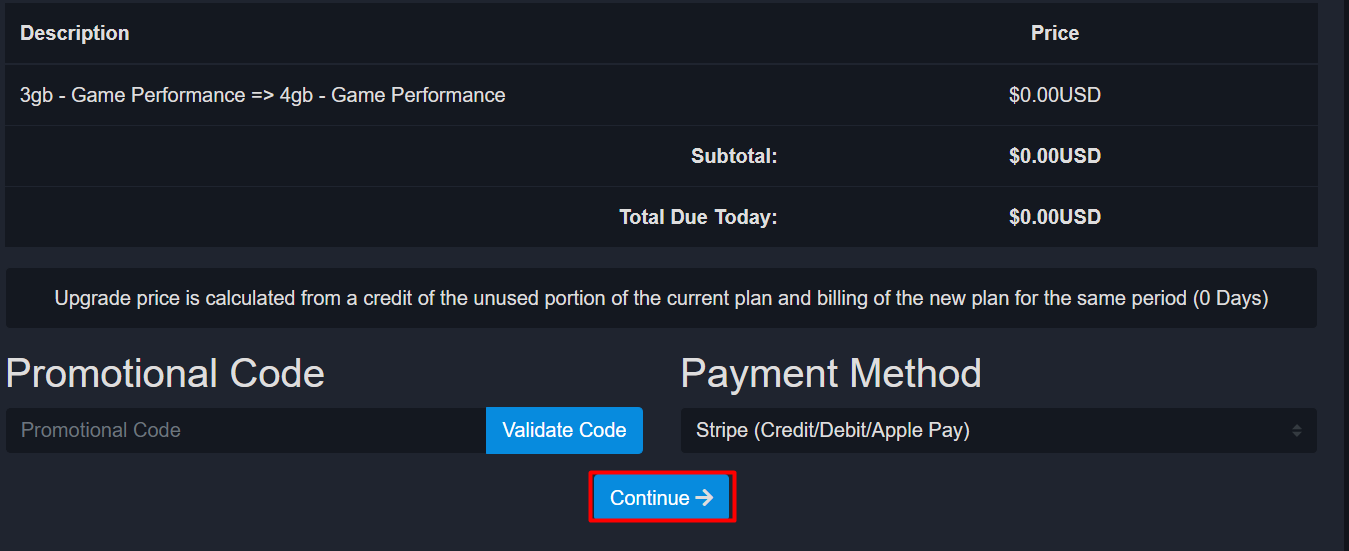
5 From there, you will be directed to checkout process to continue your upgrade, once you are done, click on "Continue".
All set
You should be all set with your upgraded server, if you have any questions please reach out to our Support Team. Always make sure to reboot / restart your server after you have done the upgrade.