How To Upload A World To Your Valheim Server
Last updated 12 Aug 2025
Need a game server?
Spin one up fast with our feature-rich panel and seriously low prices.
1 Login to the Kinetic Panel and Stop your server.
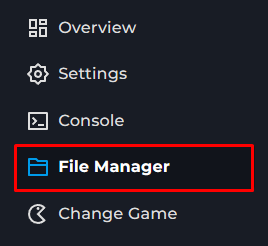
2 Go to the File Manager
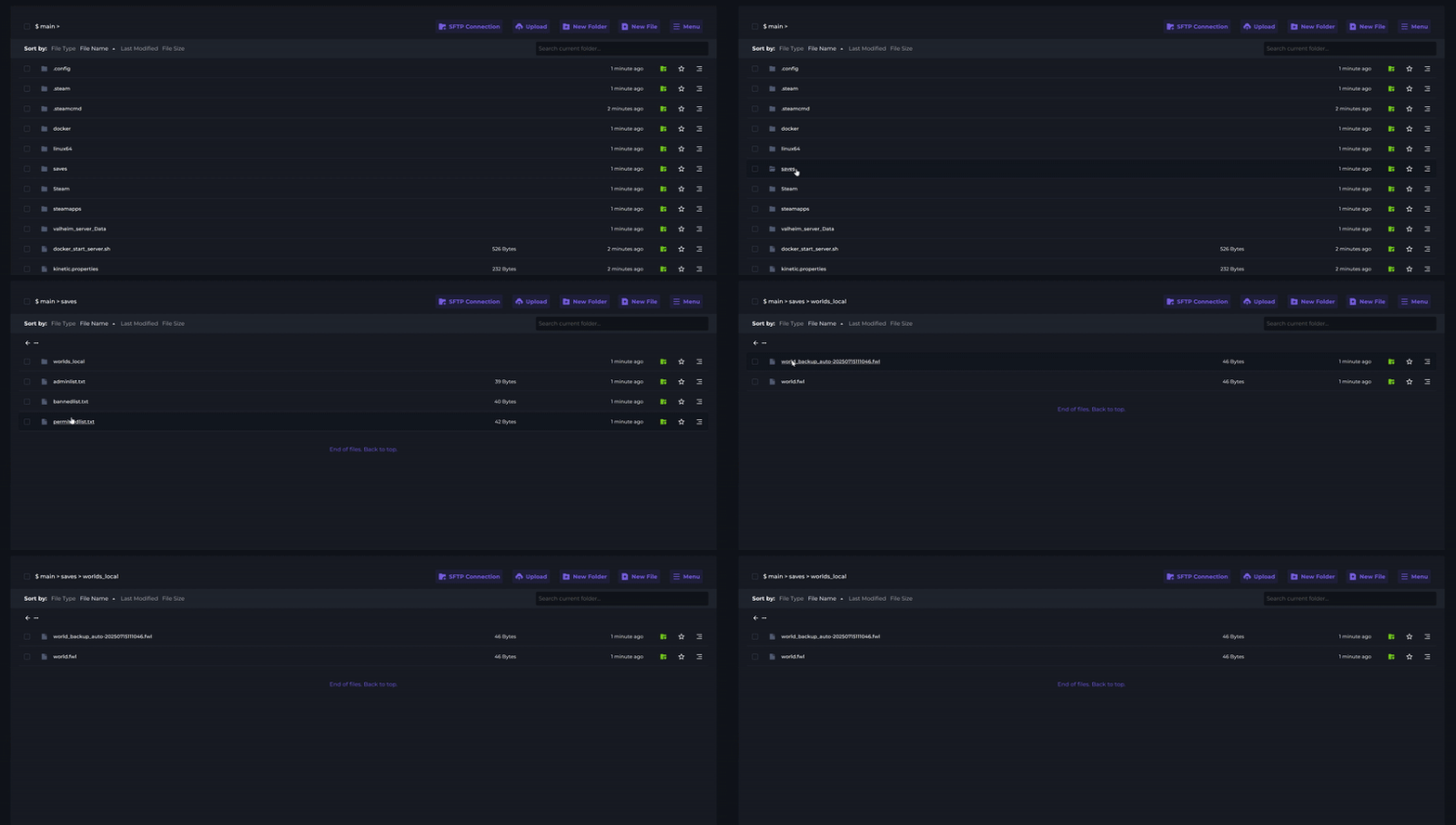
3 Navigate to saves > worlds_local.
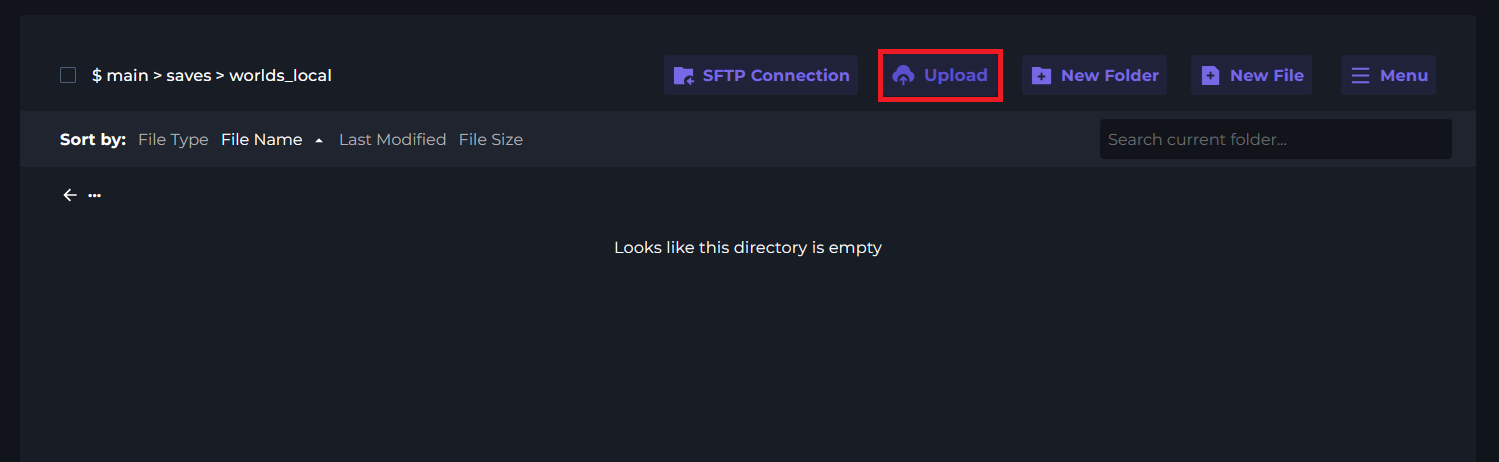
4 Click upload and select your world.fwl file.
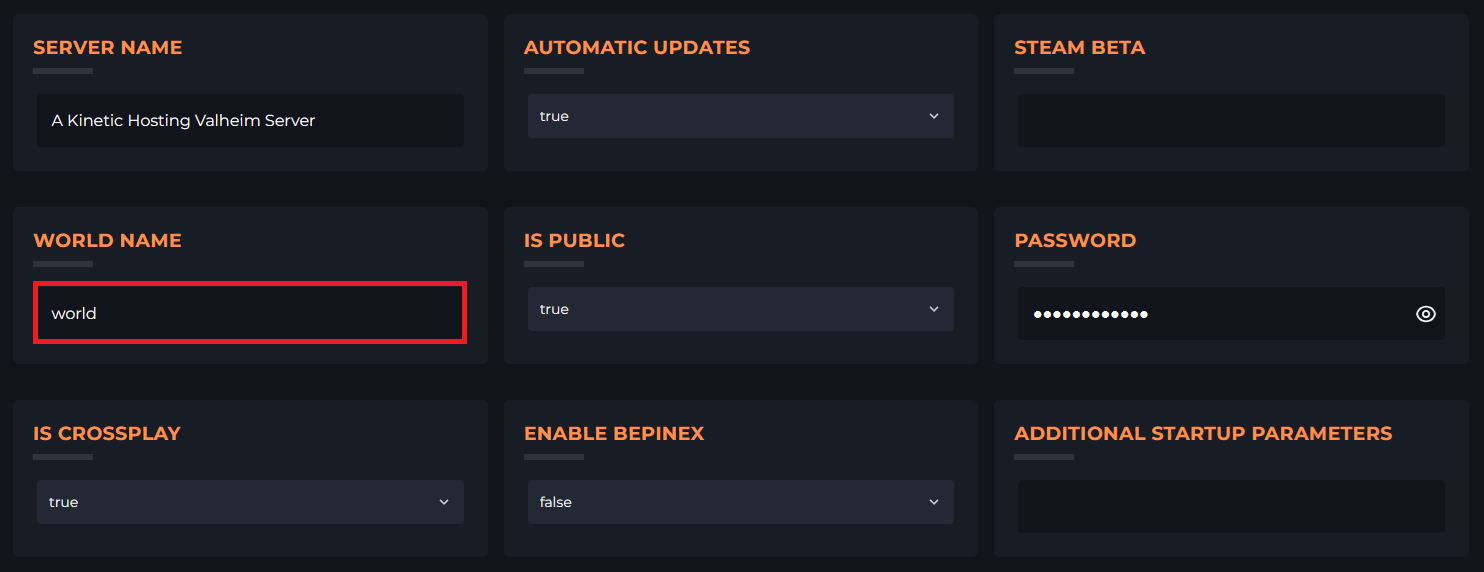
Setting The World Name
If your existing world has a name other than world.fwl you will need to manually set the name before starting your server.
1 Login to the Kinetic Panel.
2 Go to the Settings
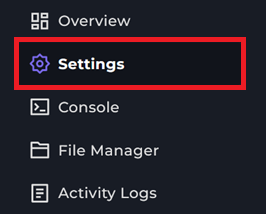
3 Locate the World Name option and change it to a new value`.