How to upload a world to your Tshock Server

Last updated 09 Mar 2026

Need a game server?

Spin one up fast with our feature-rich panel and seriously low prices.

Locating Your World File

Before you can upload an existing world to your server you first need to locate it. Below you can see the common location for single player worlds across each operating system.

OS

Directory

Windows

C:\Users\%userprofile%\Documents\My Games\Terraria\Worlds

Mac

~/Library/Application Support/Terraria/Players

Linux

~/.local/share/Terraria/Players

Uploading A World

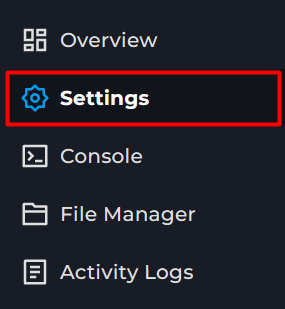
1 Login to the Kinetic Panel and Stop your server.

2 Go to the File Manager
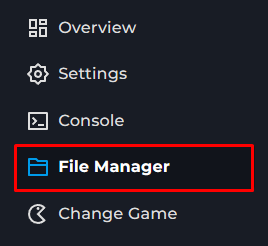
Kinetic Panel File Manager

3 Open the worlds folder.
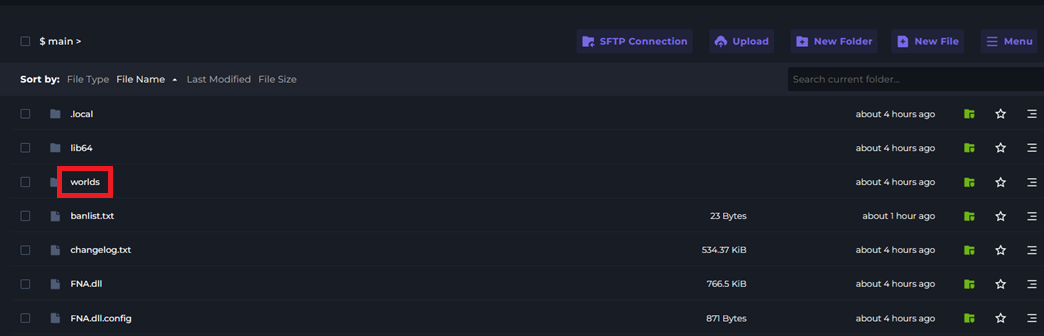
786939be F704 4f7f 8569 8e678def8bd1 TerrariaWorlds

4 Click Upload and select your .wld file.
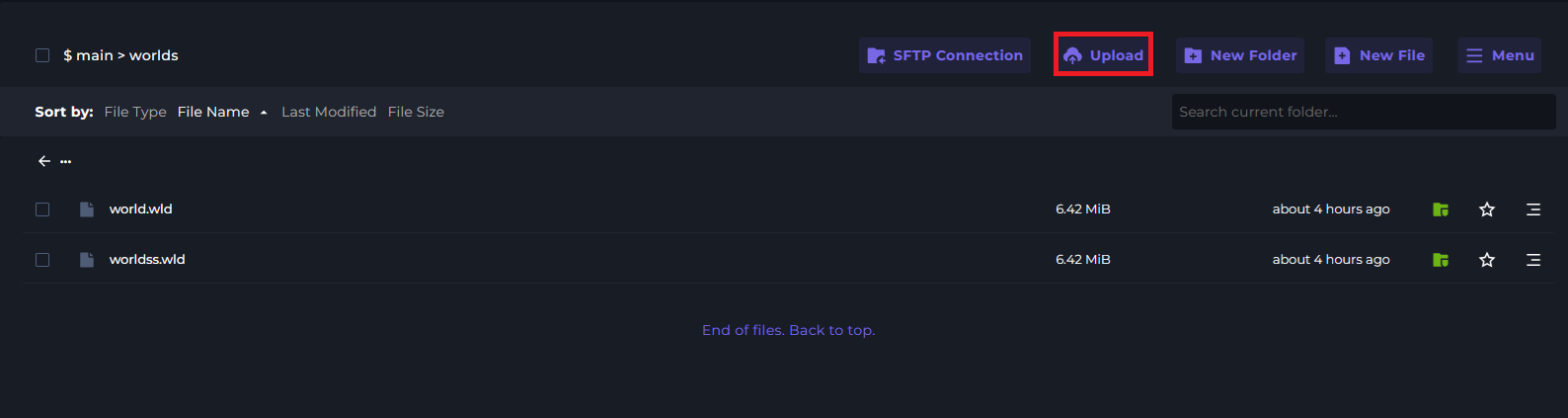
9ba00987 D9de 4f1f B7b3 81c1cb322d01 TerrariaWorldUpload

5 Go to the Settings page

29db9dce E092 4551 9c1e Ac135c470c58 Settings Page

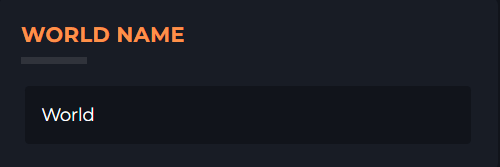
6 Locate the WORLDNAME option and set it to the name of your .wld file.
Display and navigation

Accessibility options

Personalise how Kinetic Hosting looks and how you move around it. Your choices are saved on this device.

Press Ctrl+K to search. When link hints are enabled, hold Shift to label every visible link and control.

High-contrast dark theme

Use black and dark backgrounds with white text and stronger borders throughout the site.

Keyboard link hints

Hold Shift to show a temporary key on every visible link and control. Keep holding Shift and type a label to activate it.

Keyboard navigation

Ctrl+K opens site search. When link hints are enabled, hold Shift to label every visible page link, menu item, order control and location. Keep Shift held while typing the displayed label, or release Shift to close the labels.

Search Kinetic Hosting

Search site pages, game servers, knowledgebase articles, blog posts, FAQs and modpacks.

Enter at least two characters to search the site.

↑↓ Select · Enter Open · Esc CloseCtrl+K