
In this guide
How to upload a save to your Schedule 1 server
First, you will need to find your Schedule 1 save file from your single player game. To do this, start your "Run" app on your PC. You can either search this app on your computer, or press (Windows Key + R)
Once the command box appears, type the following:
%LocalAppData%Low
Then click "Ok"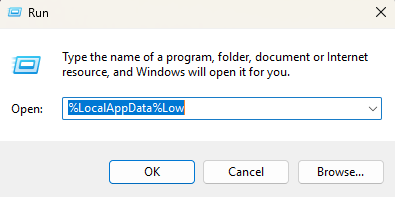
Once that's done, you'll see the following folders. You will need to open the "TVGS" folder.
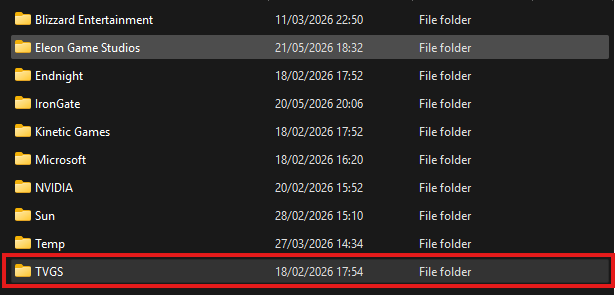
Then, open the "Schedule 1" folder, then your profile folder, then you'll find your SaveGame files. Those are your saves, and you'll need to choose which one you'd like to upload to your server.




Login to your Kinetic Panel.
Stop your server.
-1767383729764.png)
Go to "File Manager".
-1770311095747.png)
In your file manager, find and open your "Userdata" folder.
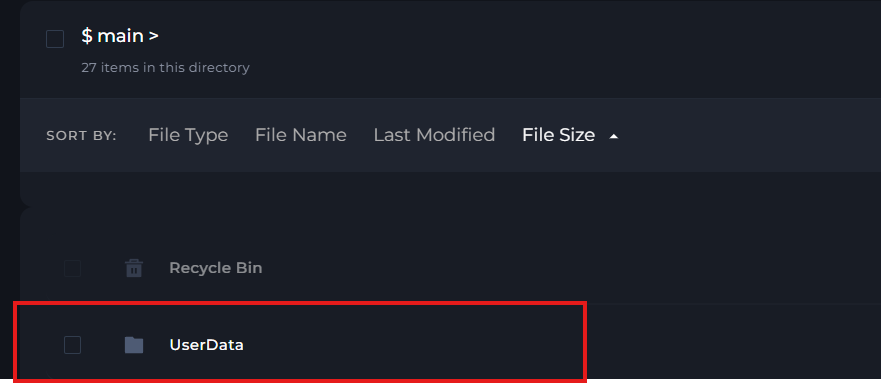
In that folder, upload your SaveGame folder, and then delete your "DedicatedServerSave" folder.
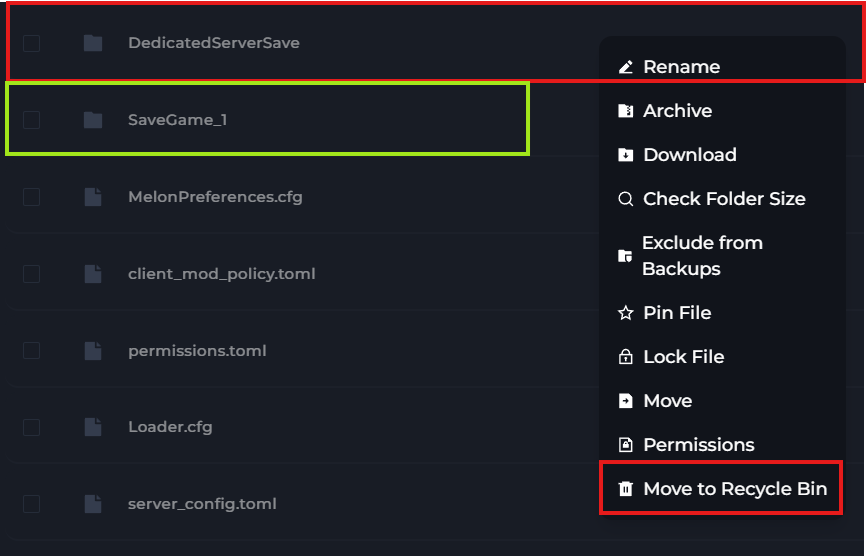
Then, rename the SaveGame folder you uploaded to "DedicatedServerSave".


Start your server.
-1767462125511.png)