How To Solve A Minecraft Server Crash
Last updated 02 Jan 2026
Need a game server?
Spin one up fast with our feature-rich panel and seriously low prices.
Server Locking Up
If your server has locked up and is not responding to any commands or inputs. First, check the Workspace page. If the RAM value is over your allocated amount, this means your server has run out of RAM. If this keeps happening you may need to upgrade your server. Please reach out to our support team, or see the help tips on this site.
Fixing a Locked-Up Server
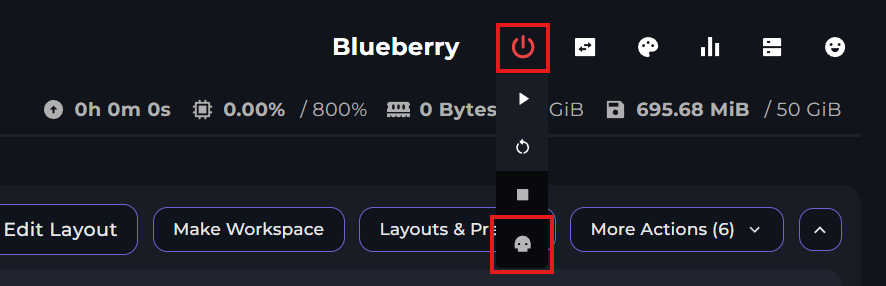
If a server is locked up, click on the power menu and you can kill your server by clicking on the skull icon.
Finding A Fix For A Crash
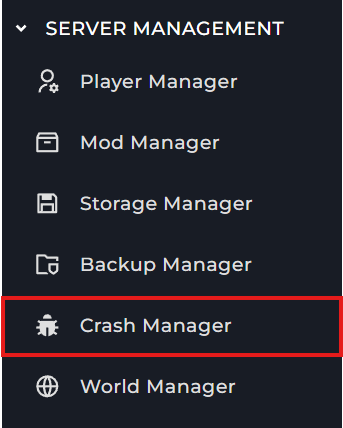
If your server keeps crashing, the best way to find a fix for it, is to either go to the "Crash Manager" section, or read your crash reports. To access the Crash Manager, you'll need to click the "Crash Manager" button of the left side of the game panel.
Once you've opened the Crash Manager, you should be met with a page that looks like this:
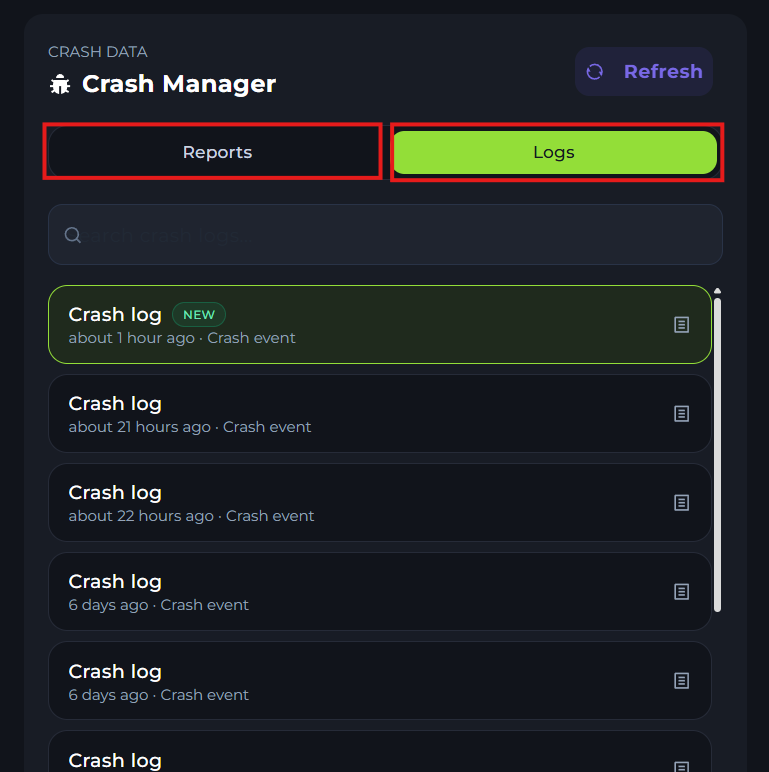
On this menu, you can choose between your logs files by clicking "Logs", or clicking "Reports" to see your crash reports. If the server crashed and closed, a crash report will be generated. However, if the server didn't crash but somehow got stuck, then checking the logs files will be the better option.
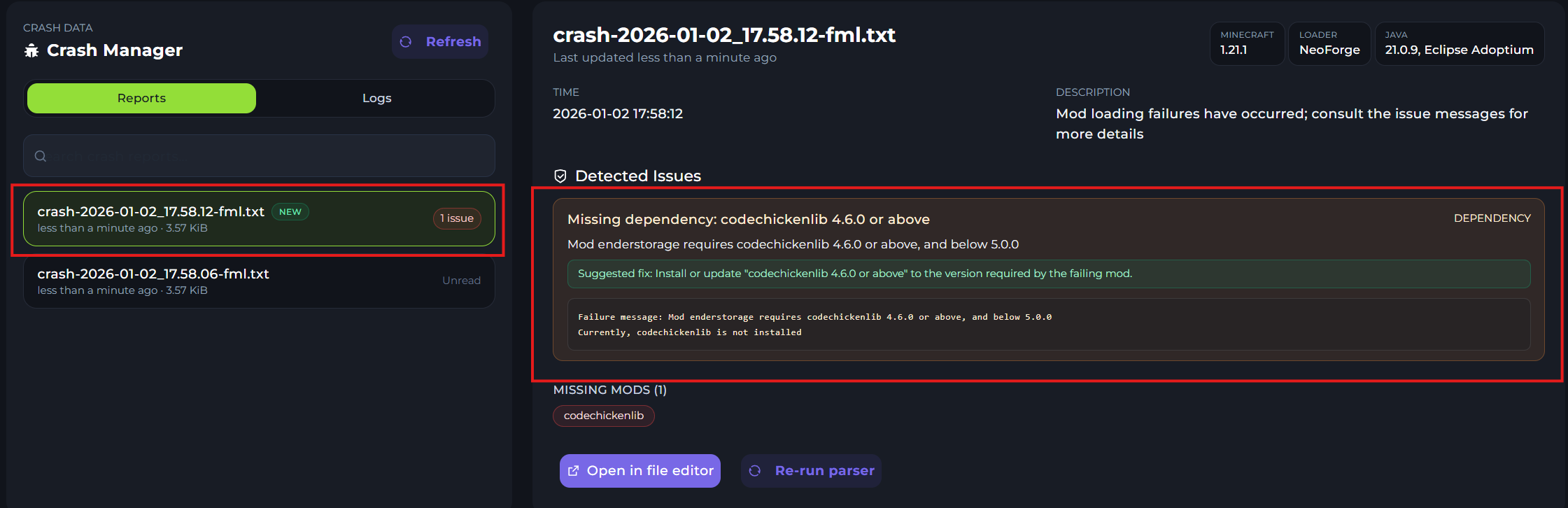
As you can see in this example, the most recent crash report has been selected. The crash report states that the mod "codechickenlib 4.6.0 or above" is missing, as is required as a dependency mod. So, in order to solve this, simply add the mod to the server.
If your server keeps crashing and you're unable to diagnose the issue, please reach out to our support team.
Activity Logs
There is also an Activity Log you can look at to view your crash easier.
To access the Activity log, first click on the Activity Logs tab on the left side of the Kinetic panel.
-1767378827123.png)
Once you open the activity logs, you'll be met with a screen like this; where you can view your most recent activities, which also include server crashes.
-1767379041736.png)
On this menu, you can click the "i" icon on the right to get more information about the crash, where you'll be met with another menu:
-(use-this-one)-1767380032376.png)
In this menu, you can either return to your crash manager by clicking "Open Crash Manager" , or you can access the raw crash report file by click "Open Raw Log"