
In this guide
How To Install Bluemap On A Minecraft Server
What is bluemap?
Bluemap is a server plugin/mod that can be used to view your servers world through the web. It's useful for those who wish to view the progress of the server world without having to log into the server itself.
Quick Setup
Login to your Kinetic Panel
You will need to start your server at least one time before proceeding.
-1767462125511.png)
Stop your server.
-1767383729764.png)
Go to "Tools", then "Quick Setup"
-1770580128361.png)
Within the Quick Setup menu, you will see an option to install Bluemap.
Select the version you wish to install in the dropdown, then click "Install".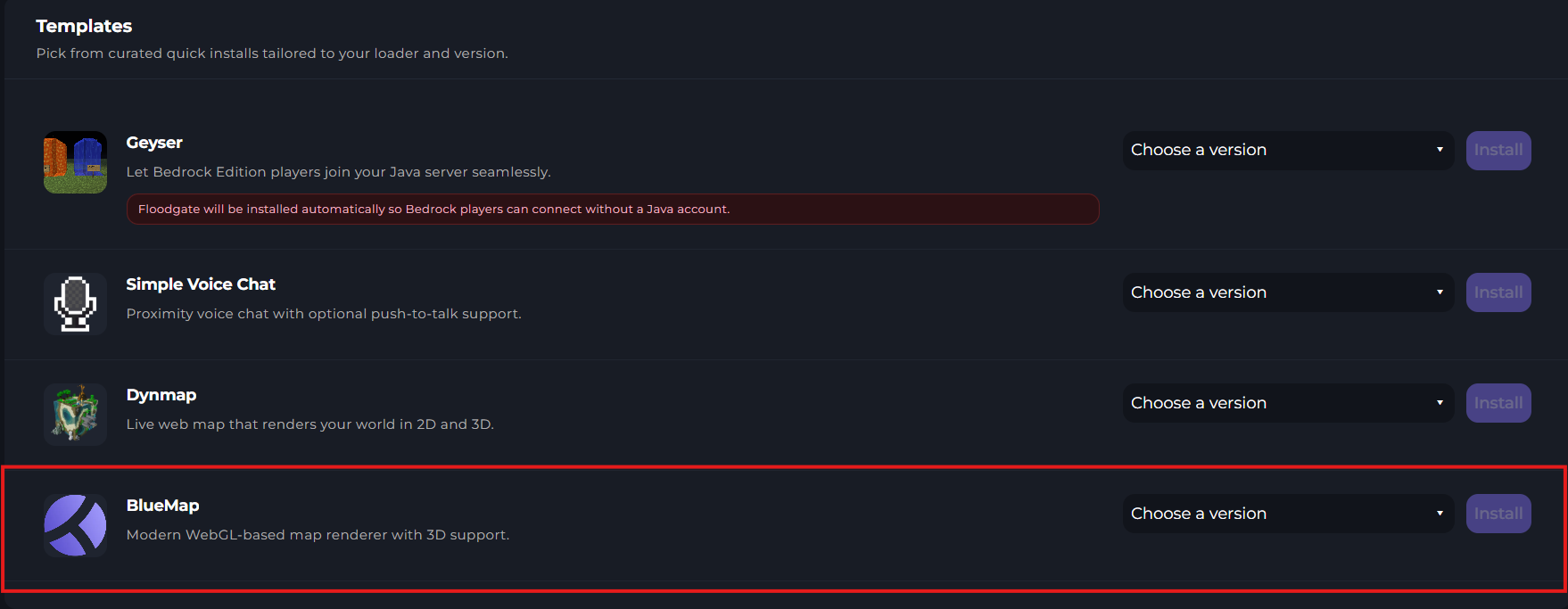
After the installation has complete, you can start your server again.
Once you have the server running, you can then view your web map. To find out how to do this, scroll down to the bottom of this guide.
Manual Installation
Login to your Kinetic Panel
Stop your server.
Go to "File Manager"
-1770311095747.png)
Go to your plugins folder.
-1767636321627.png)
This the plugins folder, upload your Bluemap jar file. You can download this file from Modrinth, Curseforge, or through the Bluemap Github.
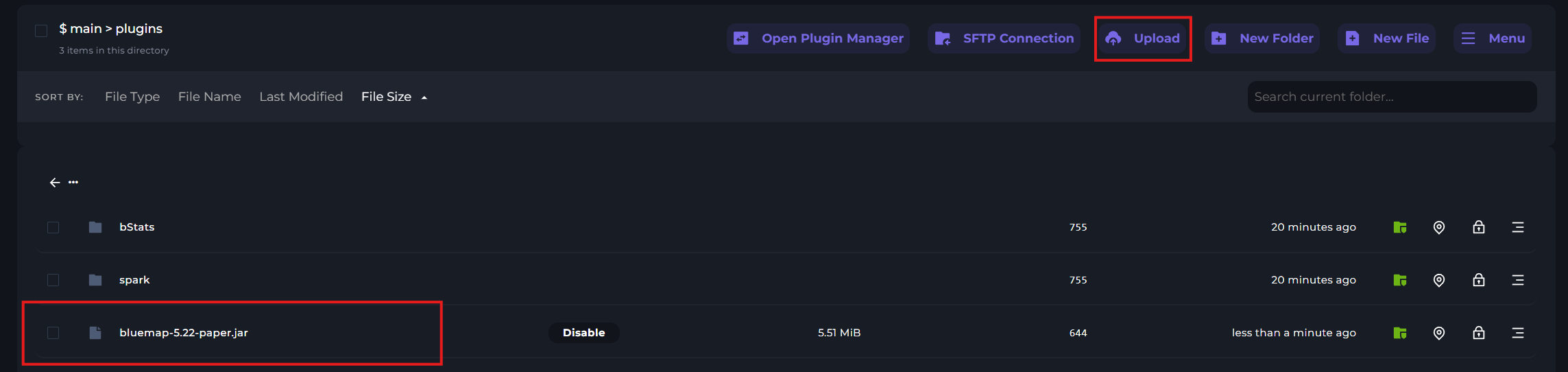
Once the file is uploaded, start your server.
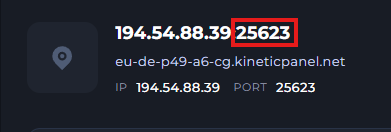
Go to "Network and ports", and open a new port. After you've created your new port, you will need to copy the last five digits.
-1767636907514.png)
Go back to file manager.
Now, go to the following file directory:
plugins/bluemap/webserver.conf
Open the webserver.conf file.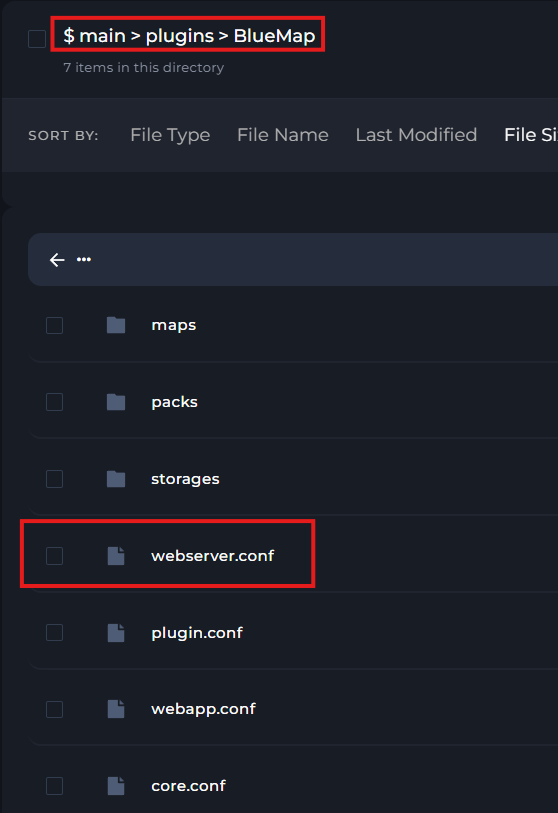
In that file, you will find a line that asks you to state the port to assign bluemap to. You will need to paste in the port you copied earlier.
After doing so, click "Save"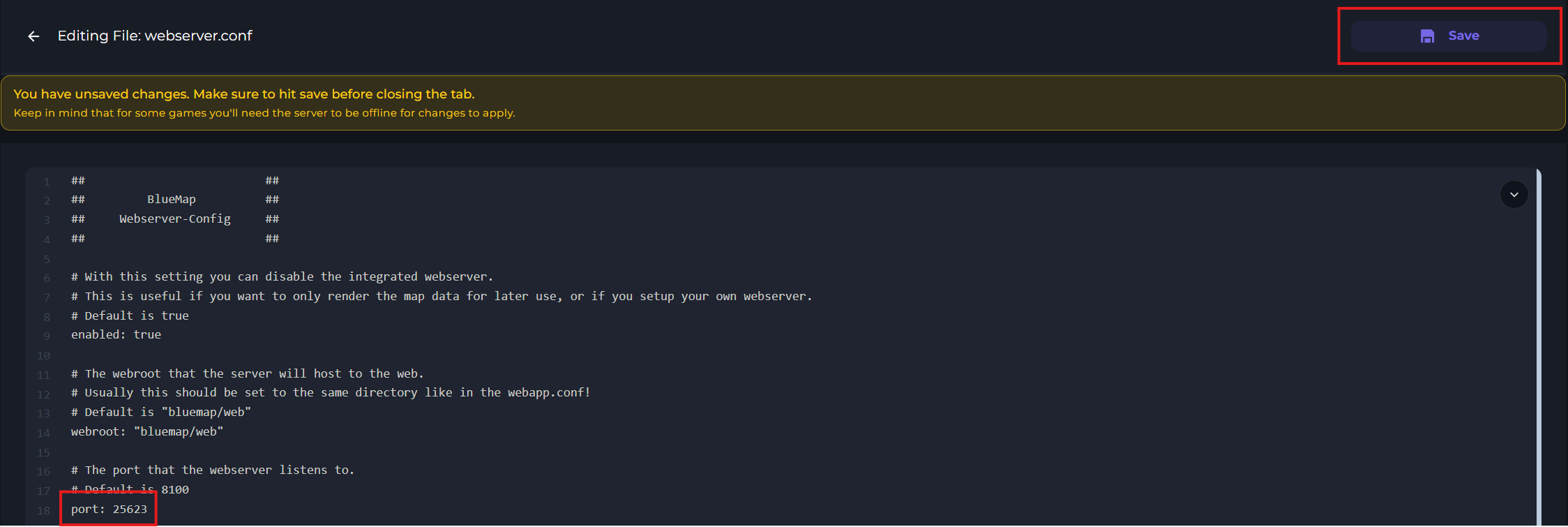
Restart your server.
-1771174363177.png)
Opening the Bluemap web app
On your panel, go to "Network and ports".
-1770314405199.png)
Whichever IP you've set to bluemap, copy it.
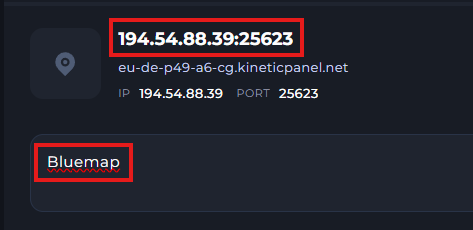
You can now paste this IP into your URL box on your web browser, and the bluemap map should appear.
