
How To Change Your Skin In Minecraft

Last updated 07 Jun 2025

Need a game server?

Spin one up fast with our feature-rich panel and seriously low prices.

How To Change Your Skin

Changing your Minecraft skin is a fun way to not only show off, but gives your character it's own personal touch. It's very easy to change your skin. There are many websites where they have premade skins such as Skindex or you can make your own.

Changing Your Skin Through the Minecraft Launcher

1 Open up the Minecraft Launcher

2 Head to the Skins area.

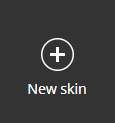
3 From there, you will see a "New Skin" button.
4 Then you can select the Player Model from either Wide to Slim and, if you have a cape you can select that there as well.
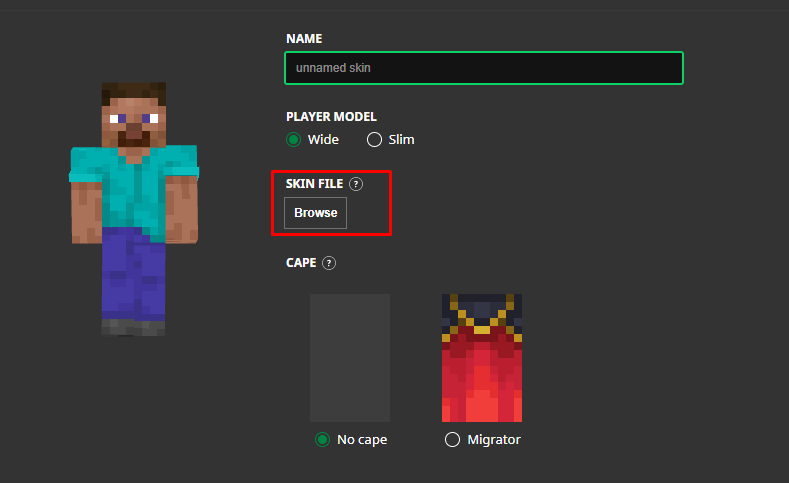
5 You can upload your skin from where you have downloaded it from & you are all set!

Display and navigation

Accessibility options

Personalise how Kinetic Hosting looks and how you move around it. Your choices are saved on this device.

Press Ctrl+K to search. When link hints are enabled, hold Shift to label every visible link and control.

High-contrast dark theme

Use black and dark backgrounds with white text and stronger borders throughout the site.

Keyboard link hints

Hold Shift to show a temporary key on every visible link and control. Keep holding Shift and type a label to activate it.

Keyboard navigation

Ctrl+K opens site search. When link hints are enabled, hold Shift to label every visible page link, menu item, order control and location. Keep Shift held while typing the displayed label, or release Shift to close the labels.

Search Kinetic Hosting

Search site pages, game servers, knowledgebase articles, blog posts, FAQs and modpacks.

Enter at least two characters to search the site.

↑↓ Select · Enter Open · Esc CloseCtrl+K