
In this guide
Installing Arclight via Version Installer
Login to your Kinetic Panel
Go to the versions dropdown on the left, then click "Version installer".
-1770313983143.png)
In the version selection dropdown, select "Arclight". And then, you can select the mod loader you want to use. For the purpose of this guide, we'll be selecting Arclight, then Forge, and then minecraft 1.21.1.
-1771176868443.png)
That's all there is to it! You can now start your server.
-1767462125511.png)
Installing Manually
Head to the Official Github for Arclight
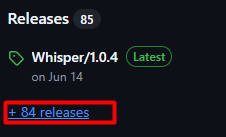
Download the version you need, if you are looking for an older version, click on the "Releases" on the right hand side. From there, depending if your server is running Fabric or Forge, you can select the correct loader you are using.
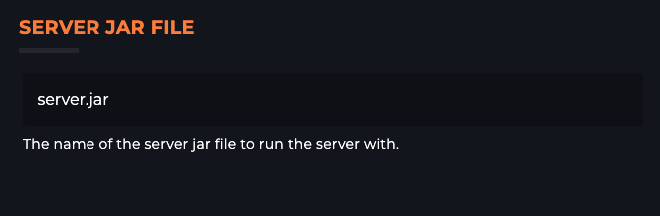
Set the Arclight jar on the settings page, and you're all set.
You can now add plugins to the plugins folder in the file manager.
Potential Issues
World Corruption - Running Mods and Plugins can cause problems with your servers world, we always recommend utilizing our Backup Manager to have backups before you make any changes.
Moving To or From Arclight - If you wanting to do this, if you have plugins on your server and you are moving off of Arclight, some plugins will do more than expected placing things in the world for an example. With this, it's best to see what the plugin actually does before adding Arclight onto your server.
Stability - Arclight can be Unstable causing your server to randomly crash with no real cause. In some cases, it might be a mixture of the mods and plugins you are running on the server putting your server in a crash loop.