How To Upload Your Own Minecraft World
Last updated 06 Jan 2026
Need a game server?
Spin one up fast with our feature-rich panel and seriously low prices.
Zip The World
First, zip the world up on your PC. If you're moving your world over from another hosting provider, if it's possible, zip the world on their provider first. That way you'll get a quicker download.
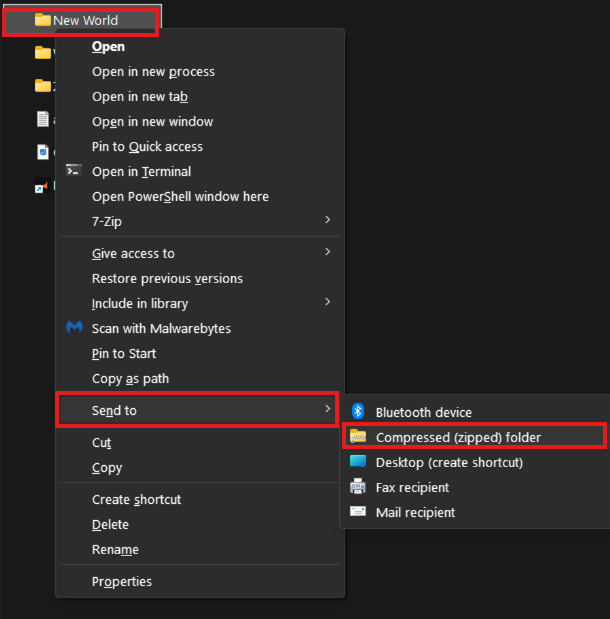
If you're using Windows. Right-click on the world folder (Shift and right-click if on Windows 11), press send to, then Zip folder.

Uploading The Zipped World File Manually
Stop your server by clicking the power button, then click the square icon.
-1767383729764.png)
Locate and open file manager.
-1767384099292.png)
Either drag and drop your world zip folder into the main directory, or click the "Upload" button on the top right corner to select the file manually.
-1767463079847.png)
-1767463154739.png)
Once the Zipped archive is uploaded, right-click the file, and select "Unarchive".
-1767712140453.png)
Now that your world file has been successfully uploaded, you will need to input the world name into your settings.
You can either right click your world file and click "Rename" to copy the name, or simply remember the name.-1767712261978.png)
-(this-one)-1767712317538.png) noticeYou won't need to click "Rename" in this case. This is only to copy the world name for later. So you can press "X" once you're done.
noticeYou won't need to click "Rename" in this case. This is only to copy the world name for later. So you can press "X" once you're done.Go to your settings menu.
-1767382223523.png)
Under the "World file" section, enter the name of the world file you just uploaded.
-1767712428048.png)
All done! You can now start your server by clicking the power button, then click the play button.
-1767462125511.png)
Uploading a world file via World Manager
You can also upload the world to the World manager on the Kinetic Panel, this will do all of the previous steps for you easily to avoid any hassle.
Head to the World Manager Page on the Kinetic Panel.
-1767713416901.png)
On the left hand side of the world manager menu, you'll need to upload your world file or your zipped world file into the world manager by either dragging and dropping file into the upload box, you by clicking "Browse files" to select the file.
Once you've selected your world file and uploaded it, you will see a loading bar below.-1767713633101.png)
-1767713732578.png)
Once the world is uploaded, you'll see all of the worlds properties.
-1767713886983.png)
You'll now want to head to the Settings Page & set the world name within the World File box.
Start your server, and then your world file will be loaded in.
Using SFTP To Upload A World
When uploading a world using SFTP, you will may not need to zip the world to upload it. You'll just upload the normal world file. If you don't know how to use SFTP. follow This Guide