How to Manually Backup A Minecraft Server
Last updated 30 Dec 2025
Need a game server?
Spin one up fast with our feature-rich panel and seriously low prices.
1 Login to the Kinetic Panel
2 Head to the File Manager

3 In the top left of the file manager, you will see a check box. Click that & all of your files will be highlighted.
you can also select files manually if you only need specific files.
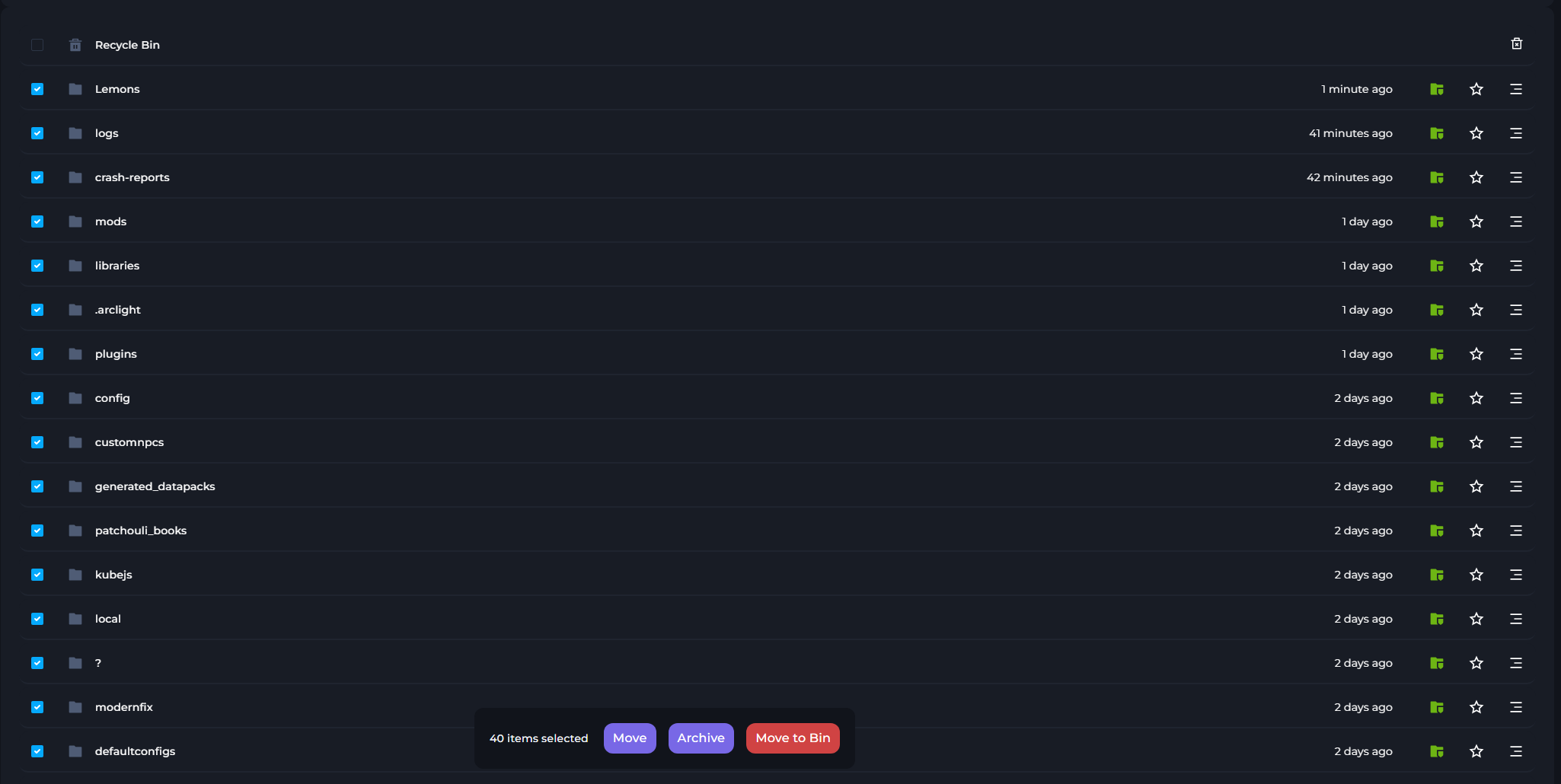
4 From there, you can click "Archive" and the panel will generate an Archived file of everything you have selected.

notice
If the server is quite large in file size, the Archiving process can take up to a few minutes to complete.
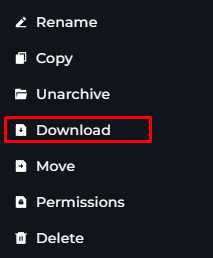
5 On the right hand side of that Archived file, you will see the three dots, click that & you an download your files.
success
All set! That is how you make a manual backup of your server and download it.
Backup Manager
You can also use our Backup Manager to create a backup of your server.