How To Install Fabric On A Minecraft Server
Last updated 06 Jan 2026
Need a game server?
Spin one up fast with our feature-rich panel and seriously low prices.
Installing Fabric via the Version Installer
Login to the Kinetic Panel
Stop your server by clicking the power button, and then clicking the square icon.
-1767383729764.png)
On the left side of the panel, click on the "Version installer"
-1767460763061.png)
In the version installer menu, you can select what loader you'd like to install in the dropdown menu. In this case, we will want to install Fabric. You may need to scroll down on the dropdown menu to find Fabric.
-1767740405604.png)
Once you've selected Fabric, you'll need to select what version of Minecraft you'd like to have on your server. In this case, we'll be selecting Minecraft 1.21.11.
-1767740457645.png)
After you've selected the Minecraft version, look over to the right side of the screen. Here, you will need to select what version of Fabric you'd like to install. In this case, we will be installing the latest available version.

Once the installation has complete, you can confirm the installation by looking at the version overview on the Version installer menu.
-1767740557325.png)
You can now start your server by clicking the power button, then clicking the play button.
-1767462125511.png)
Installing Fabric Manually
There are several reasons why you might want to install Fabric manually. One reason could be you're looking for a set Fabric version that isn't on our version installer.
Download the Fabric installer from the Official Fabric Site
Once you have the Fabric Installer software, you'll need to follow these steps to download the Fabric jar file for your server.
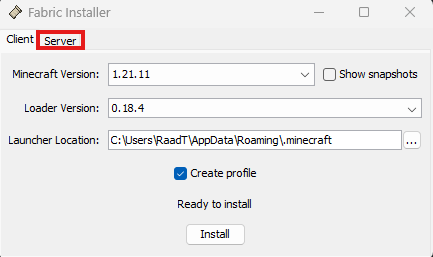
First, on the top of the application window, select "Server"
Now, select what version of Minecraft and what version of Fabric you'd like. Then click "Install"
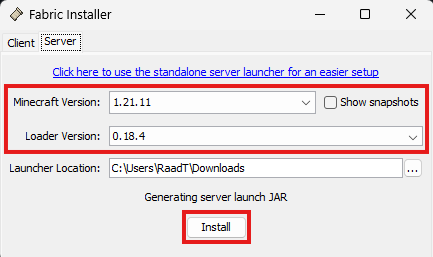
You'll then be met with another pop-up. Here, you will need to click "Download server jar"
Once the download is complete, you should find it in your downloads folder as default. Unless you set a different launcher location directory in the last window.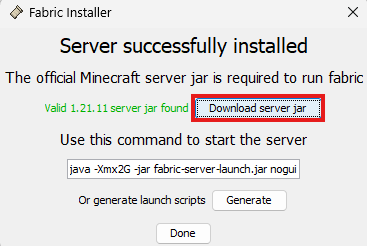
Stop your server by clicking the power button, then click the square icon.
After you've downloaded your Fabric jar file, simply upload it to your File Manager. First, you'll need to open File Manager.
-1767384099292.png)
Delete the original server.jar file that was in your main directory. Do so by right clicking the file, then click "Move to Recycle Bin"
-1767741196227.png)
In the File Manager, you can either drag and drop the Fabric jar file you created into the main directory, or, you can click the "Upload" button on the top right, and select the file there.
-1767463079847.png)
-1767463154739.png)
Rename your Fabric.jar file by right clicking the file, then clicking "Rename". You'll need to rename the file to "server.jar"
-1767741325280.png)
-1767741581067.png) noticeYour Fabric jar file may be named server.jar already. If this is the case, you won't need to rename the file.
noticeYour Fabric jar file may be named server.jar already. If this is the case, you won't need to rename the file.Start the server by clicking the power button, then click the play button.