
In this guide
Before loading your server you need to make sure you have a jar or the correct jar set on the Settings page. If you’re using the version or modpack installer, the correct jar should be set for you. However, if this is not the case, or you have uploaded your own jar to the server, please follow these steps.
Setting The Jar
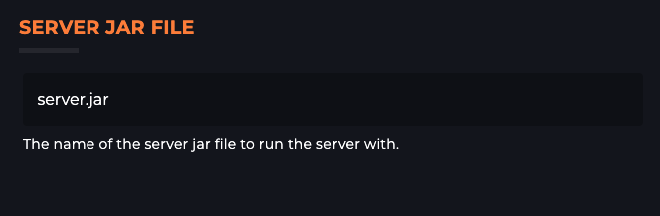
Setting the jar is simple. Head to the Settings Page and type the name of the jar you want to load into the Server Jar File box.
Login to the Kinetic Panel & stop the server.
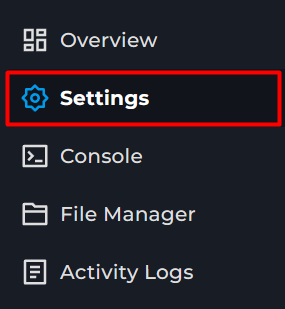
Head to the Settings Page
You will now see the Server Jar File box.
Knowing What To Set
If you’re not sure what this should be set to, head to the File Manager. Here you’ll be able to see any jars installed on your server. Look for the one you would like to load, copy its name, and past it into the Server Jar File box.
Login to the Kinetic Panel & stop the server.
Head to the File Manager
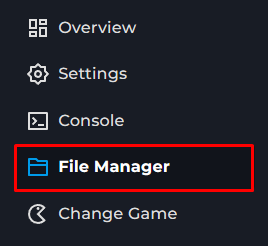
You will want to look for the server.jar, or if you uploaded your own, it will be called that.

Head to the Settings Page
You will now see the Server Jar File box, put your jar inside of here,
Forge & Fabric
In the case of Forge and Fabric, you will have more than one jar in your file manager. A common mistake, in this case, is to choose the minecraft vanilla jar.
When using Forge and Fabric make sure you’re loading the forge/fabric jars, otherwise, your mods will not load.
Login to the Kinetic Panel & stop the server.
Head to the File Manager
You will want to look for the server.jar, or if you uploaded your own, it will be called that.
Head to the Settings Page
You will now see the Server Jar File box, put your jar inside of here.