In this guide
Joining a Minecraft Server allows you to invite your friends to join you.
1 Login to the Kinetic Panel and head to the overview page.
2 You will see a Connection Address, That is your Servers IP Address.

3 Highlight the Connection Address and click on "Copy" or you can use CTRL+C at the same time on your keyboard to copy it.
4 Inside of Minecraft, click on Multiplayer.
5 Click on the Add Server Button
6 Then, you will see Server Name, you can leave this on it's default setting or give it a name.
7 Inside of the Server Address Category, you can paste that IP that was copied from the Overview page by using CTRL + V on your keyboard, that will paste the IP.
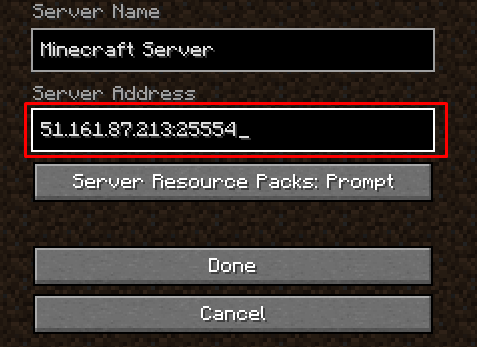
8 Click on Done and connect to your server!
Subdomain Manager
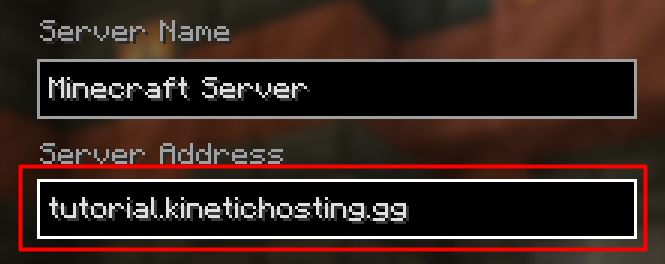
You can also utilize our Subdomain manager on the Kinetic Panel, this can be useful if you want to give your friends something easier to remember. This can also be helpful if you are experiencing some odd connectiion issues to your server.
1 Login to the Kinetic Panel
2 Head to the Network category on the left hand side & click on Subdomain Manager.
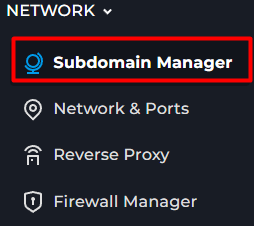
3. You'll want to click Create Subdomain.

4 You will see a section where you can type in your own Sub Domain. From there, you can type in what you would like & select from the drop down menu with the domains we offer.
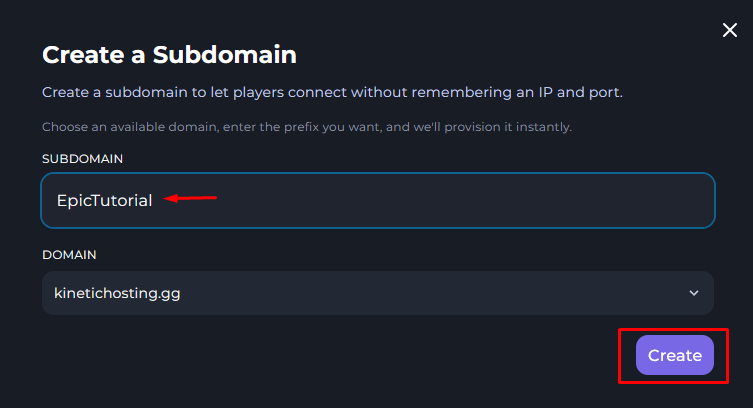
5 You will go into Minecraft and click on the Add Server button.
6 Now, put this subdomain that you created in the Server Address box & try to join your server.