How To Install A Modpack On A Minecraft Server
Last updated 06 Aug 2026
Need a game server?
Spin one up fast with our feature-rich panel and seriously low prices.
If you wish to Install a Modpack you've made yourself, you can follow This Guide
Installing a Modpack via the Modpack Installer
Login to the Kinetic Panel
Stop your server by clicking the power button, then clicking the square icon.
-1767383729764.png)
Locate the Modpack installer section, and open it.
-1770310825511.png)
In the Modpack installer menu, you will be met with a search bar for Modpacks, as well as several different filters you can apply.
We also have a feature where you can randomize your Modpack selection, if you want fate to decide for you!-1767539260930.png)
Using the filter:
If you already know what Modpack you wish to install, then you'll only need to use the search bar to find it. But if you're looking for a certain Modpack that fits your needs, then using the Filter can help you decide what pack is best for you and your system.
If you wish to skip the filter tutorial, skip to step: 10noticeIf you cannot find the Modpack you wish to install, you can make a request to add a modpack to our Installer by contacting the support team.To select your Modpack platform, click the platform dropdown Menu. Here, you select from one of the following:
Curseforge, Modrinth, Technic, or All Platforms-1767539680975.png)
In the Mod Loader dropdown, you can select one of the following:
Fabric, Forge, Neoforge, or All Mod Loaders-1767539822600.png)
In the Version Dropdown, you can select which version of Minecraft you want your Modpack to run on.
For this example, we will be selecting 1.20.1, as this is the most common Minecraft version for Modpacks.-1767539970750.png)
In the Recommended RAM dropdown, you can choose whether you want a less power demanding Modpack or a high power demanding Modpack. This decision is usually based on what type of server you're running, whether it be an 8GB Budget server, or 16GB+ Performance server.
-1767540168640.png)
Once you've decided what Modpack you want to install, you can then look over the right, where you will find the "Install" button for the Modpack you wish to install. For this example, we will be installing the Modpack: Linggango.
-1767540504888.png)
After you click the "Install Modpack" button, you'll be met with a pop-up screen, where you'll find a dropdown menu for you what version of the Modpack you wish to install. Once you've selected the version, press "Next"
For this example, we will be installing version 6.3.-1767540588881.png)
In the next menu, you will need to decide whether you wish to keep your original world file, or create a new one.
If your world was running on a different Modpack, then creating a new world is recommended, as a different Modpack may not be able to work properly with your old world.
To create a new world, select the checkbox that says "Delete old world". Once you've made your selection, click "Next"warningIf you wish to keep your original world but still want to create a new world anyway, DO NOT select the checkbox. Instead, input a world name different to your original world file name.-1767540755018.png)
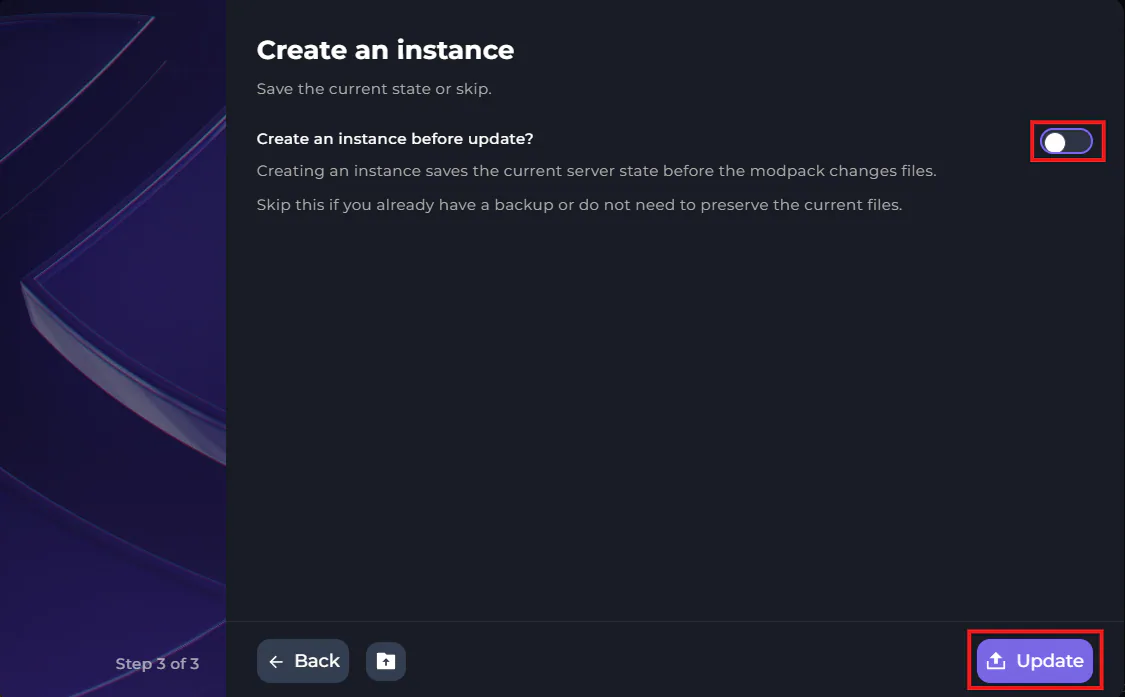
In the next menu, you can choose whether you'll like to create an instance before installing. An instance is similar to a backup, where your server will remember what your servers files and settings were like before you installed the Modpack.
That way, if anything goes wrong, you can transfer to the created instance, where your server will go back to its original state.Once you've made your decision, click "Install"
-1767541011051.png)
If your Modpack installed successfully, you will see your installed Modpack on the left side of your Modpack Installer menu.
noticeIf you get an error when installing a Modpack, sometimes refreshing the page can solve this issue. However, if the Modpack is having issues installing, contact our support team for assistance.-1767541155992.png)
After you've confirmed that the Modpack has been successfully installed, start your server by clicking the power button, then clicking the play button.
-1767462125511.png)
Updating a Modpack via the Modpack installer
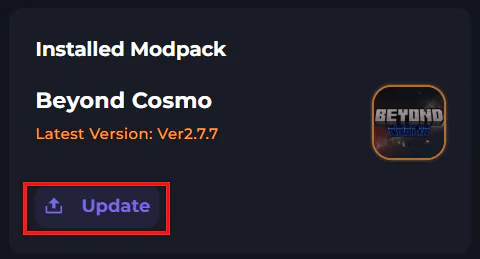
Within the modpack installer, if an update is available for your modpack, click "Update".
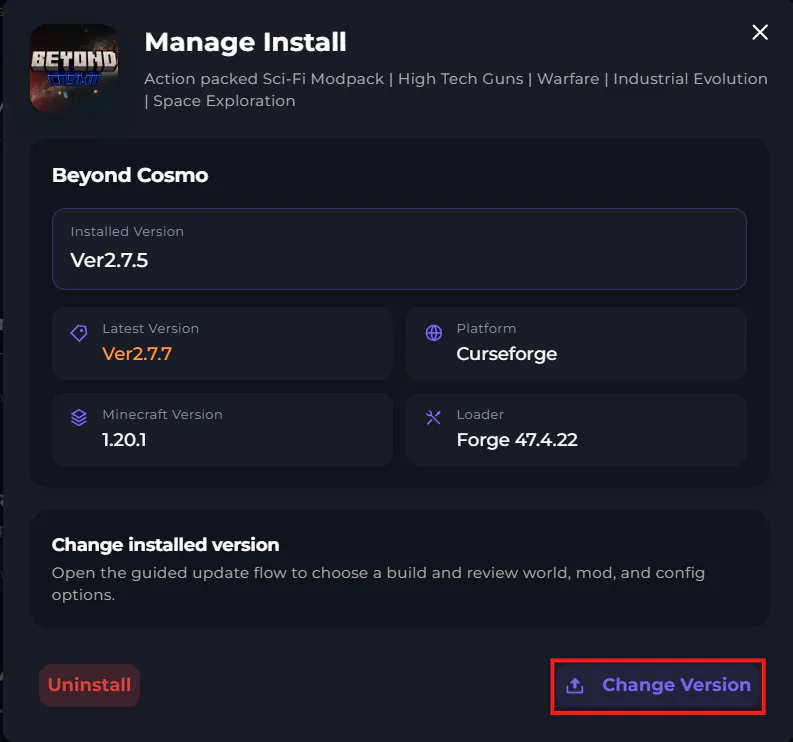
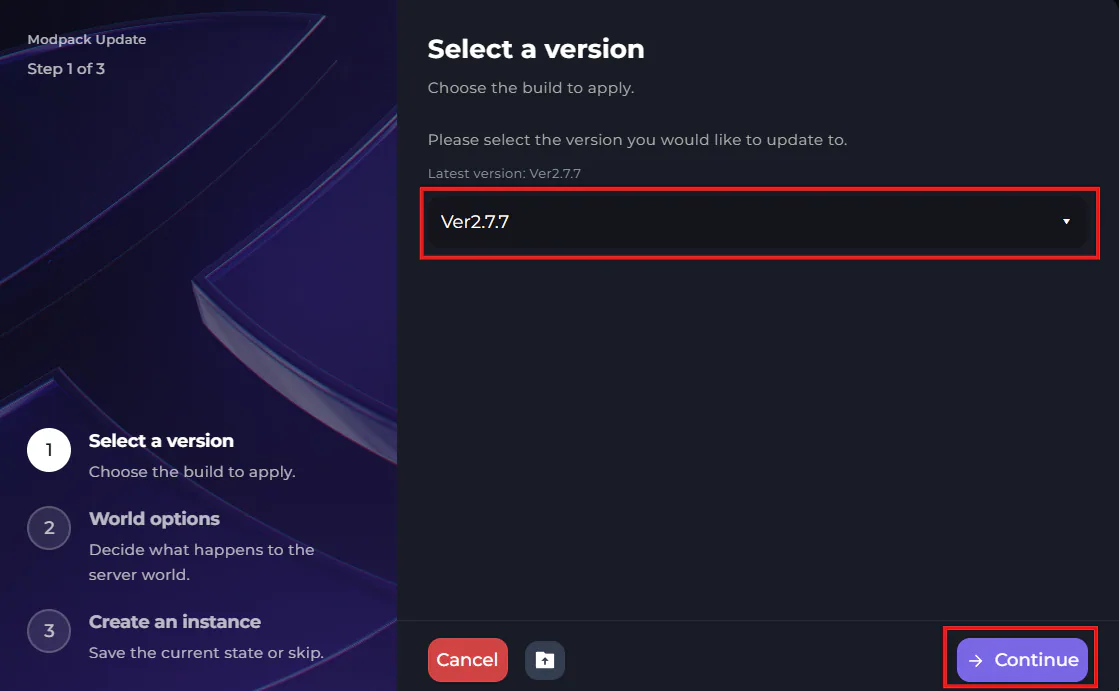
After you click update, you will need to select the version of the modpack you wish to update.
After you finish the rest of the steps, click "Update", and your update will begin.