
In this guide
Knowing where your Latest Log file for Minecraft can be helpful to diagnose issues you may experience playing Minecraft.
Finding the latest.log on Curse Forge.
1 Click on the modpack you are having issues with, then click the 3 dots on the right hand side.
2 Then, click on the "Open Folder" button.
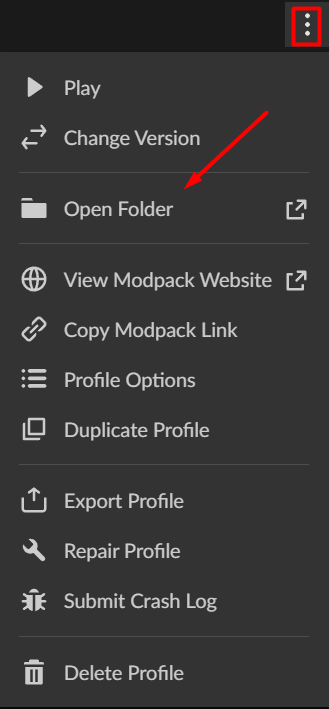
3 From there, a folder would have of opened on your computer, find the folder titled "logs".
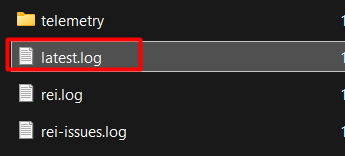
4 You will most likely want your latest.log file. However, if you need an older one, they are zipped up inside the folders.
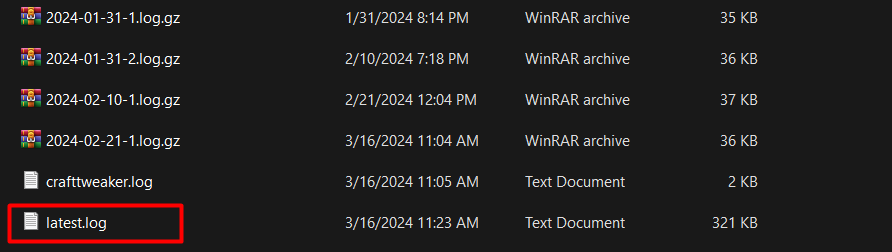
Finding the latest.log on Modrinth.
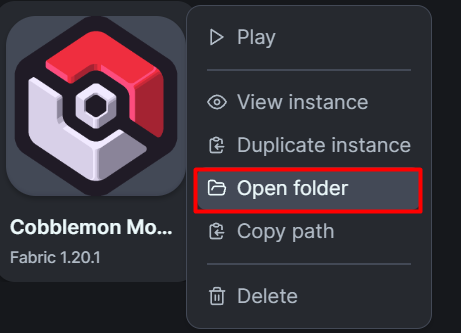
1 Open up the Modrinth Launcher and right click on the Modpack and select "Open Folder".
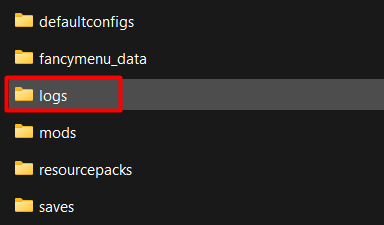
2 From there, you will find the folder called "logs" and open it.
3 Now, you will look for the "latest.log" file. However, if you need an older one, they are zipped up inside the folders.
Finding the latest.log on the Minecraft Launcher.
1 Click the Windows key + R on your keyboard
2 Type in %appdata% & click enter.
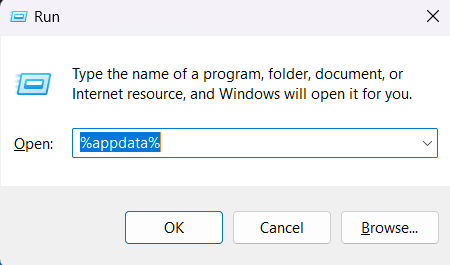
3 Find the .minecraft folder and open it.

4 Find your logs folder & open it.

5 You will most likely want your latest.log file. However, if you need an older one, they are zipped up inside the folders.

How upload the log.
You will want to upload the log to mclo.gs from there, it should generate a link for you. Copy and paste the URL & send it to our Support Staff so they can begin diagnosing the issue.
1 When you are on the mclo.gs website, you will want to click on the Select button and find the log on your computer from the guide above.
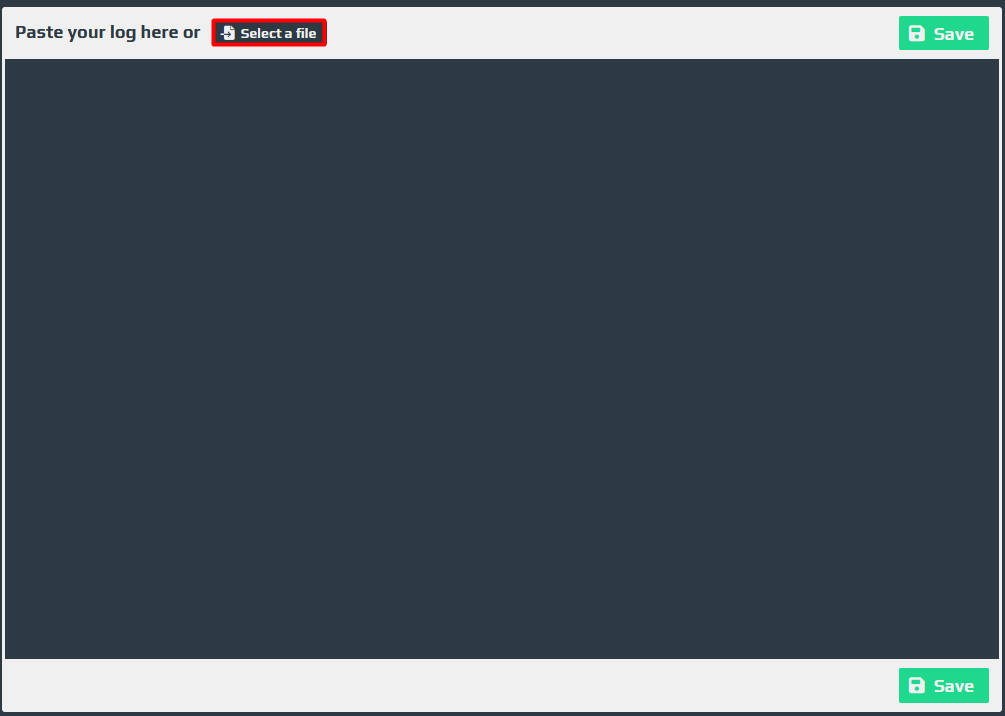
2 Once you have your log uploaded, click on the Save button.
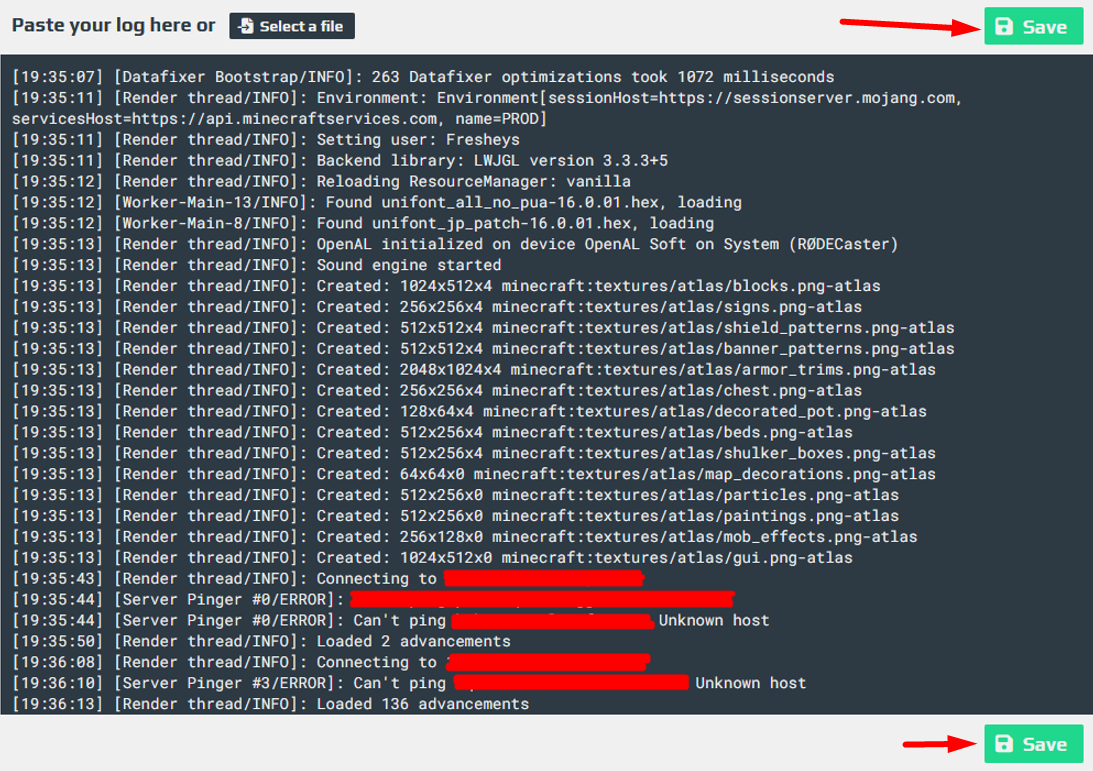
3 Now, you will want to copy the URL at the top of your browser & forward the link to our support team so they can begin diagnosing the log.
