How To Open a Port

Quickly open ports on your Kinetic Panel! Follow this simple guide to open a random port via the Network & Ports section. Need a specific port number? With a dedicated IP, just open a support ticket, and we'll help you set your custom port.

In this guide

1 Login to the Kinetic Panel

2 Head to the Network tab on the left hand side & select on Network & Ports

Network

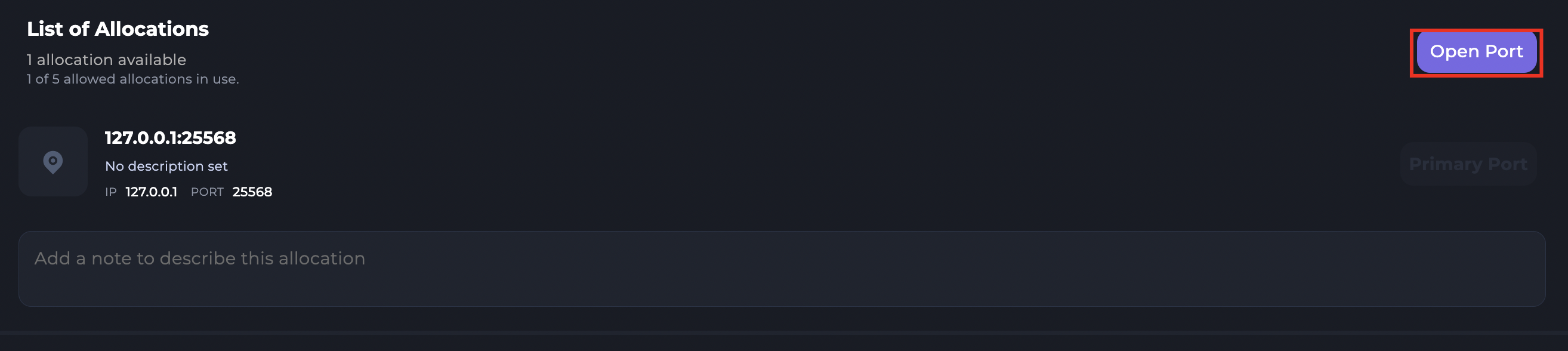
3 Click on the "Open Port" button

4 You will now see a new port that was created, you will be able to add a Note within the port, which you can use to remember what the port is used for. You can also make the Port the Primary port on your server & delete it if you find that you no longer need it.
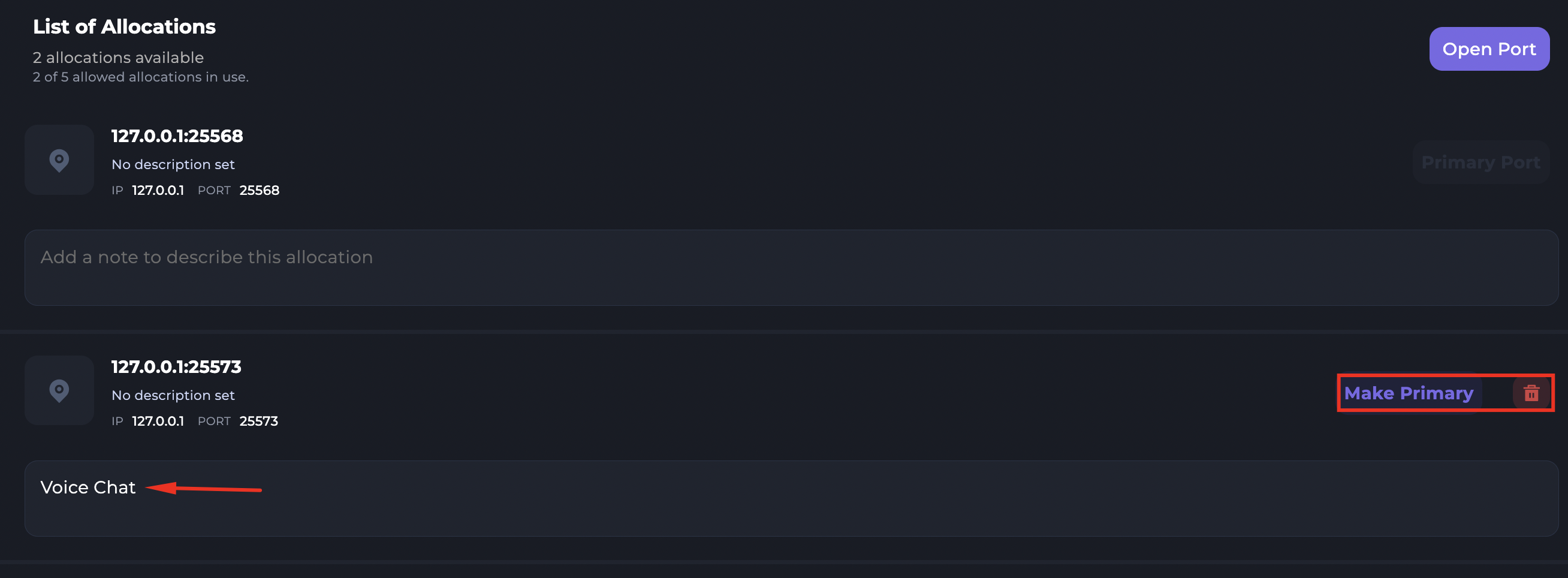
That is how you open a port

Why Random?

In most cases, you don't need a set number, as the port number can be changed in the configs. Minecraft plugins for example always have a config you can set the port number in. Random ports are used unless you have a dedicated IP, more than one client will be on the same IP.

If you own a dedicated IP, you can set a number of your choosing by opening a support ticket.

Display and navigation

Accessibility options

Personalise how the website looks and how you move around it. Your choices are saved on this device.

High-contrast dark theme

Use black and dark backgrounds with white text and stronger borders throughout the site.

Keyboard link hints

Hold Shift to label visible links and controls. Keep holding Shift and type a label to activate it, or release Shift to close the labels.

Keyboard shortcuts

Ctrl+KOpen site search

ShiftShow link hints when enabled

Find your way around

Search Kinetic Hosting

Search site pages, game servers, knowledgebase articles, blog posts, FAQs and modpacks.

Enter at least two characters to search the site.