In this guide
Components
On the Kinetic Panel, there is an workspace page that gives useful information about your server.
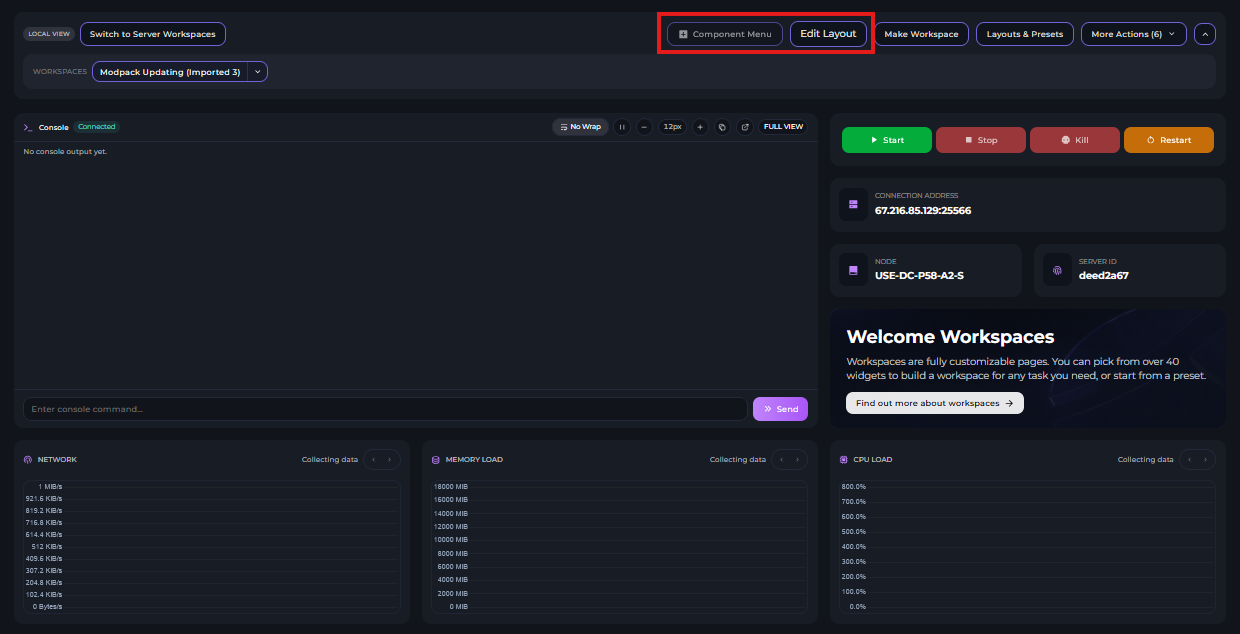
You will see the default layout in the beginning, click on the "Edit Layout" to start editing the workspace to your liking. From there you can drag, resize, add, and remove Components in the layout and from the Component Menu.
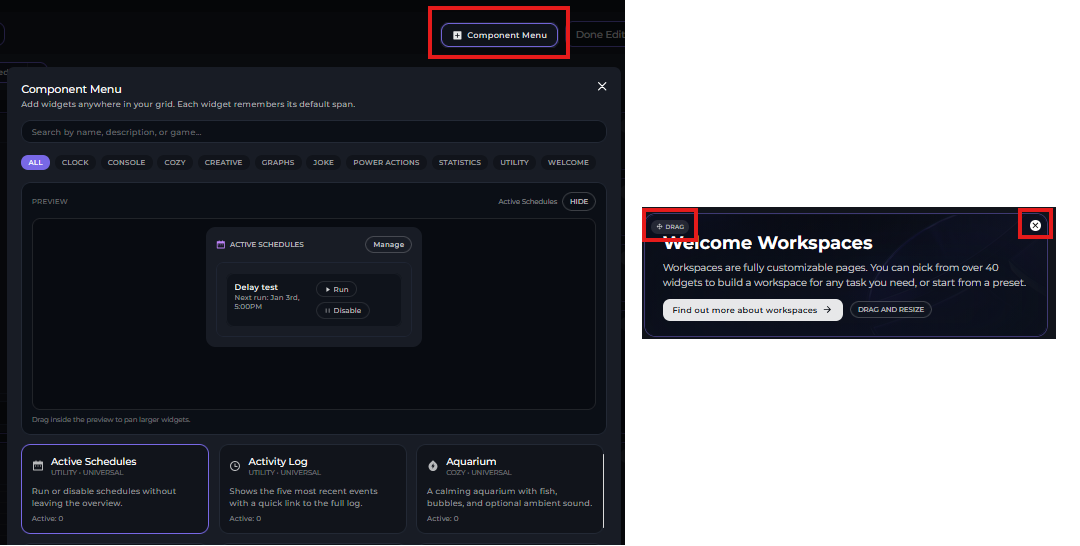
From the Component Menu you can find various tabs of components that you can add to your workspace. Once you find a component you want, once you click on it it will add it to the workspace where you can drag them around, resize them, or remove them.
Some components also may have further customization, such as adding links to pages or pinning certain folders.
You can resize components by dragging their edges.
Workspaces
On your server there are two types of workspaces, the local and server. You can switch between the two in the top left of the Workspace tab.

Local Workspaces are saved locally on the server you make/edit them on while Server Workspaces are stored in your browser and are accessible on any server. You can make another workspace by pressing the "Make Workspace" button next to "Edit Layout".
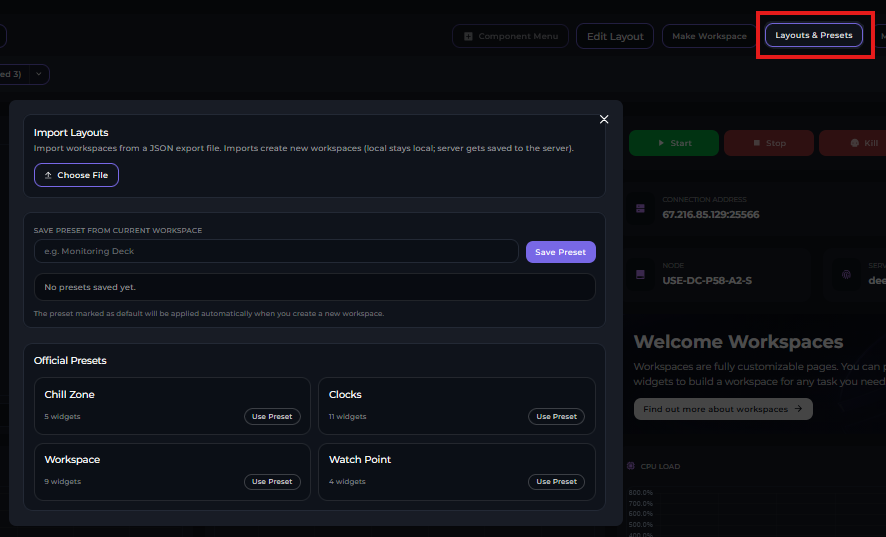
In the top right left of "More Actions" there is also the "Layouts and Presets" button, this will allow you to save and import layouts.
Miscellaneous
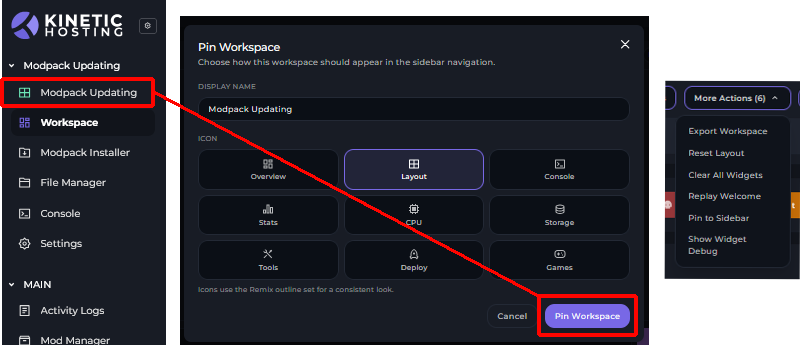
In the top right there is a "More Actions" Button, here it will allow you to Export your workspaces to share to other people, Replay the welcome screen (First Time Setup), Reset to the default layout/Clear all the widgets, and pin the workspace to the sidebar on the left.
To the right of the "More Actions" button, there is also a small arrow that will minimize the top bar.