How to use the Console Features
Last updated 25 Oct 2025
Need a game server?
Spin one up fast with our feature-rich panel and seriously low prices.
This guide will give you a hands on guide on how to use the Console & It's unique features.
Getting Started
Head to the Kinetic Panel & Navigate to the Console Page
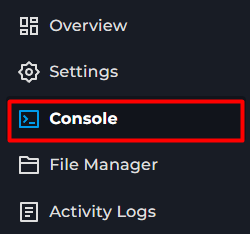
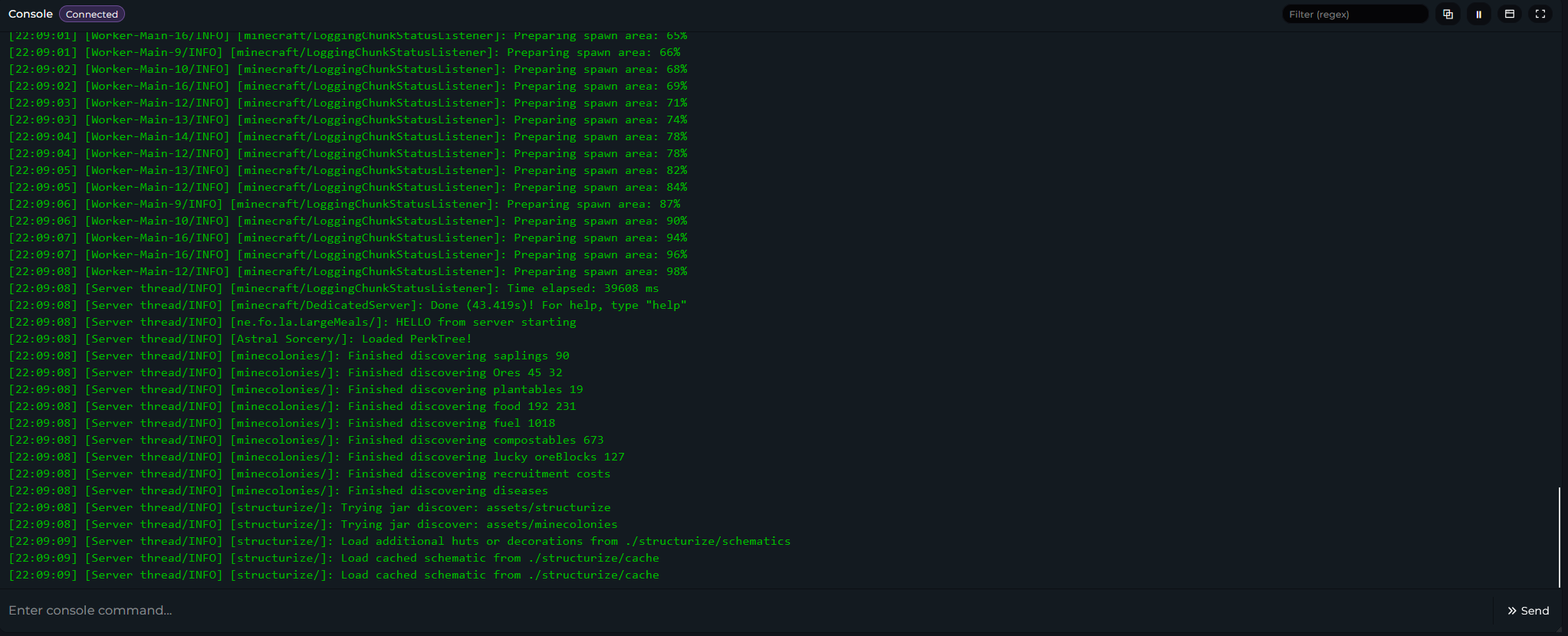
You should now be on the Console Page.
Pausing
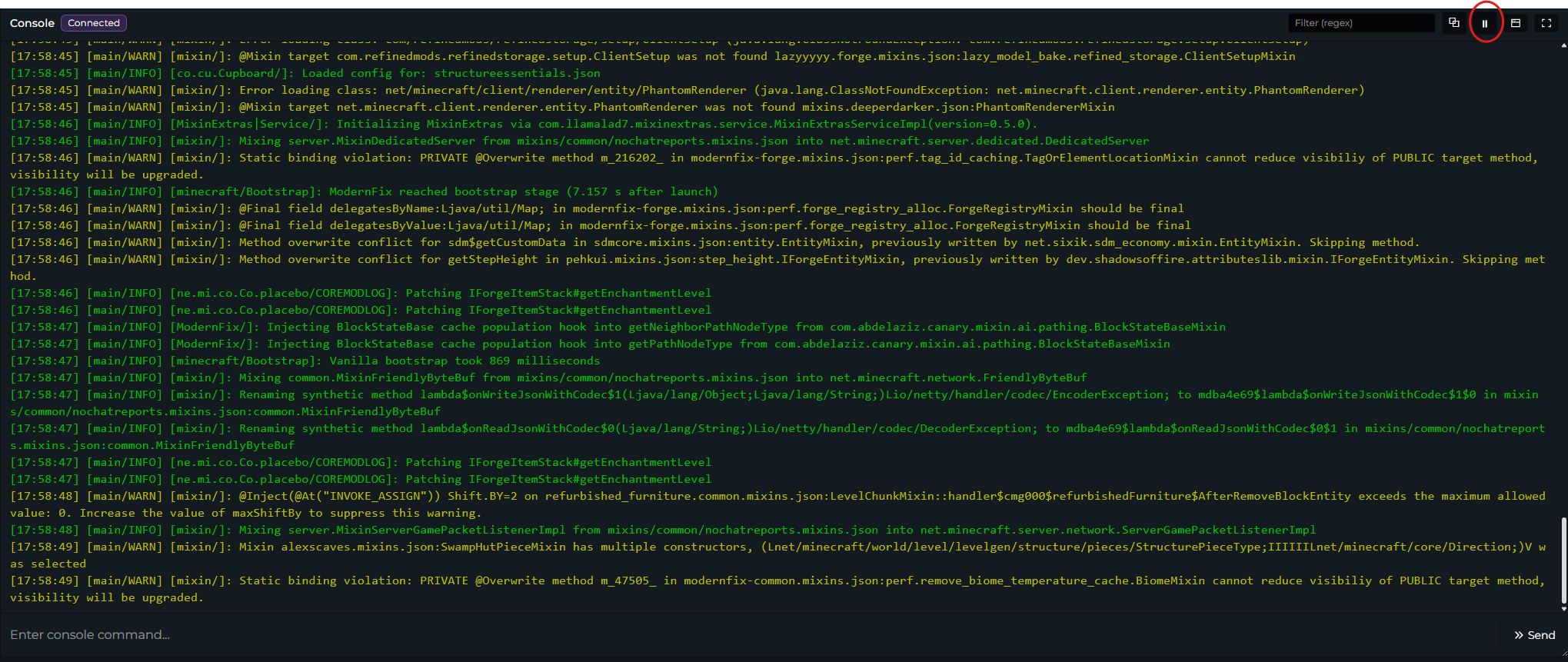
Clicking the highlighted button will pause the console and let you read without its new logs appearing. The play button can be clicked when you wish to unpause
Full screen
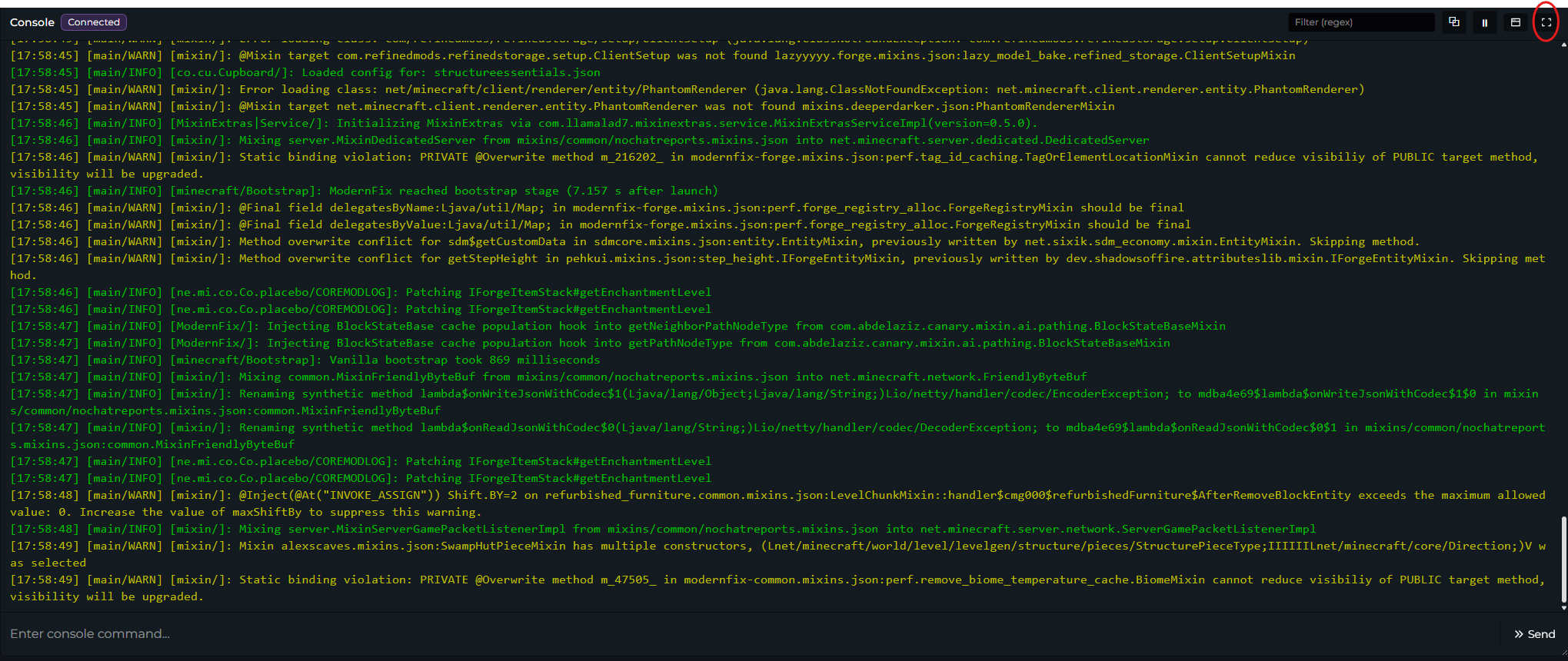
The full-screen button will maximize the console window.
Popping Out Console
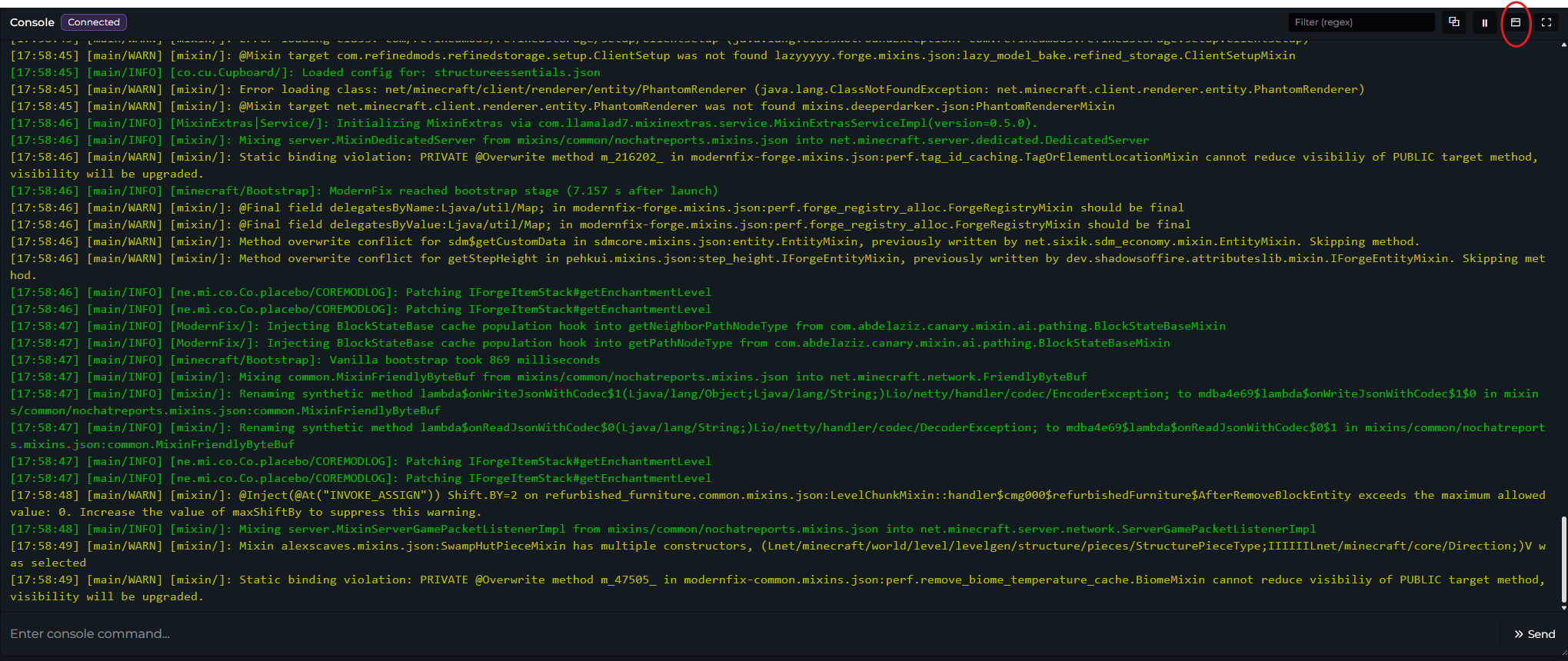
The pop-out button lets you use a smaller console that stays on your screen when you move to the rest of the panel. An example of it is shown in the file manager below. You can still use the Search, Copy & Pause features when doing so.
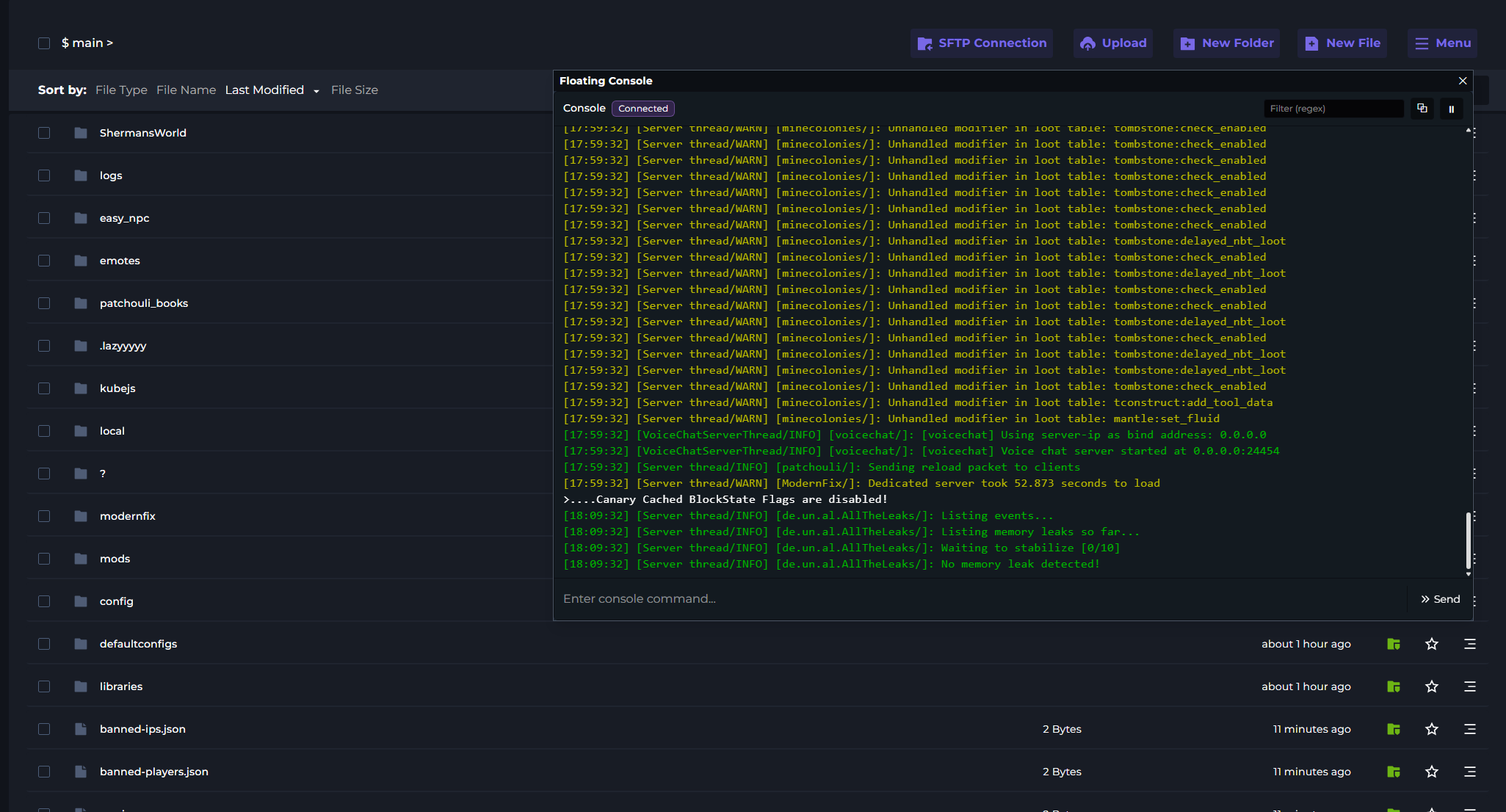
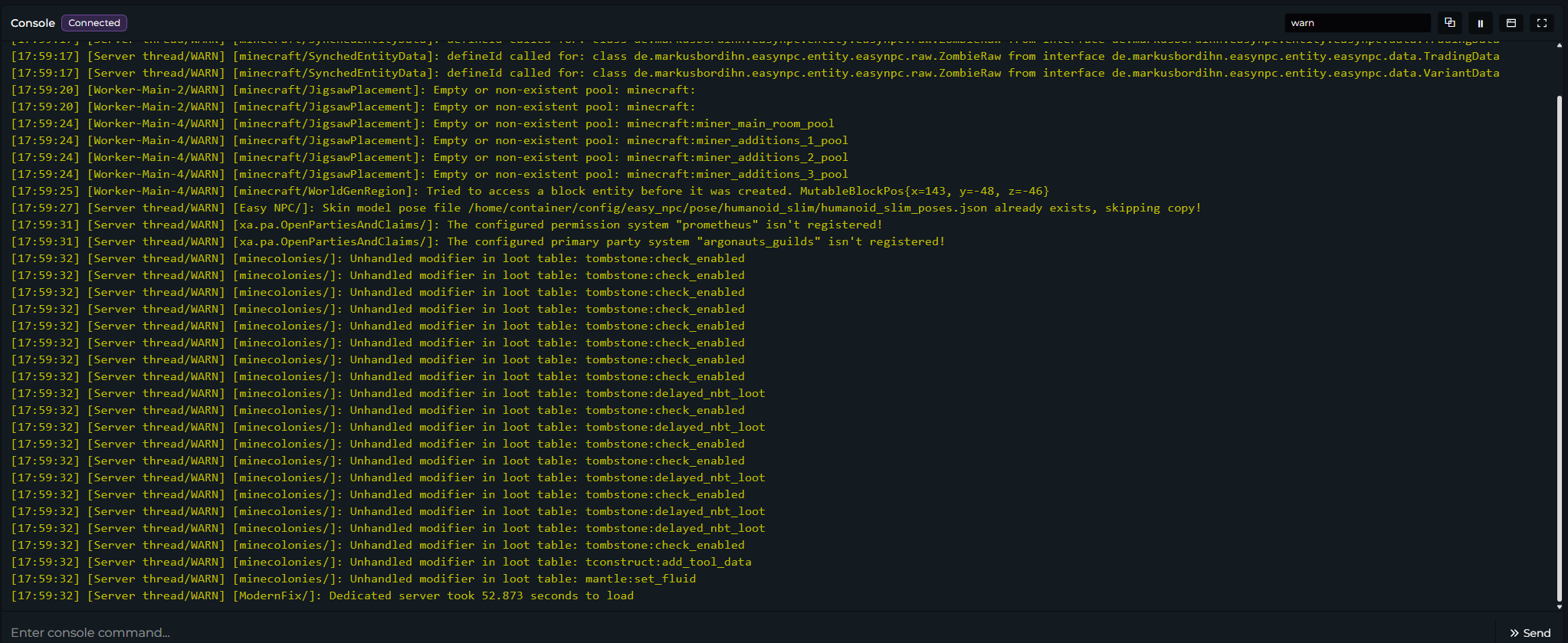
Searching Within The Console
The search feature will allow you to search specific actions that have happened on the Console, it also supports Regex Filters which we'll be covering later on within the guide.
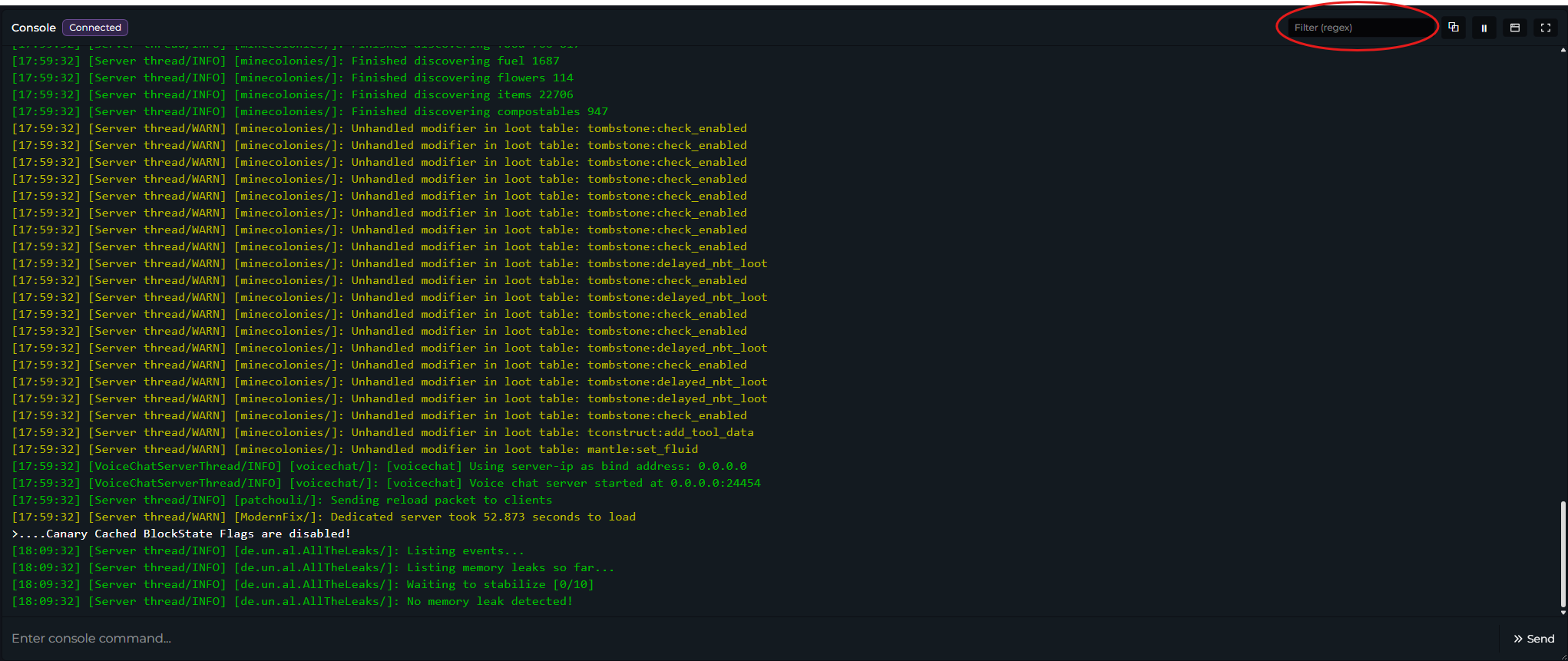
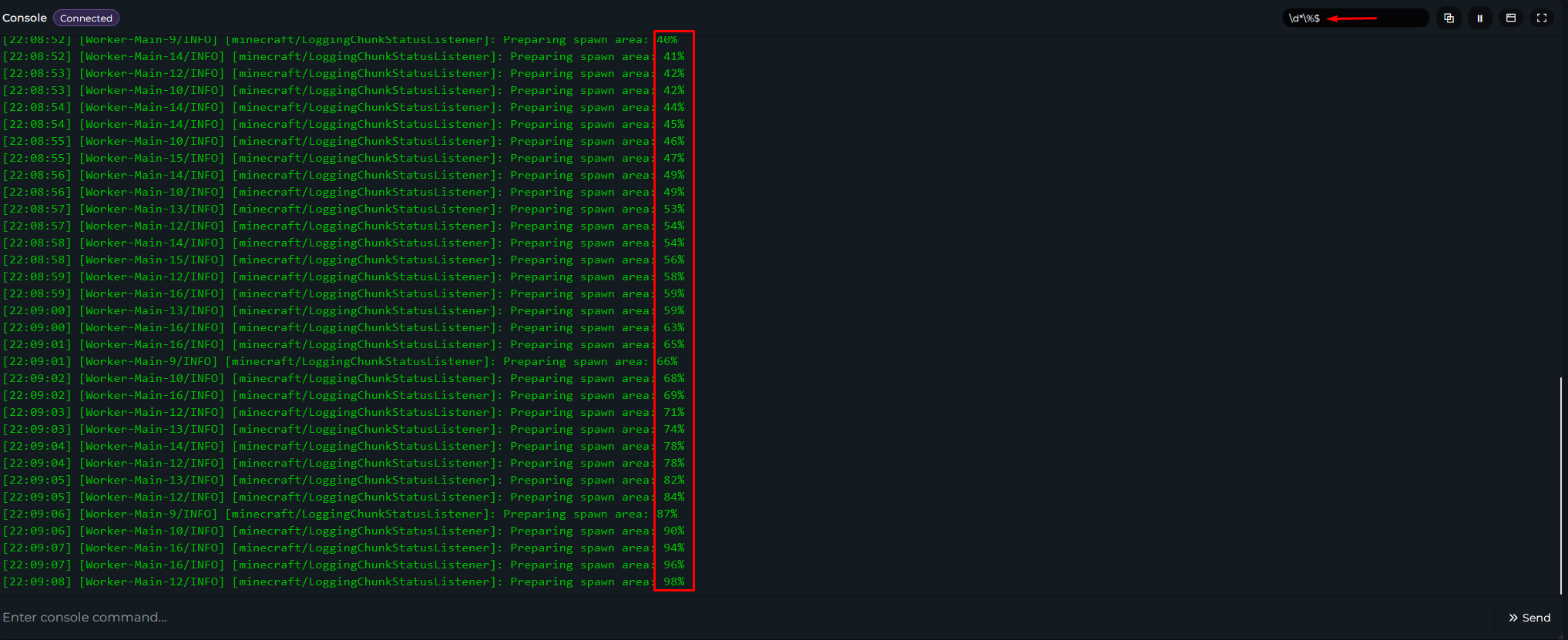
Regex Filtering
For an example, if you wanted to search for a specific percentage when the world is loading in a Minecraft server, you would enter the following:\d*\%$
If you want to learn more about Regex Filtering, you can check out Regex101
Copy Output
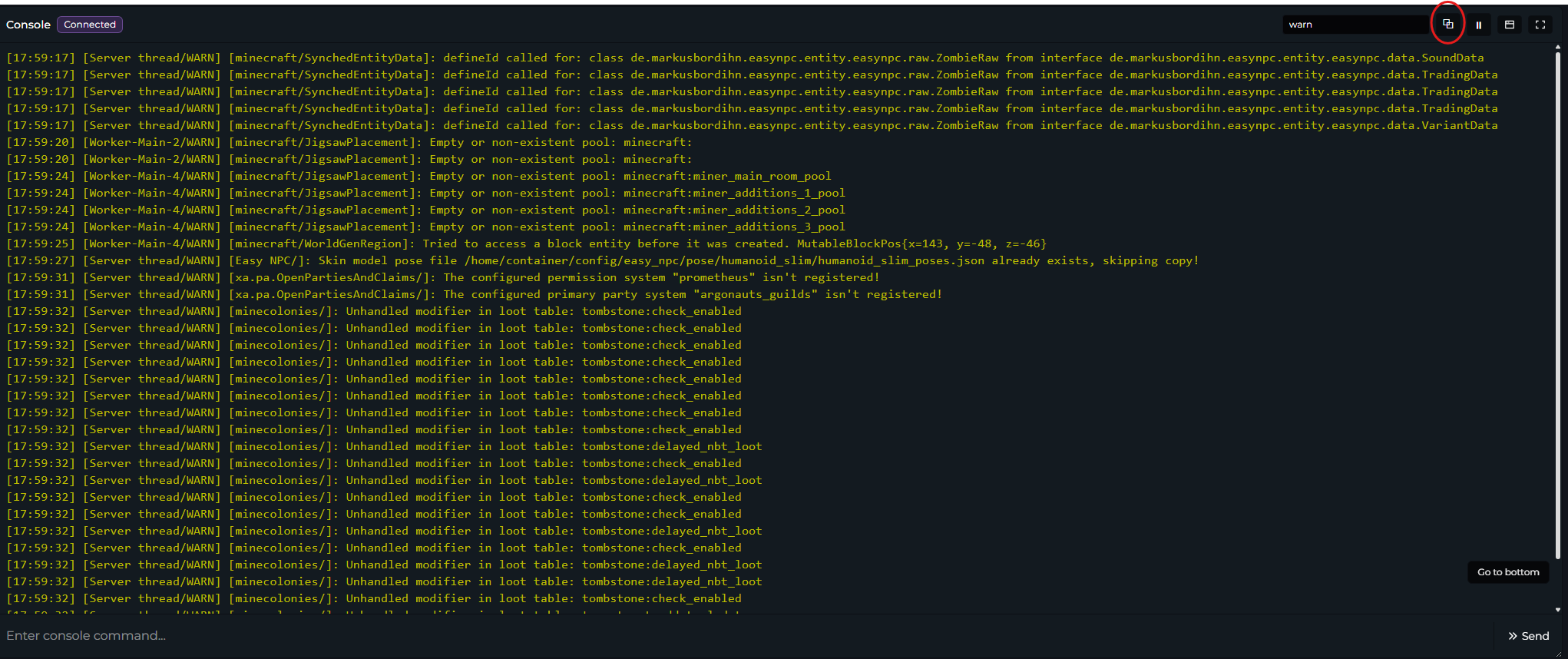
This will allow you to copy the console output and paste it elsewhere.