How to use File Manager on your Kinetic Panel
Last updated 29 Jun 2026
Need a game server?
Spin one up fast with our feature-rich panel and seriously low prices.
How to use File Manager on your Kinetic Panel
The Kinetic Panel file manager has many tools and features, that can be used to make life easier when it comes to managing files on your server.
This article will provide detailed information on what the features do, and how to use them.
Accessing File Manager
Login to your Kinetic Panel
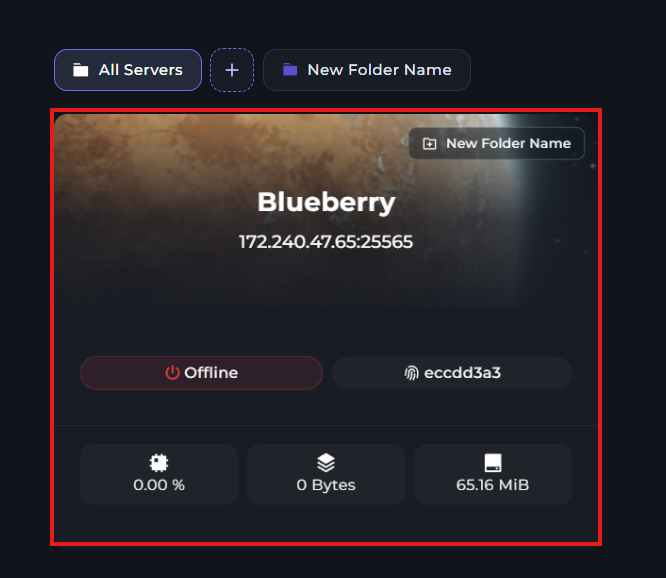
If you have not yet selected your server, you can do so by clicking "Your Servers", then clicking your server.
Within your Kinetic Panel, go to "File Manager" on the left side of the panel.
-1770311095747.png)
Creating files/folders, and uploading files to your server.
On the top right side of your file manager, you will find a few buttons to do these actions. There's a button to create a folder or file, upload a folder or file, and find your SFTP information.

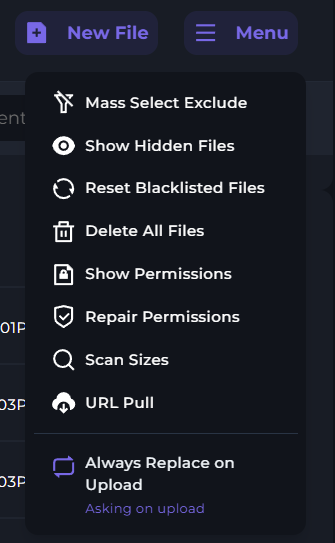
Mass select Exclude
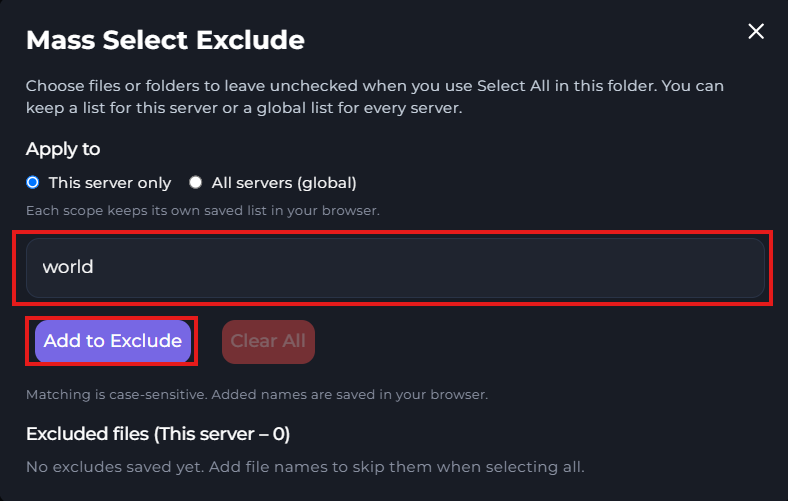
The mass select exclude feature allows you to select certain files within your file manager to not be included if you were to ever select all files.
For example. If I wanted to select all my files to download except my world folder, I would put my world folder into the excluded box.
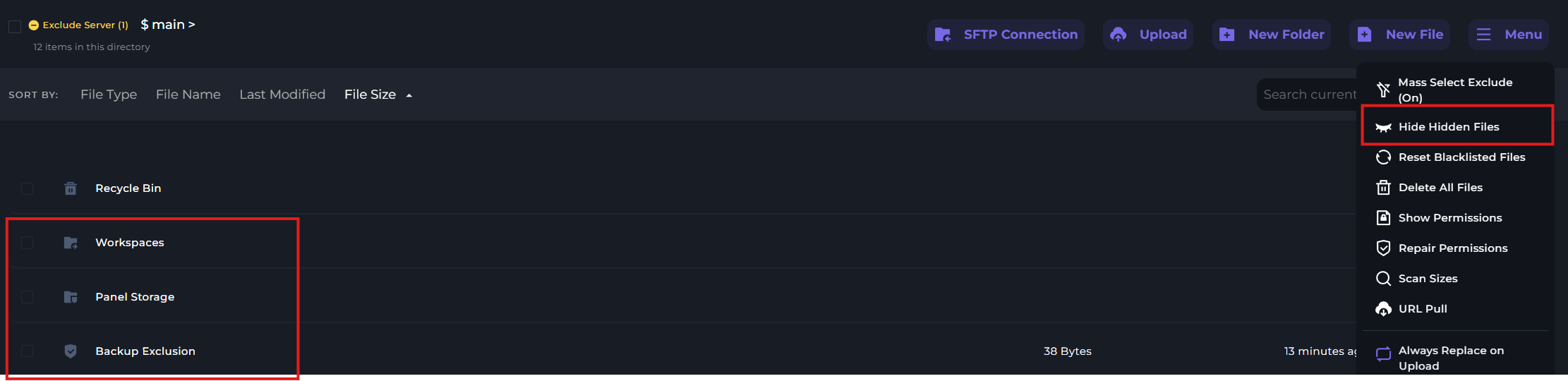
Show Hidden Files
In some cases, some files won't appear in the file manager as they are hidden. This tends to be files such as files related to the panel.
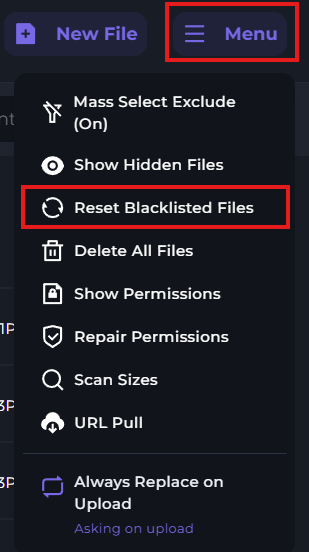
Reset Blacklisted Files
Lets say at one point you set a few files or folders to be excluded from your server backup, but you don't want them excluded anymore. You can click "Reset Blacklisted Files" to include them in the backup.
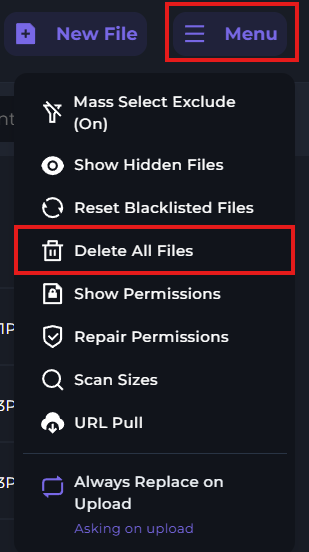
Delete All Files
While it's pretty self explanatory, the "Delete All Files" button simply deletes every file and folder within your file manager.
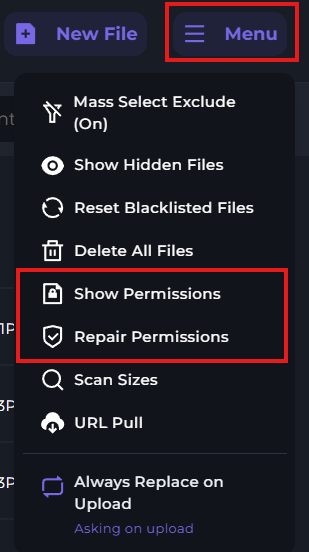
Show and repair permissions
In some cases, you may find yourself unable to access certain files, or perhaps the files are not working the way they are supposed to because of permission problems.
In a case like this, you could repair the permissions of the files automatically by clicking "Repair Permissions"
If something went wrong and you want things to be the way they were before, you can reset the permissions.
And if you simply want to view what the files permissions are, you can click "View Permissions".
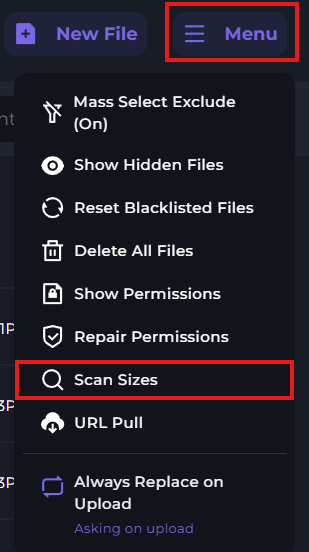
Scan file sizes
This feature allows you to run a scan on your file manager to detect the size of folders and files. This could be very useful if you need to know what files are taking up most storage on your server.
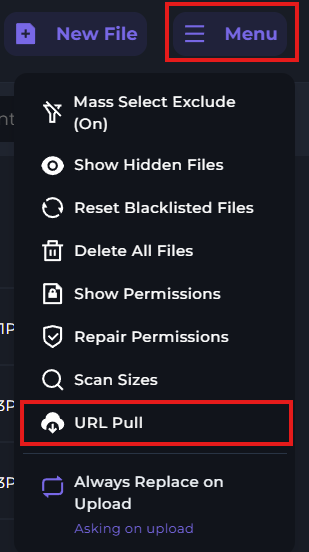
URL Pull
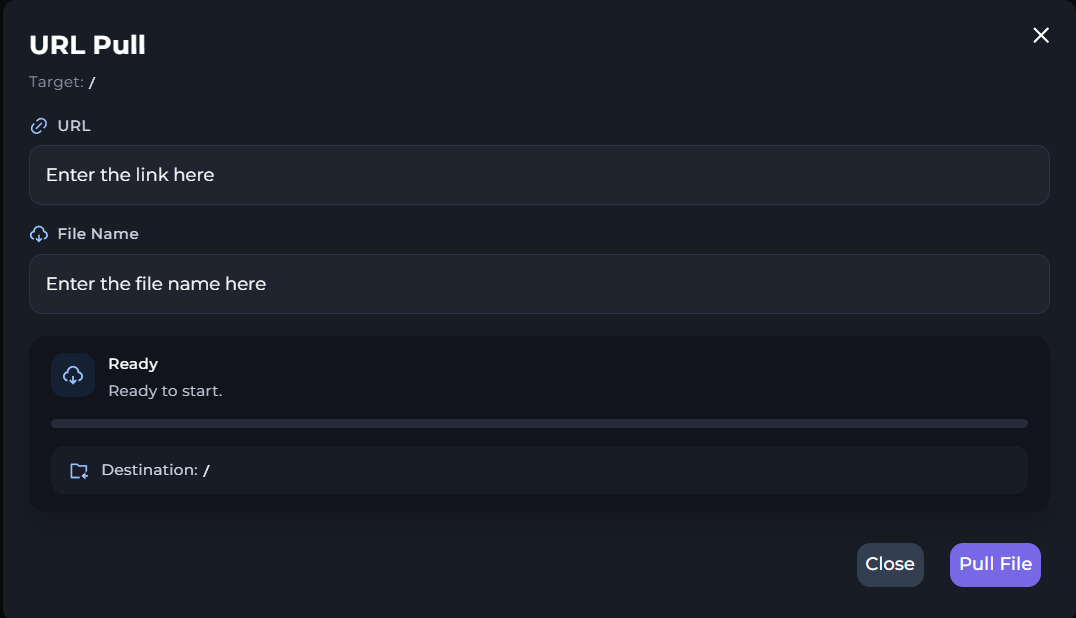
Lets say somebody wants to share a file from their panel with you so that you can upload it to your server. The "URL Pull" feature does just that.
Simply input the URL, and the name of the file.
Acquiring a URL from one of your files
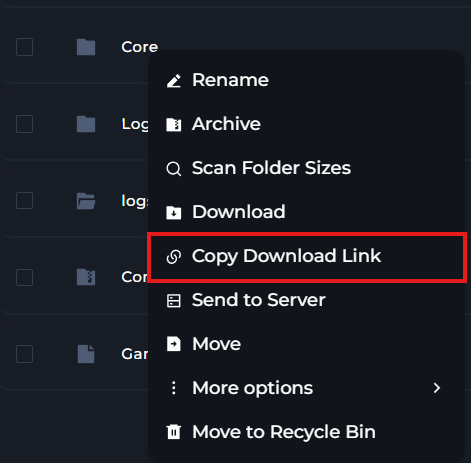
In the occasion that you want to share a file with a friend so that they can upload it to their panel, you can get your file URL but right clicking a file within file manager, and then clicking
"Copy download link".
This will generate a link for you, which you can send to your friend. Keep in mind, you will also need to provide them with the exact name of the file or folder. Case Sensitive.
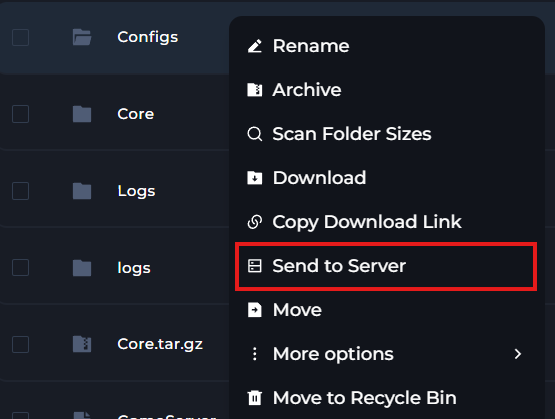
Sending file to another one of your servers
When you right click a folder or file within your file manager, you'll be able to send the file to a different server that you own. This can be a split server, or a separate package.
Bulk actions
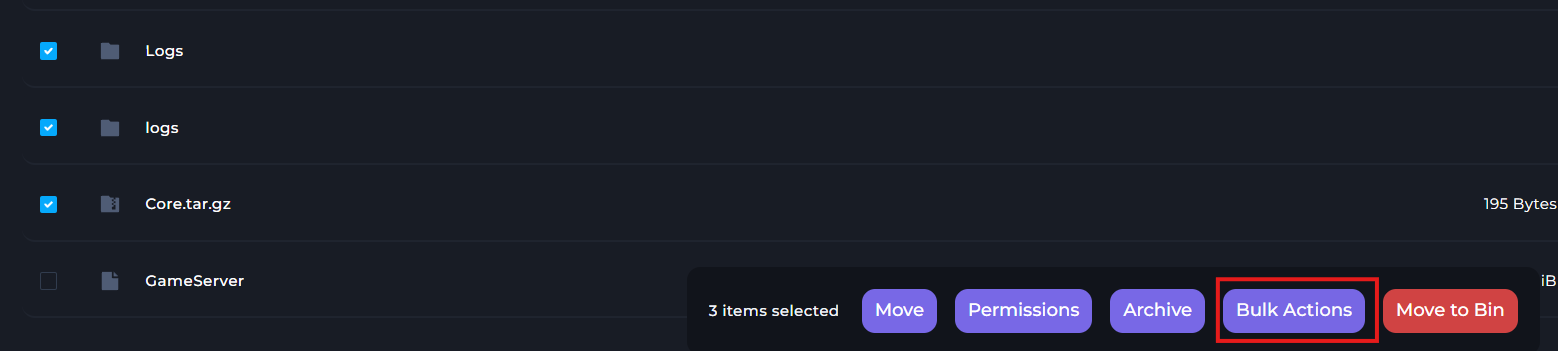
Let's say you want to edit a certain thing within multiple files. It would be very annoying if you had to do one file at a time. Well, good news! You can use the Bulk Action feature to select multiple files, and run a certain action to them all at once!
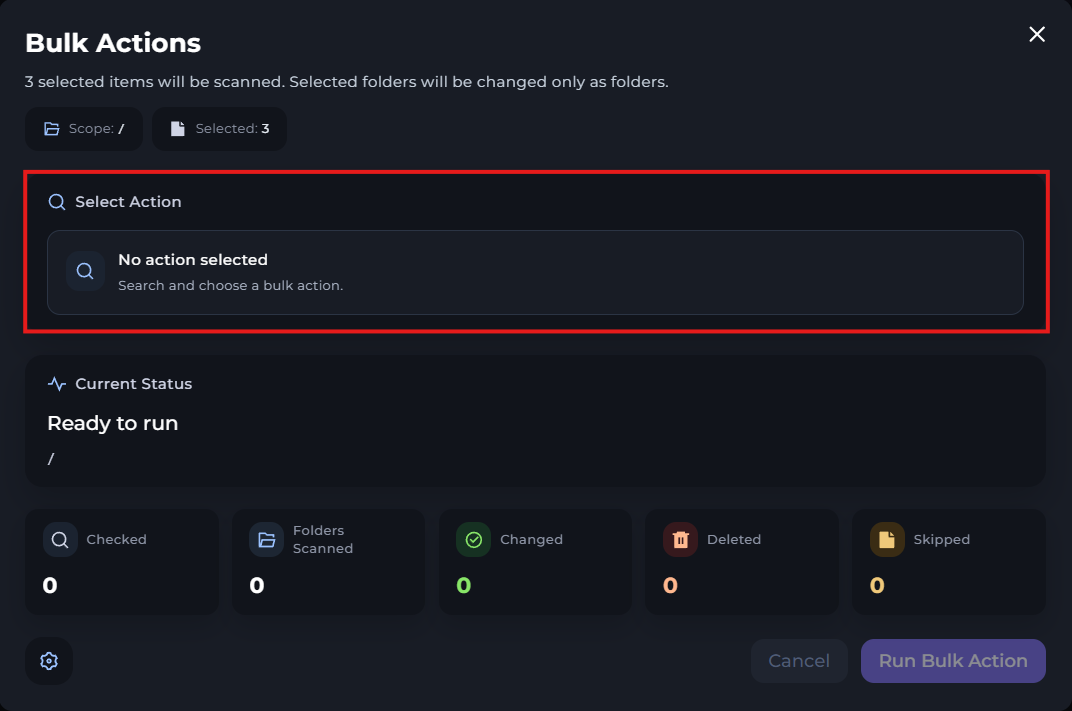
Select your files you wish to do actions on, and click "Bulk Actions" at the bottom of the screen.
In the first step, you need to select what action you'd like to run.
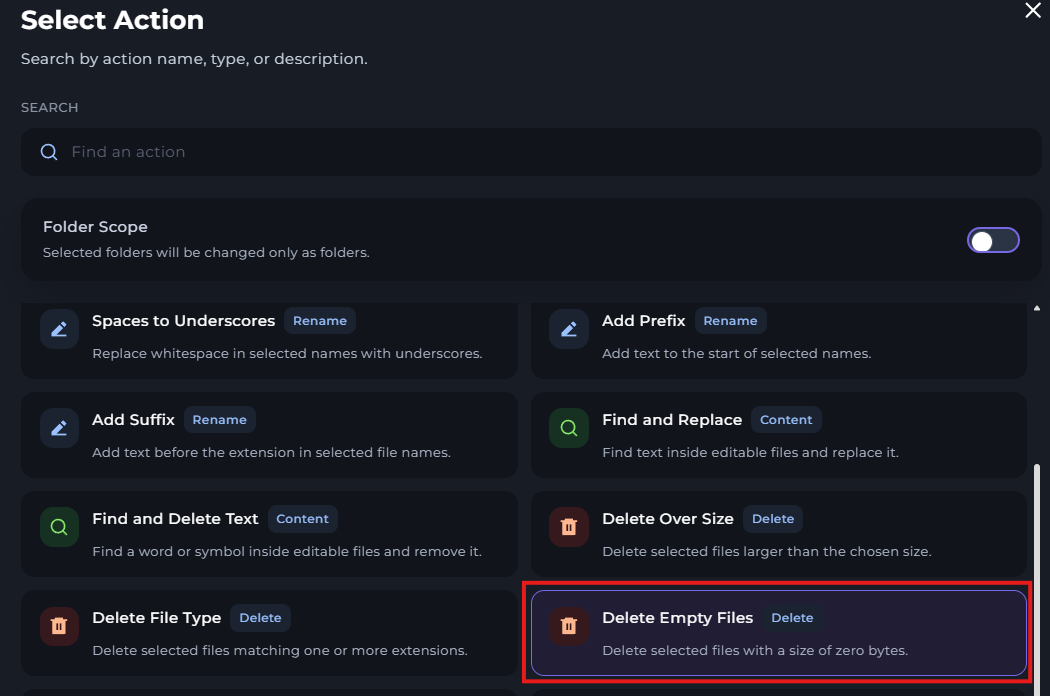
After you've selected the actions, you will need to click "Run Bulk Action"
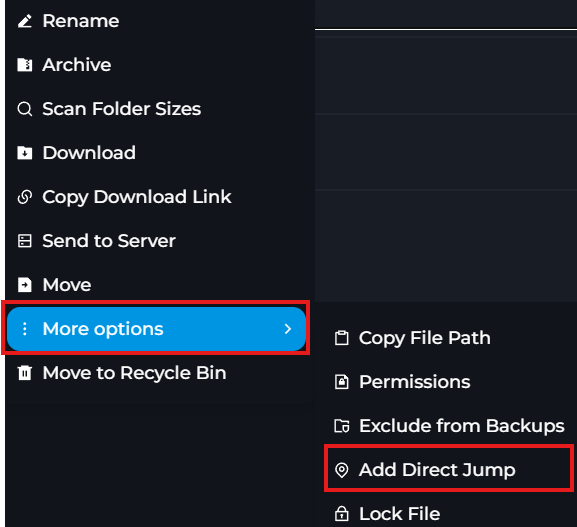
Direct Jump
What is direct jump? Well, it's like pinning a file. Instead of you having to go through multiple folders to find a file that you edit frequently, you can set a direct jump to the file so you can pin it to the file managers main directory.
Archiving files
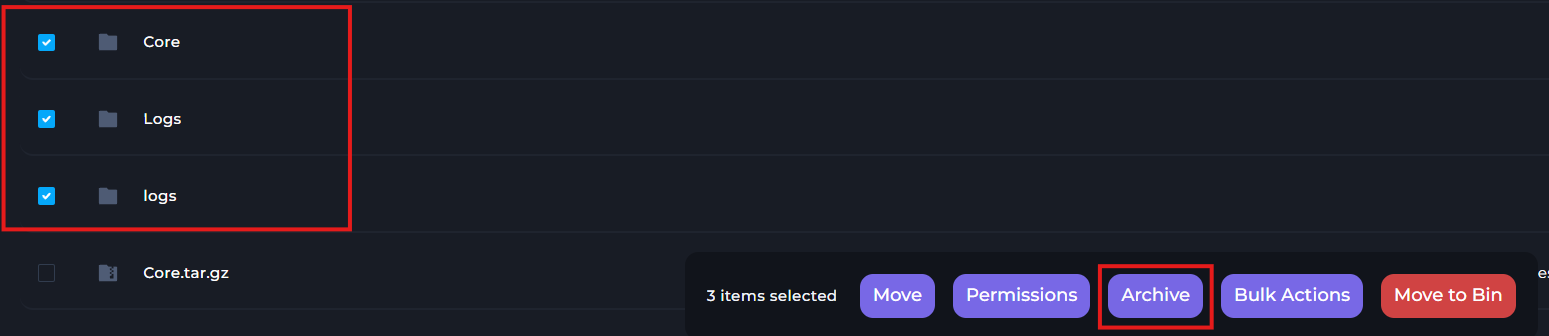
In some cases, you may want to compress a select amount of folders and files into one file that you can download. Like zipping files on a desktop.
The archive feature on the Kinetic Panel does just that. It could also be useful if you want to reduce the size of a large folder so that you may download it.
-1771864692213.png)
Downloading Files
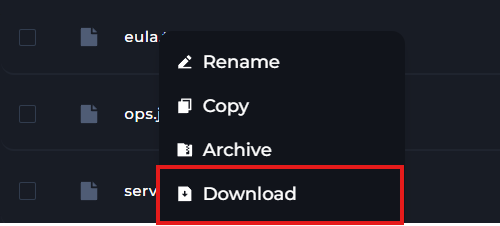
Downloading files on the Kinetic Panel is quite simple. All you need to do is right click the folder or file you wish to download, and click "Download".
Moving files to recycle bin
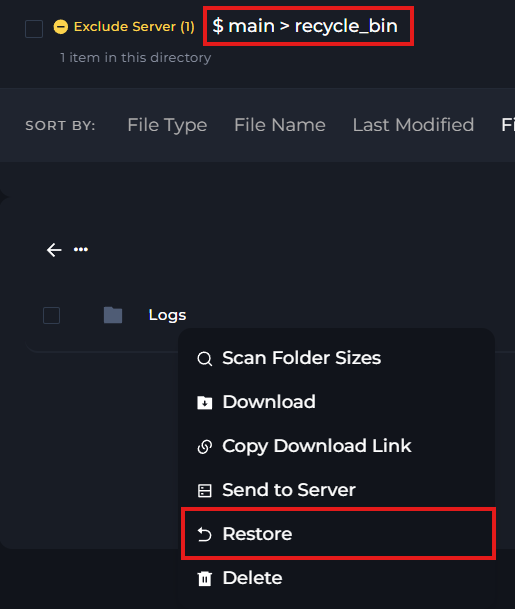
While it's possible to delete files on your server, sometimes it's better to move them to your Recycle Bin. This could be useful if you accidentally delete a file, and wish to get it back.
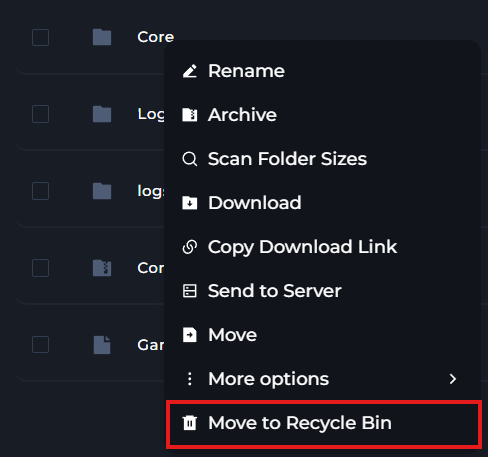
You can also access your recycle bin in the file manager main directory, and restore files you've deleted.