
In this guide
First, we'll cover the uses for a Reverse Proxy, then we'll cover how you can use it.
A Reverse Proxy can be used to point a domain at an IP and Port while removing the port. Let's put that into an example.
Lets say you have a map mod, that can be accessed from the web. It uses port 8123. You have the domain noot.xyz and want to point map.noot.xyz to the map. Without the reverse proxy, you would need to the port on the end of the domain. map.noot.xyz:8123. With it, you can have just as map.noot.xyz
Pointing The Domain
You'll need to point your domain to your server. For this, we're going to use cloud flare, but you can just use your domain registrar.
Head to the DNS tab, and add a new record. Set the type to A, and the name to the subdomain you want to use. In this case map. Then set the content to your server IP.
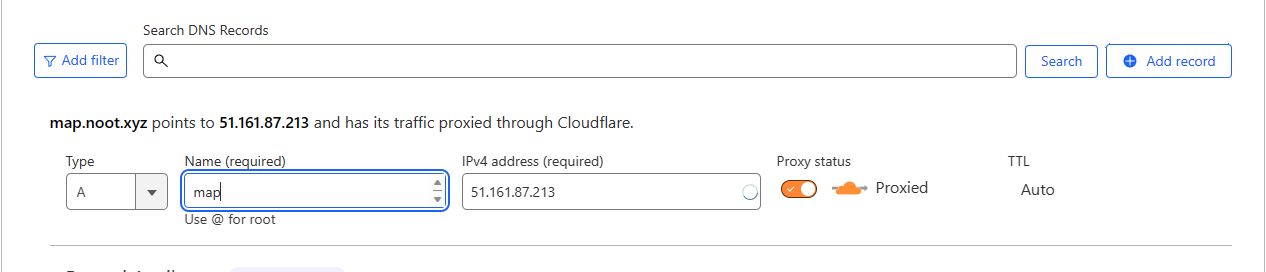
Your server IP can be found on the overview page of the panel.
Setting Up The Proxy
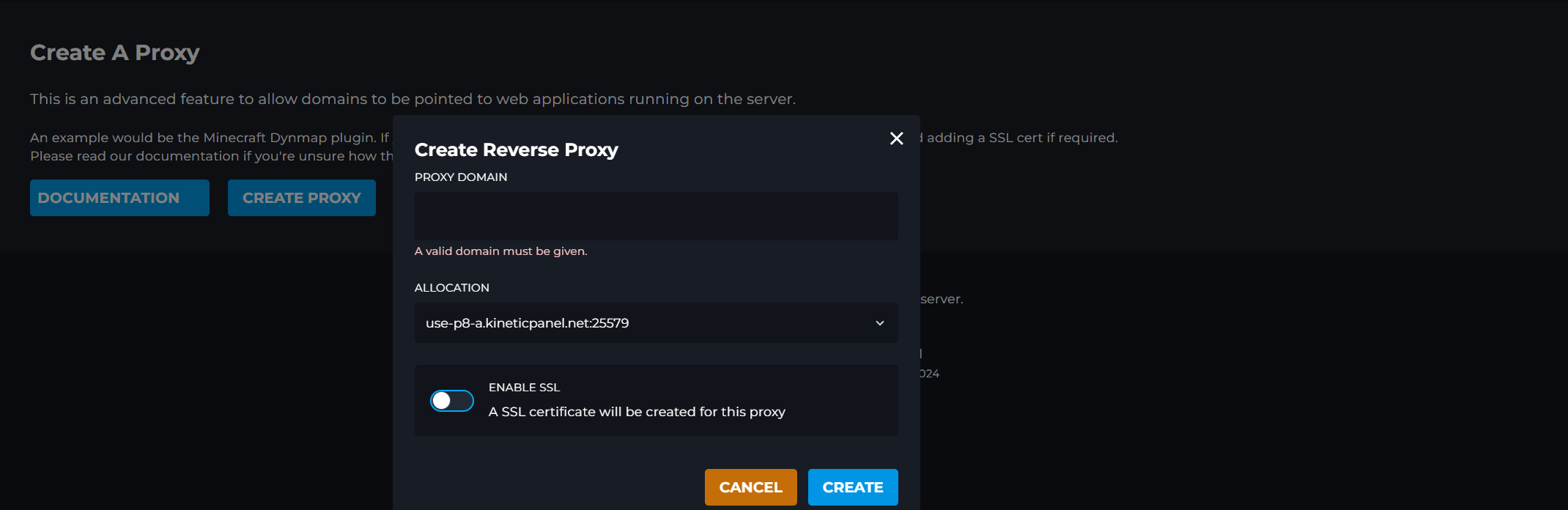
Now we need to set up the proxy. First, make sure you can access your application via the normal IP and Port. That way when troubleshooting we know it's an issue before linking in the reverse proxy. So if you're setting up a web map like we are here, head to the IP and Port in your browser. If you get a connection error, then you need to fix that first.
To set up a proxy, head to advanced, then reverse proxy. Here you can add a new proxy. Set the domain to the subdomain you want to use. In this case map.noot.xyz. Then set the IP to your server IP, and the port to the port your application uses. In this case 8123.
You can also add an SSL cert here. You'll need to generate this yourself. The best place to do that would be cloud flare. You can then add the cert and key to the proxy.
Once you've done that, press create. You can now access your application via the subdomain you set.
Please note, it might take up to 24 hours for DNS settings to update. So if it doesn't work right away, check back later.