
In this guide
If you need to move files within the File Manager to a different location, this guide will give you some steps on how to move files!
Dragging Files & Folders.
You can pick up to drag files and folders within the file manager. You will notice in the gif we have moved the mods folder to the versions folder and then back to the Main Directory of the file manager. All you need to do to move files is Hold left click over the Folder or File you wish to move and put it inside of it's new location.
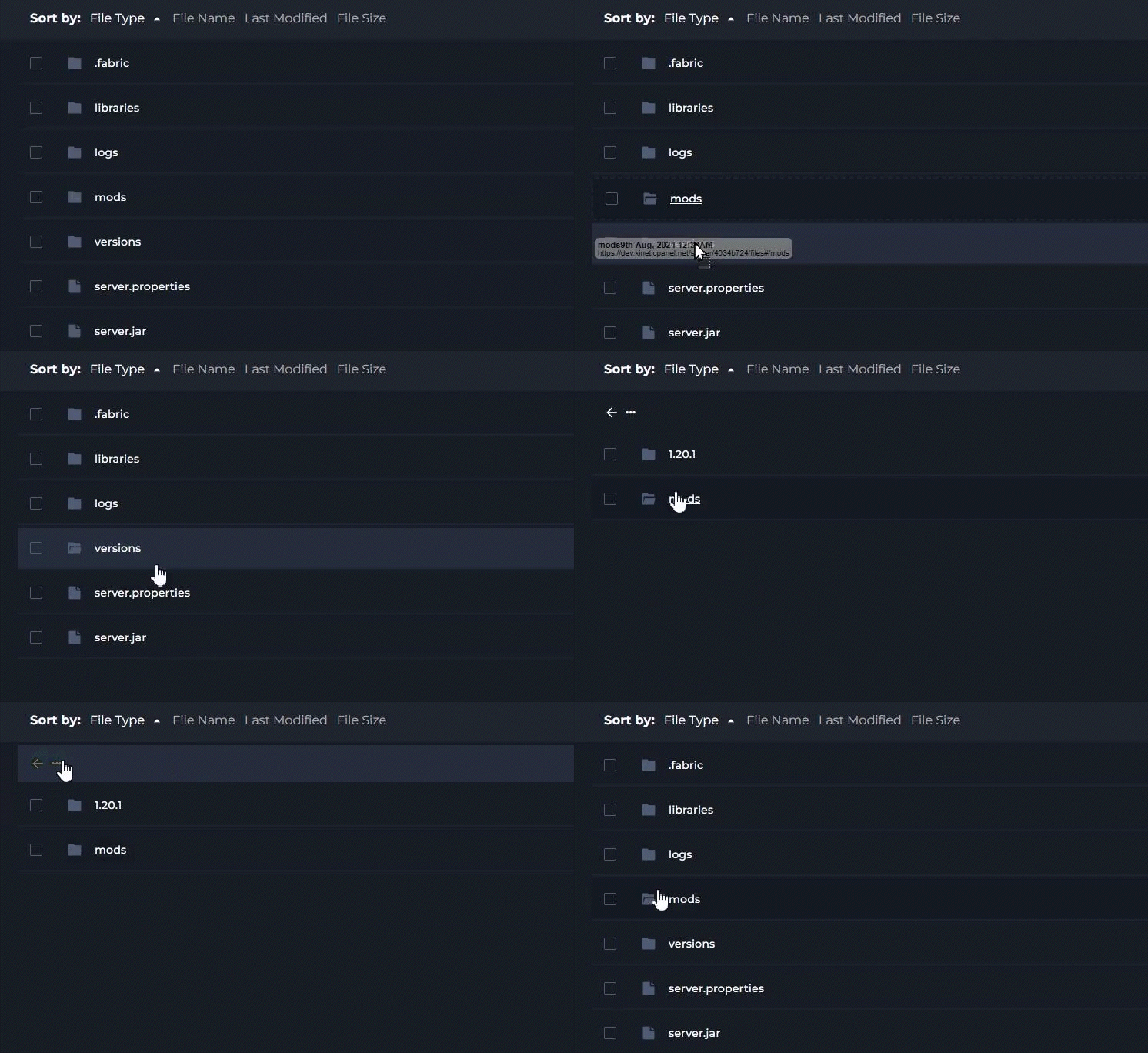
To move a file back a folder, select the Left facing arrow and the 3 dots at the top.
Breadcrumbs
You can also move files to any directory you would like within the File Manager. If you are in multiple folders and need to move something a few folders back, you can use the Breadcrumbs bar to do so.
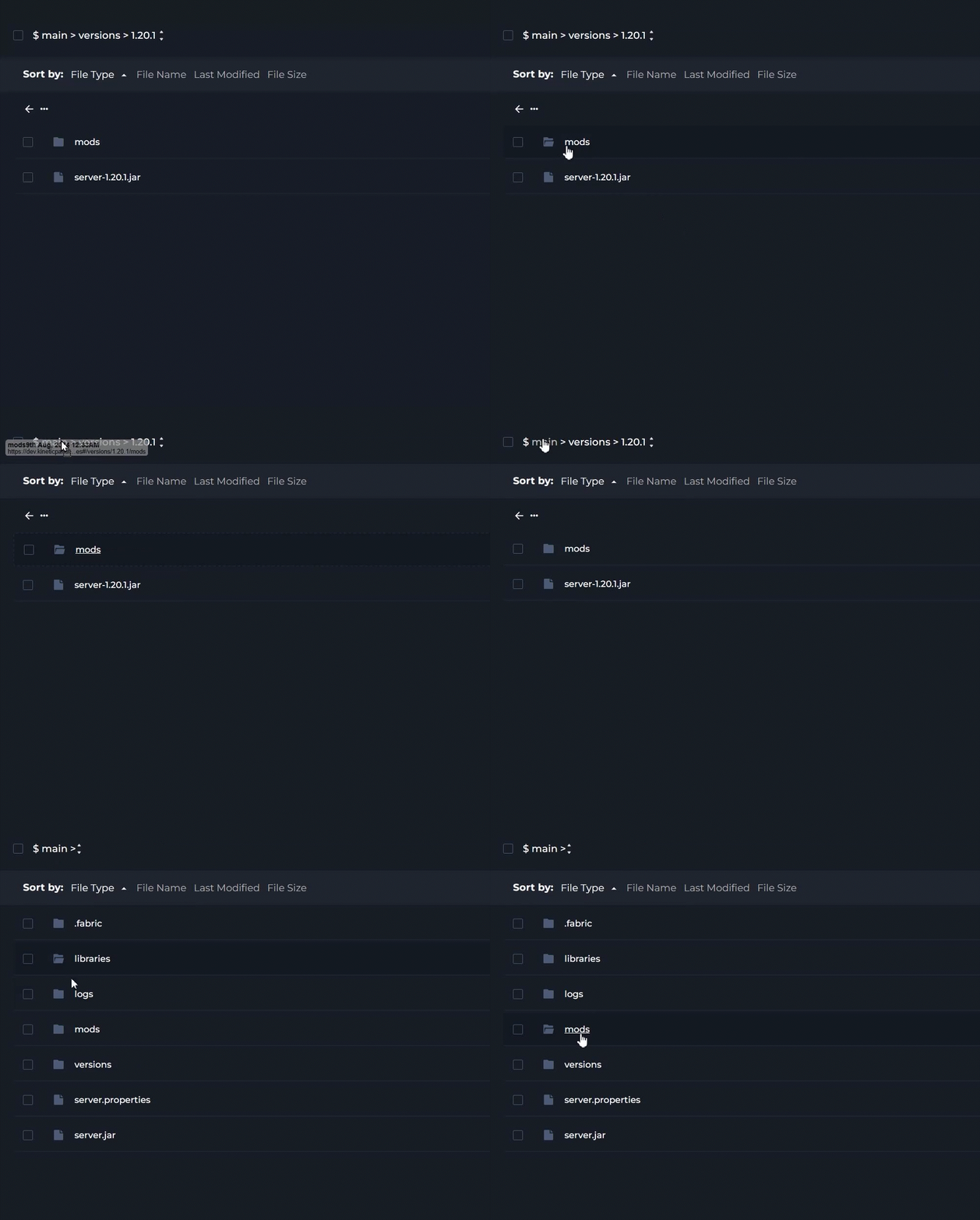
Moving Files and Folders using the Context Menu.
You can move files and folders by right-clicking and then pressing move. Here you can enter the location you want to move the files. we are moving the mods folder to the versions folder. so, we will put "versions/" infront of the mods folder to move it.

Moving files back
If you want to move the files backwards you can use ../
So if your file is in world/config/common and you want it just in config. Put a ../ in the move box. If you would like to move back more than once, you can do ../../
This would move the file into the world folder.