Add Another User To Your Server
Last updated 08 Dec 2025
Need a game server?
Spin one up fast with our feature-rich panel and seriously low prices.
If you would like someone else to be able to manage your server, you can give them access inside of the Sub Users section.
1 Login to the Kinetic Panel)
2 Head to the Server Tools tab & select Sub Users

3 From there, you can click "New User"

4 You will enter the Users email address inside of the User Email box. You will also assign permissions here. When you are done adding permissions, you can click on the Invite User button.
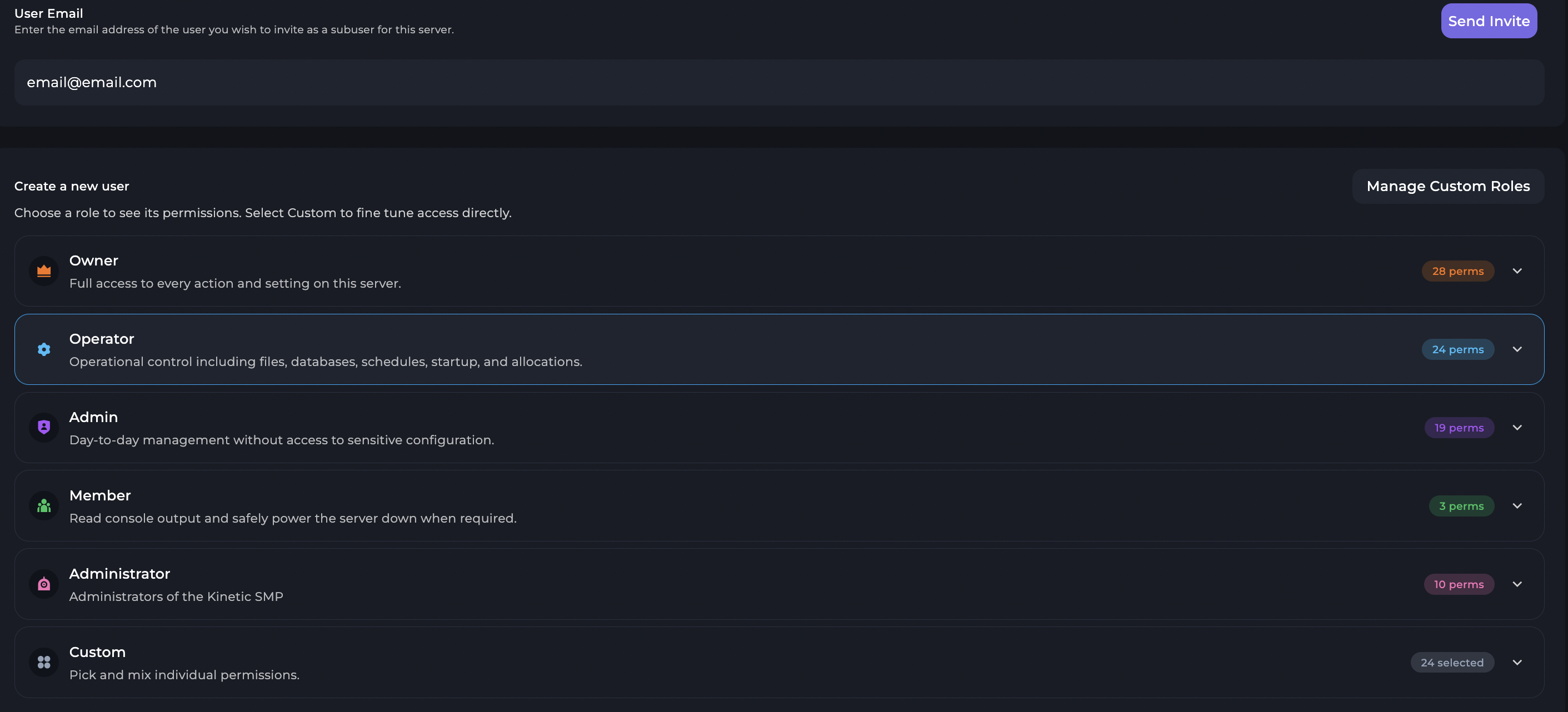
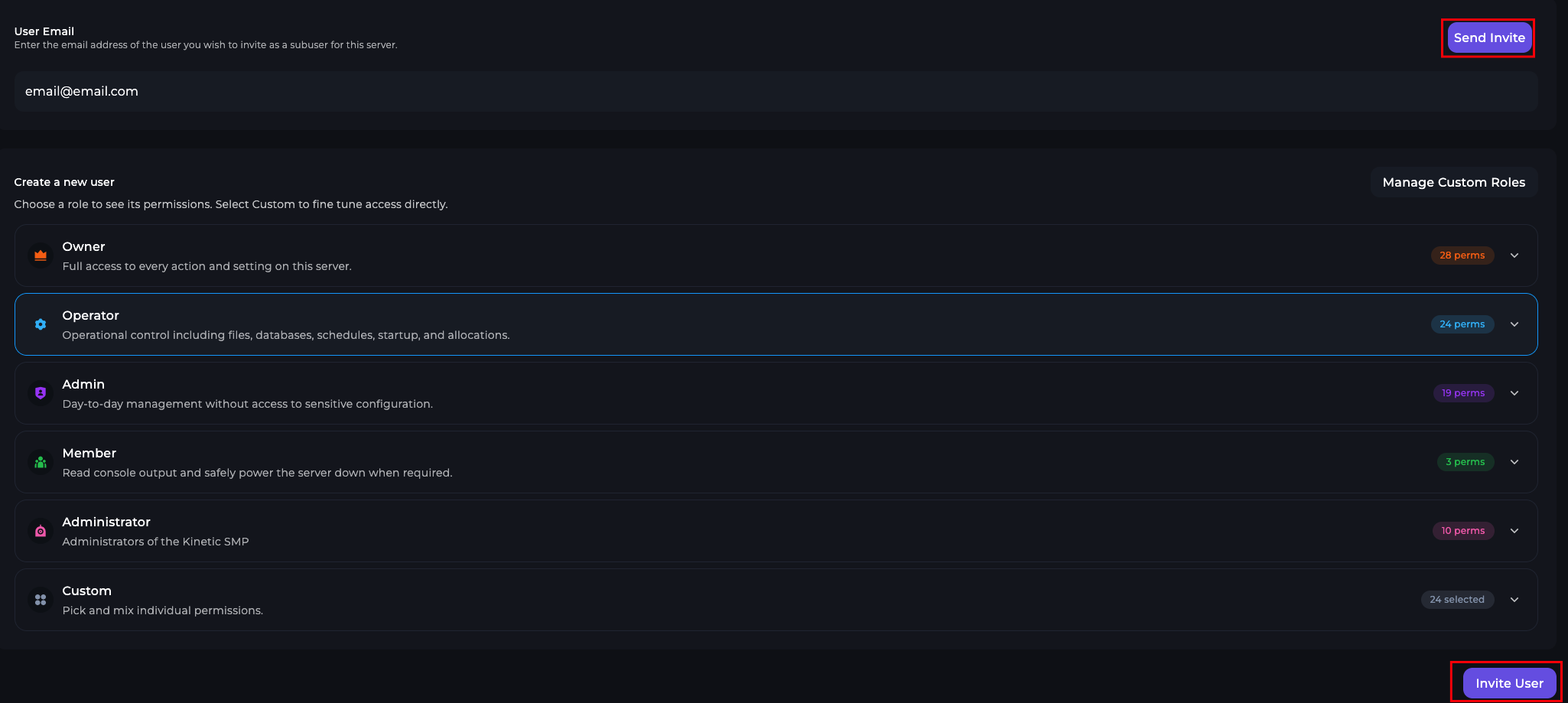
5 Once you select the role, all you need to do next is click the Invite user button.
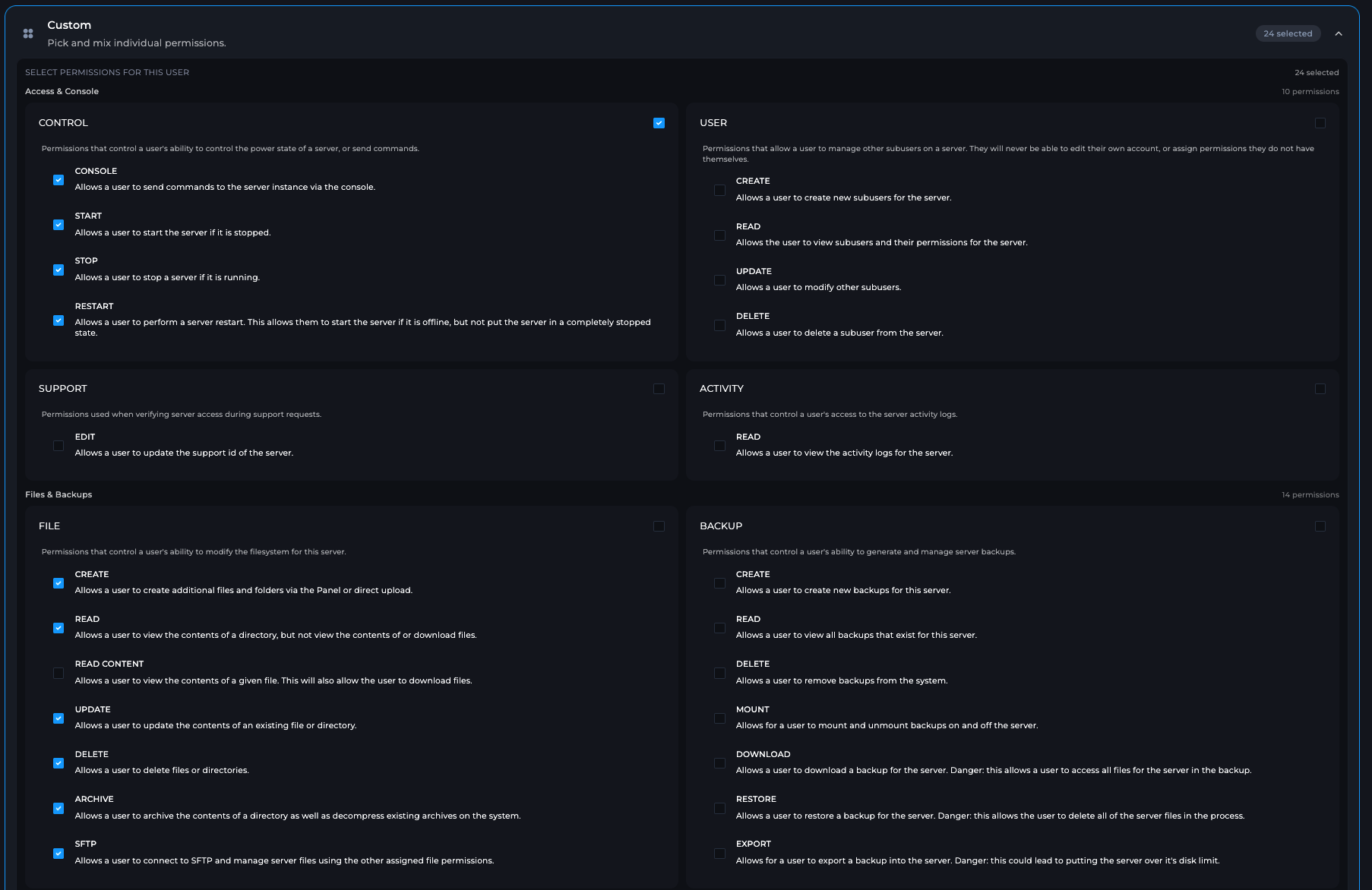
Custom Permissions
You can also give a user custom permissions to your liking, this can be used as an alternative if you do not wish to use our premade roles.
Custom Roles
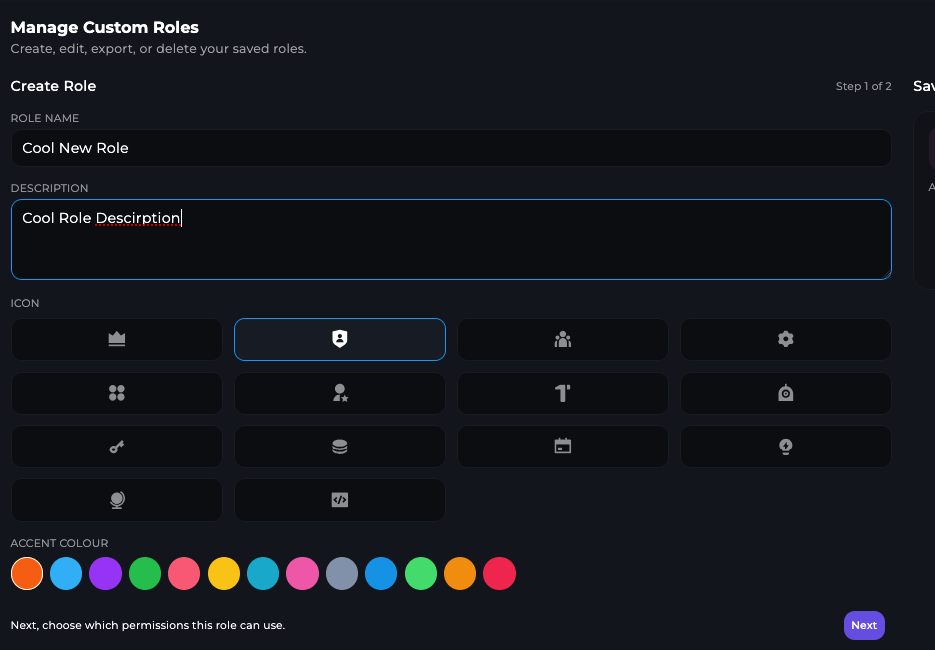
You can also make custom roles with set permissions, this includes customizing the name, the icon & the permissions.
Click on the Manage Roles button.

Now, you'll see a menu to give the role a name, description, Icon and a color.
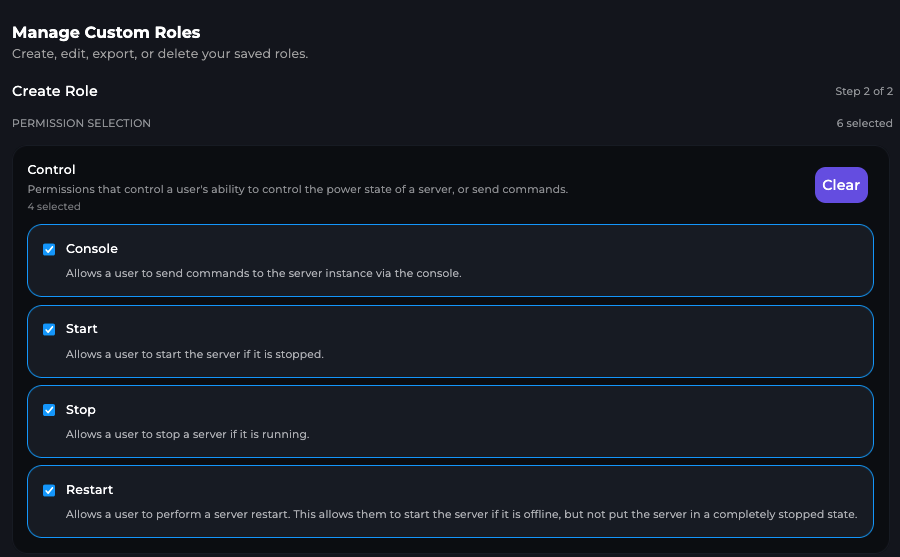
You will now be able to define the permissions for your custom role, once you are finished assigning permissions, you can click the Save Role button.
Importing & Exporting Roles
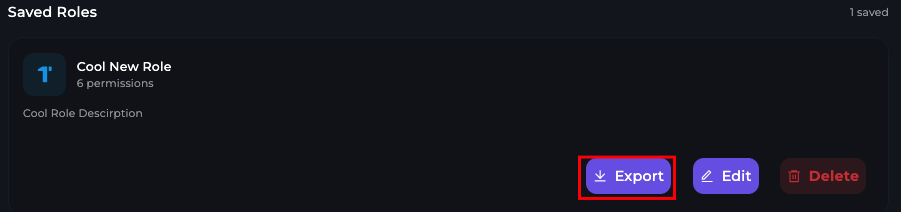
You can Import and Export Sub User roles onto your server, this will keep all of the settings that were configured by yourself, or another server owner who you have shared the roles with.
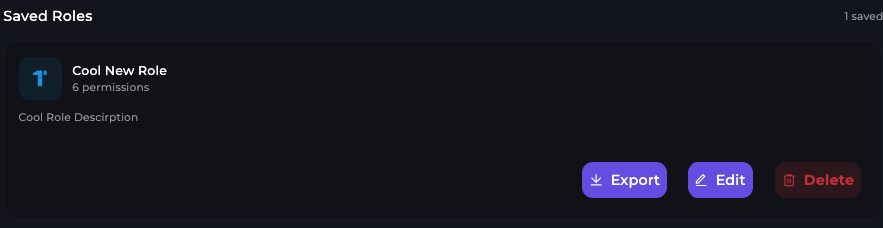
You can Export the Custom Role by clicking the Export button, this will download the Exported Role File.
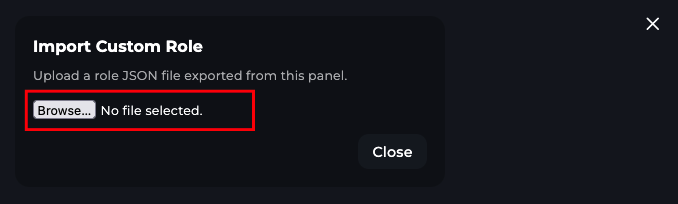
If you were sent an Export File, you an also upload it to your Sub User Custom Roles by clicking the Import Button.

Then click on Browse & find the .json file for the Custom Role, this will automatically upload the role to your server & can be found in right side called "Custom Roles".