In this guide
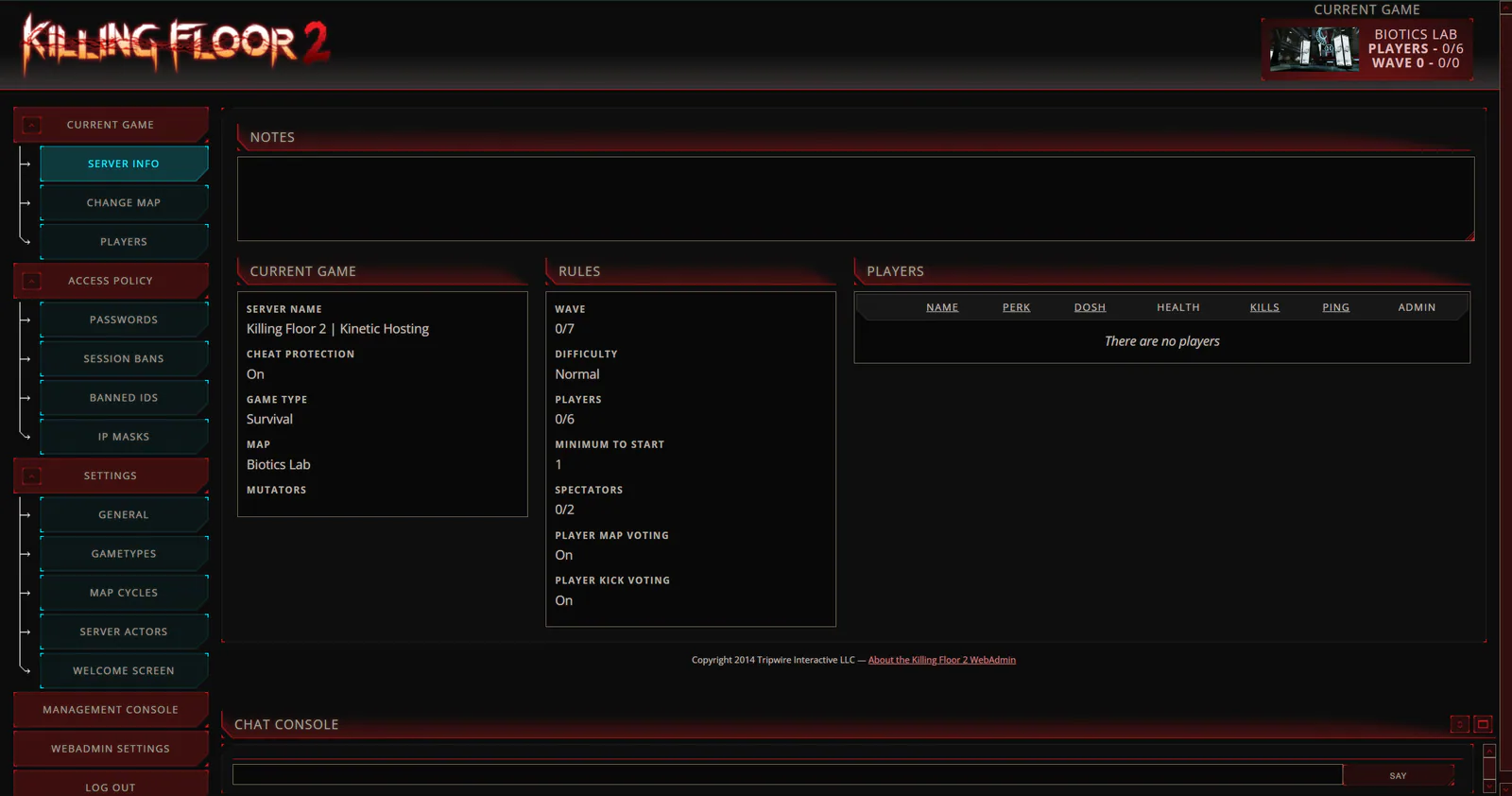
How to Enable Killing Floor 2 WebAdmin
Log in to the Kinetic Hosting Panel.
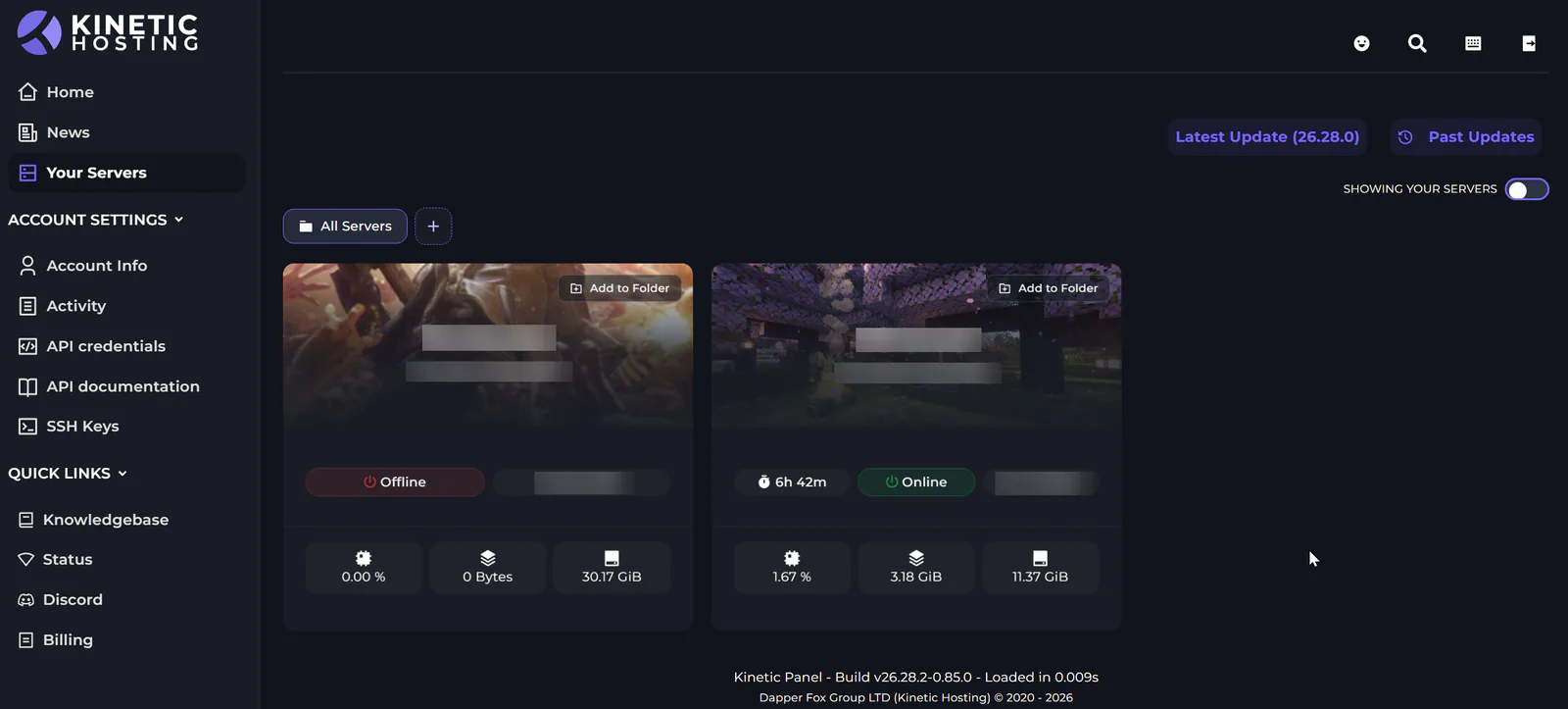
Select the Killing Floor 2 server.
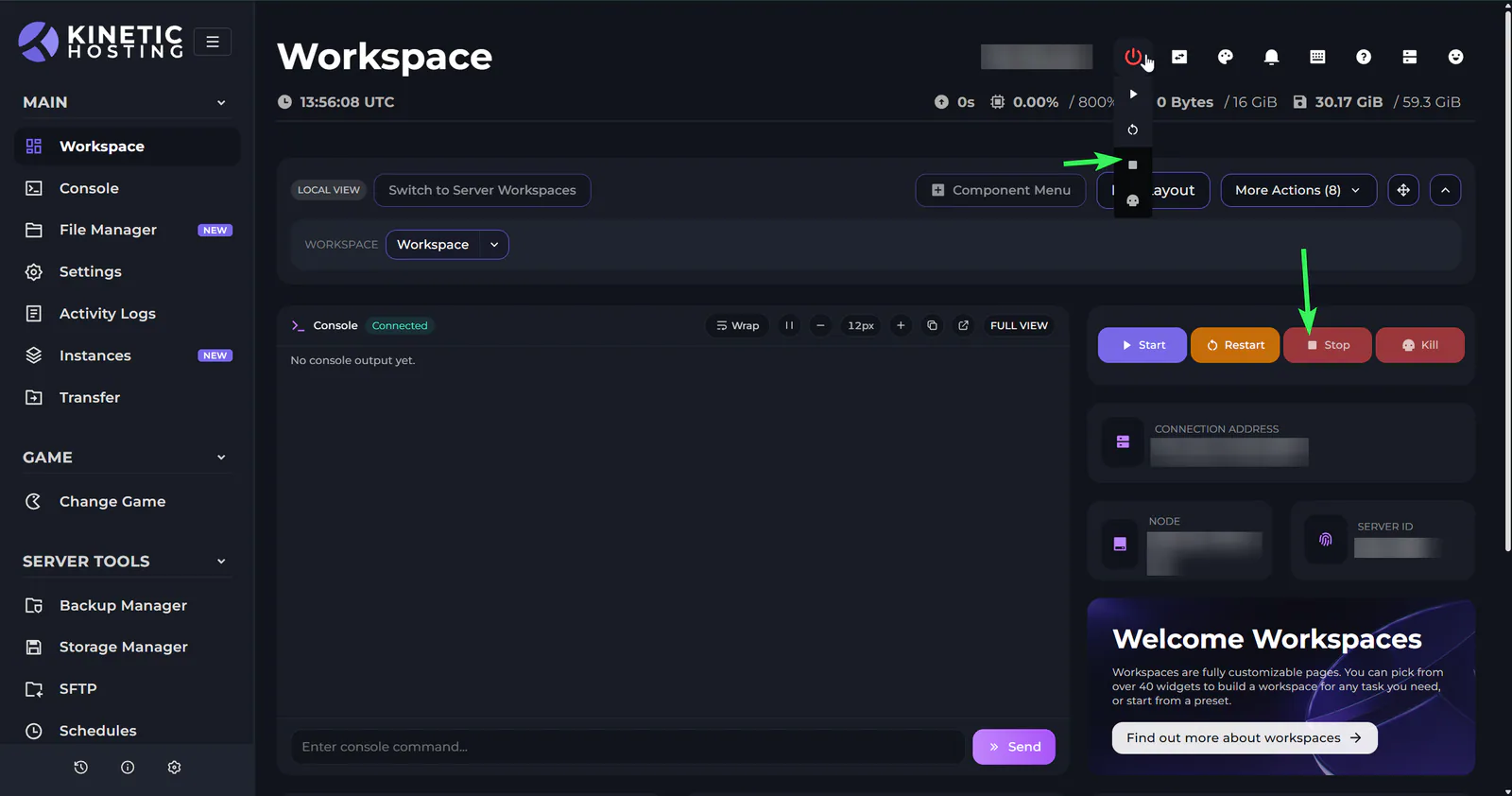
Stop the server.
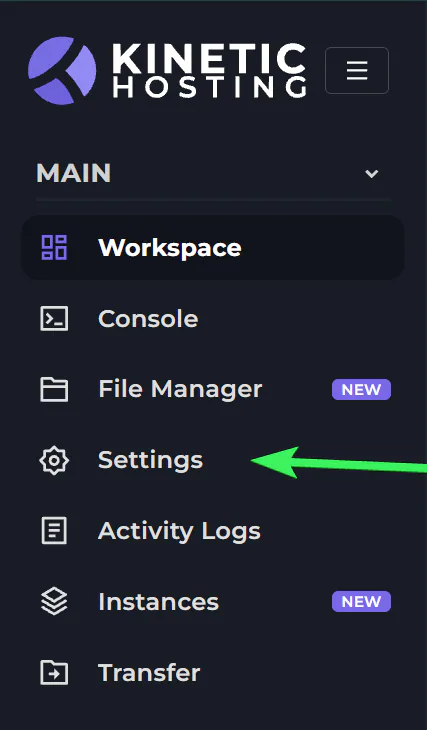
Go to Settings.
Find Enable WebAdmin and ensure it is enabled.
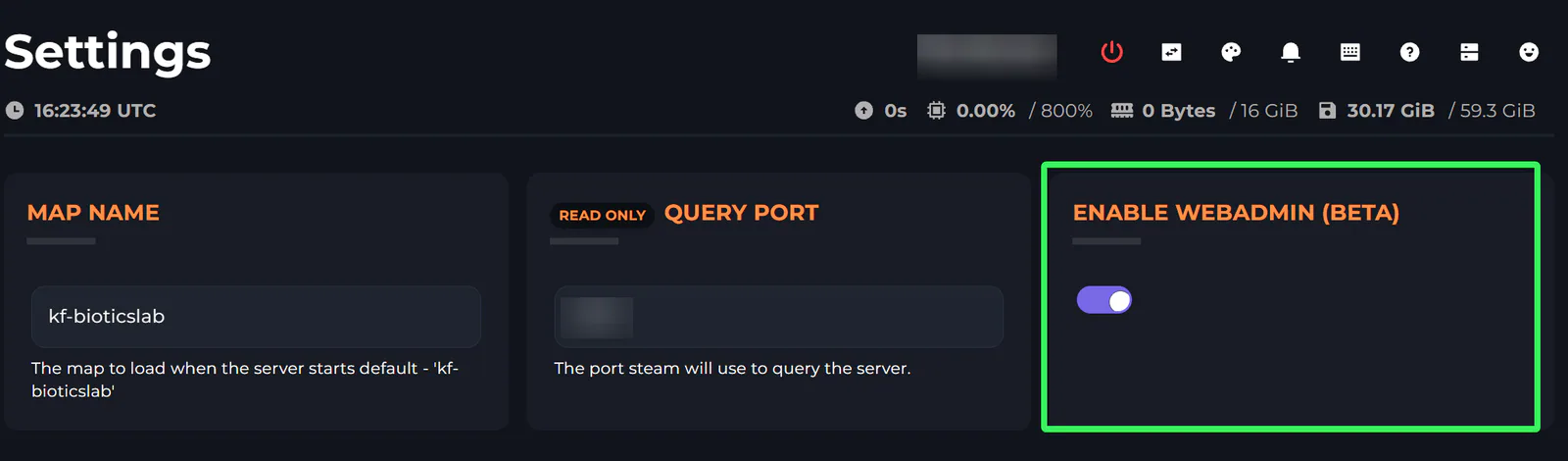
Find WebAdmin Port and make note of the port shown.

Find Admin Password and enter a secure password. This password will be used to log in to WebAdmin.

Start the server.
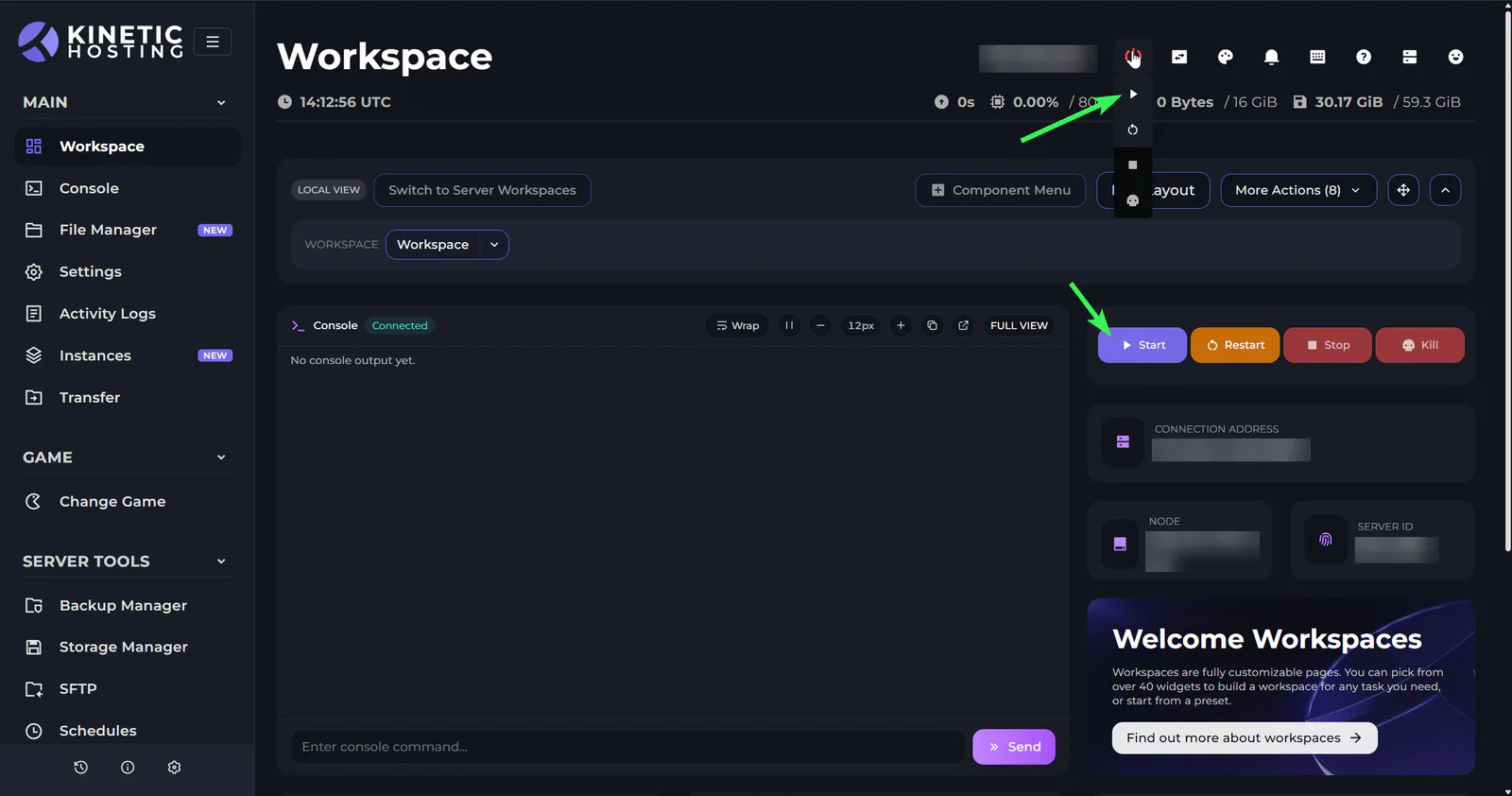
Allow the server to fully start before attempting to access WebAdmin.
How to Log In to Killing Floor 2 WebAdmin
Locate the server's numerical IP address and the WebAdmin Port noted earlier.
[This can be found in the Workspaces tab, in Settings > Server Details > Address, or even Network & Ports]
Open a web browser/new tab.
Enter the server's numerical IP address followed by a colon and the WebAdmin Port.

For example:
123.456.789.123:12345Press Enter to open the Killing Floor 2 WebAdmin login page.
Enter the following login information:
Username: ADMIN
Password: The Admin Password you configured in the Kinetic Hosting Panel.
Log in to access the WebAdmin interface.
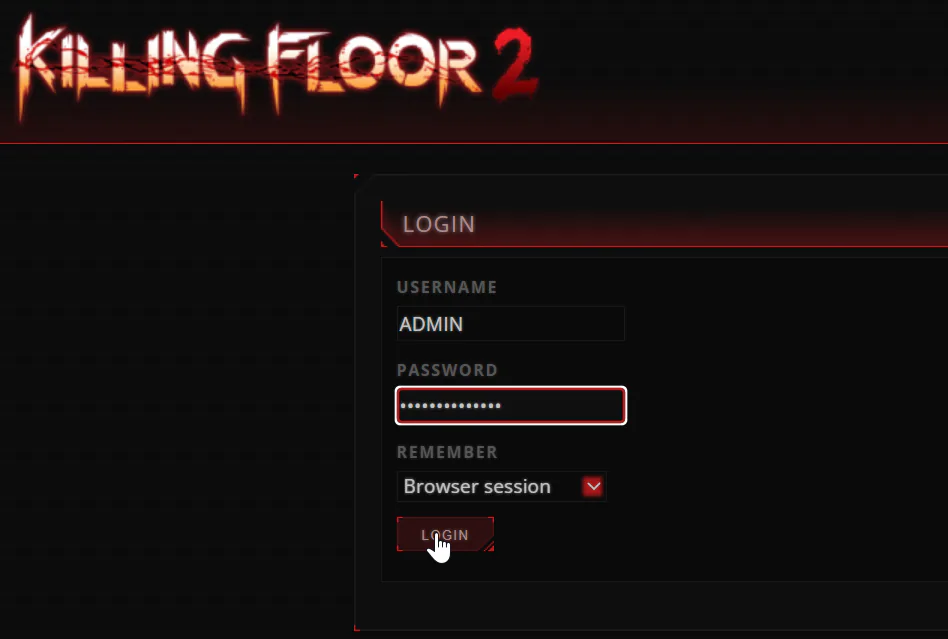
You're in!