How to change your Server Settings on a FiveM Server
Last updated 07 Jun 2025
Need a game server?
Spin one up fast with our feature-rich panel and seriously low prices.
Changing your server settings can make your Server Stand out by having a Unique Name, Description & much more! This guide will give you the basics on how to change your FiveM Server Settings.
Default txAdmin Location
1 Go to the Kinetic Panel and go to your FiveM server.
2 Head to the File Manager.
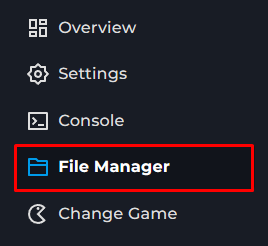
3 You will now want to open the server.cfg file
4 Near the bottom of this page, you will see some information such a sv_hostname, sv_projectName and sv_projectDesc. These are what you would want to edit to change your servers settings.

5 Once you have configured the server to your liking, go ahead save the file and restart the server, then the new settings will apply.
Using QBCoreFramework
1 Go to the Kinetic Panel and go to your FiveM server.
2 Head to the File Manager.
3 You will want to navigate through the following files txData > QBCoreFramework.

4 Open up the server.cfg file on your FiveM server.
5 You will want to look for the sv_hostname, sv_projectName and sv_projectDesc, you'll want to make your changes to this file for what you would like for users to see before they join the FiveM server.

6 After you make changes, you can save the file & you should all set!