
In this guide
Uploading your Single Player enshrouded world to your Enshrouded Server will allow you to play with your friends with a Multiplayer experience.
1 Login to the Kinetic Panel.
2 Stop the server.
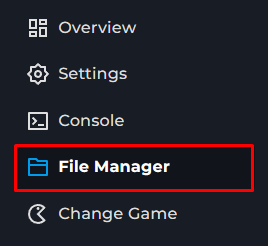
3 Navigate to the File Manager.
3 You will want to look for the folder called savegame
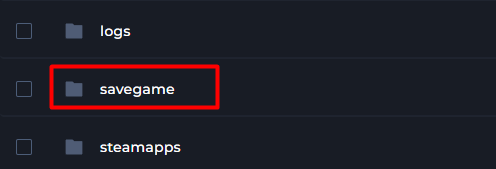
4 Right click on both of these files and put the world OLD after both of them, we will want to use the world code later on within this article.
Getting the Local save & Uploading.
1 Right click Enshrouded on steam and select "Manage > Browse Local Files"
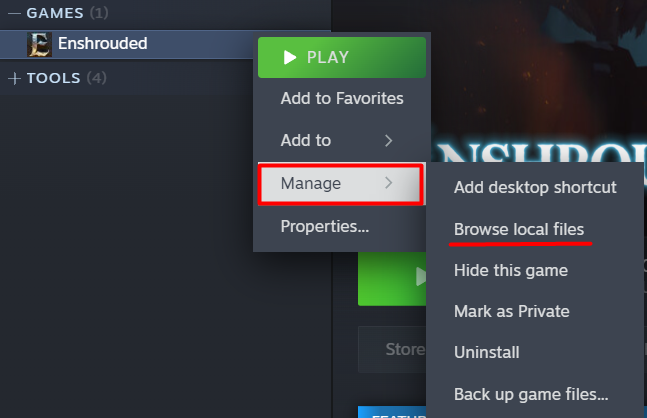
2 From there, you will want to go to the Steam Folder.

3 Now, Navigate through userdata > Your Steam Profile ID > 1203620 > remote
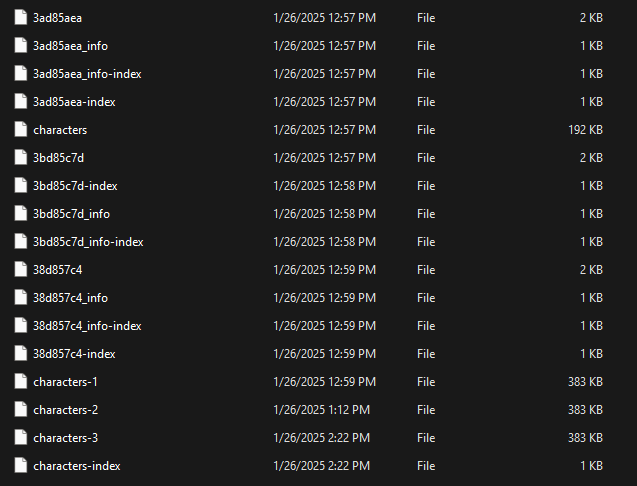
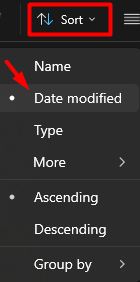
4 From there, you will want to click on Sort > Date Modified, you should now see your latest saves at the top.
5 You will need to now head back to the Kinetic Panel.
6 Navigate to the File Manager.
7 You will want to look for the folder called savegame
8 Upload the worldcode file and the worldcode_index file to this folder.
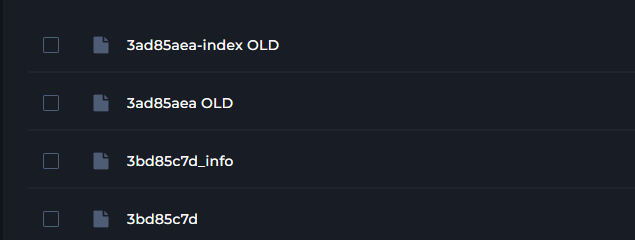
9 Since you have your servers world file now, all you need to do is copy the name, in this example ours is 3ad85aea. we will be renaming the file we uploaded 3bd85c7d to 3ad85aea. You will need to do this to the _info file you've uploaded as well.
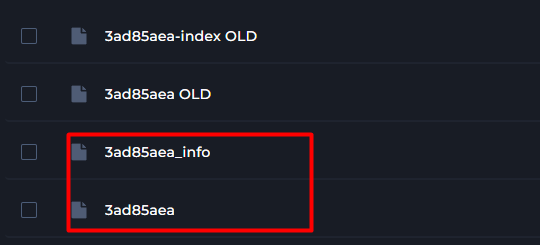
10 From there, All you need to do now is start your server & your world will be transfered!