Kinetic Panel Update 6 - The UI Overhaul and Customisability Update
Posted by Cole | 17 December 2025
Panel 6! It’s here and there are a plethora of new features that we are excited to unveil!
Our main focus has been increasing customisability to ensure that every user has the best possible experience with our service, letting the user take control of how their control panel works for them.
Below is a table of all of the new features and beneath that is a few images of some of the standout features.
If you want to try out this new panel, buy a server today from Kinetic Hosting, we offer the cheapest, most feature-rich game server hosting available. Check us out here!
Feature List
This is the full new feature list and what each feature does, you can find pictures for the standout features below the table.
Game | Feature | What it does |
|---|---|---|
All | Landing/ Welcome Page | When landing on Panel 6 for the first time, you’ll be hit with a new welcome animation screen, pressing start will play a new Intro Animation and then take you to the home page. |
All | New Home Page | Our new live page now features support buttons, a live updating status that will warn users of any outages or maintenance and the news posts have been moved to their own page, only the most recent new articles will be shown on the Welcome page. |
All | Change Log | Panel 6 now comes with a built-in Change Log, when the panel has an update, users will be met with a modal featuring all of the changes, bug fixes, etc. |
All | Workspaces | This is the main, biggest feature of Panel 6, you are now able to fully customise your panel layout, changing your experience to work the best for you, featuring 60+ widgets for the users to choose between. If editing the page feels like a long process, you don’t have to worry, we have presets that you may find work perfectly for you, custom made by our team. Customisability is a huge feature in Panel 6, we want our product to work for you, our customer, as you want it to. A huge piece of this feature is the ability to Pin Files, you can pin a specific section of the File Manager, such as the /mods directory, or the /plugins directory, allowing you to access them quickly from the main page of the Panel. The customisability doesn’t end there, you are also able to build out your own custom buttons, notes, add a page title and dividers, we’re really allowing the users to create an optimised workflow for themself or a team of server admins. |
All | File Manager | The File Manager has had an overhaul, featuring a Recycle Bin, allowing users to store deleted files for a short period of time. If a user still wishes to permanently delete a file, they can delete it whilst holding down CTRL. |
All | Activity Log | The Activity log has had a QOL Feature added, there is now a better filter to see what actions have been taken. Crashes will also now link to the Crash Manager. |
Minecraft | Crash Manager | This feature is currently in Beta and will remain in beta until we feel it is correctly flagging crashes. The Crash Manager will allow people to see crashes and the log files from crashes. The panel will then try it’s best to showcase the cause of the crash, it will do this by pulling relevant parts from the report. This feature will be slowly trained and adjusted using different crash reports. |
Minecraft | Modpack Importer | Panel 6 now natively supports importing modpacks from Curseforge. If we don’t have the modpack on our system, you can now add it to your server easily. |
Minecraft | Client Mod Scan | Whilst we already remove all client-side mods that are flagged in our database, we don’t have a list of all of the client-side mods. So we’ll also run an additional client mod scan. |
Minecraft | Installing Version | Once the mods are downloaded, client mods scanned and the missing mods are uploaded. Our system will install the correct version of Forge, Fabric or Neo-Forge. This will download from our version installer, if we don’t have the version, this step will be skipped. The needed version will be logged in the debug log so our support team is able to see which version needs to be added when a support ticket is made. |
Minecraft | World Manager | This is another of the biggest features added in Panel 6, here you’ll be able to see all of the Minecraft Worlds in the server, Manage them and see some statistics about them. This will be good when a server has multiple worlds and a user needs to decipher between them, being able to see the playtime on each world. You are also able to see and manage all of the Dimensions on a Minecraft server, including the Vanilla dimensions and Modded dimensions. You can also make a quick backup of your world from this page, you can opt to just backup the world or the entire server. |
Minecraft | NBT Editor | The old NBT Editor page has been Replaced, this page will scan and find all of the NBT Files in the files. With this, you can also edit NBT files in the file manager, This supports DAT files, Player Data files and Region Files. We also allow you to have a 3D Chunk view when opening a region file, here you can remove blocks and save. Allowing you to zap blocks out that could be causing a crash. Whilst the NBT Editor isn’t in beta, this section is, there may be bugs when working with this feature. Down the side in a region file you can see all the chunks, if needed, you can delete a chunk from here. There is also a region coordinate helper, if you input Coordinates, it will find the correct region file for you. You can clone NBT files before you make edits, this will save the file in the same directory and call the file “FILENAME.backup”, should anything go wrong, you can rename it to restore the file. |
Minecraft | Player Manager | The Player Manager has had some big updates in Panel 6, the first change is unverified players, if the server is in offline mode or has bots, then their names can't be checked with the Mojang API so they are now all hidden on the unverified player toggle. This toggle doesn’t show if there are no unverified players. You can now press on a player and open the player data tool. Here you can see stats about the player, their health, food, location in the world, exp, etc. It can all be edited from here too. Lower down on the page you are able to see the Inventory Editor, here you can move items around like you would in-game, you can also change the item type, stack and add enchantments, this works with the inventory and ender chest. It also supports modded items but they wont have a texture. |
Minecraft | Mod Manager | The Mod Manager is mostly the same, it just has a cleaner UI and a mass select feature. We now also support NeoForge and have better pickups for Fabric Mods. |
All | Storage Manager | The Storage manager is mostly the same but it has had a UI overhaul also and it now warns users if there is an item in the recycle bin. |
All | Change Game/ Software | All new UI and it has been renamed to “Change Game” instead of “Change Software” |
Minecraft | Version Installer | The UI has been completely overhauled, making it easier for the user. |
Minecraft | Modpack Installer | This is mostly the same for clients but it has been changed internally to make it easier for our staff to manage. |
All | Backups | Backups now show a warning along the top of the screen when one is taking place. |
Minecraft | Plugin, Mod & World Installers | These features have all had a UI overhaul to make them fit in with the rest of Panel 6. |
Minecraft (For Now) | Quick Install | The Quick Install feature allows the user to install Geyser, Simple Voice Chat, Dynmap or Bluemap with the port and plugin/ mod already configured. This feature will: Download the Plugin, start the server to create the config, set the config correctly and then restart the server. More Plugins/ Mods will be added to this feature over time for Minecraft and other games. |
All | Schedules | The Task View has been remade to give the user more information. |
All | Split Tool | Making splits has now been made more simple. Everything is set to GB rather than MiB to make things more clear. It now tells you what you have available. |
All | Sub Users | We’ve now added user roles. These come with permissions to make things more simple for people to add new users. We have added Owner, Operator, Admin, Member and Custom that allows you to set the permissions manually. |
All | Instances | The Instances feature is very similar to Save States that you get in games, you are able to save a snapshot of your server in its current state, extremely useful for making changes or branching pathways in games! You can also use this feature to actively swap between games, saving your progress in one game. |
All | Install Page | There is now a progress bar for some actions, we also have Tips that show in the bottom right. |
All | Colour Tags | Colour tags add a bar of colour along the top of the screen. This is saved to the server you’ve set it on. Colour tags are there to help you from mixing up servers. This is mostly useful for people working on multiple servers at once, such as Network owners. |
All | Node Offline Message | If an issue happens on our end or the end of our Node Providers, a message will appear on the panel to let users know about it, there is a contact button to open a support ticket regarding this issue. |
Workspaces
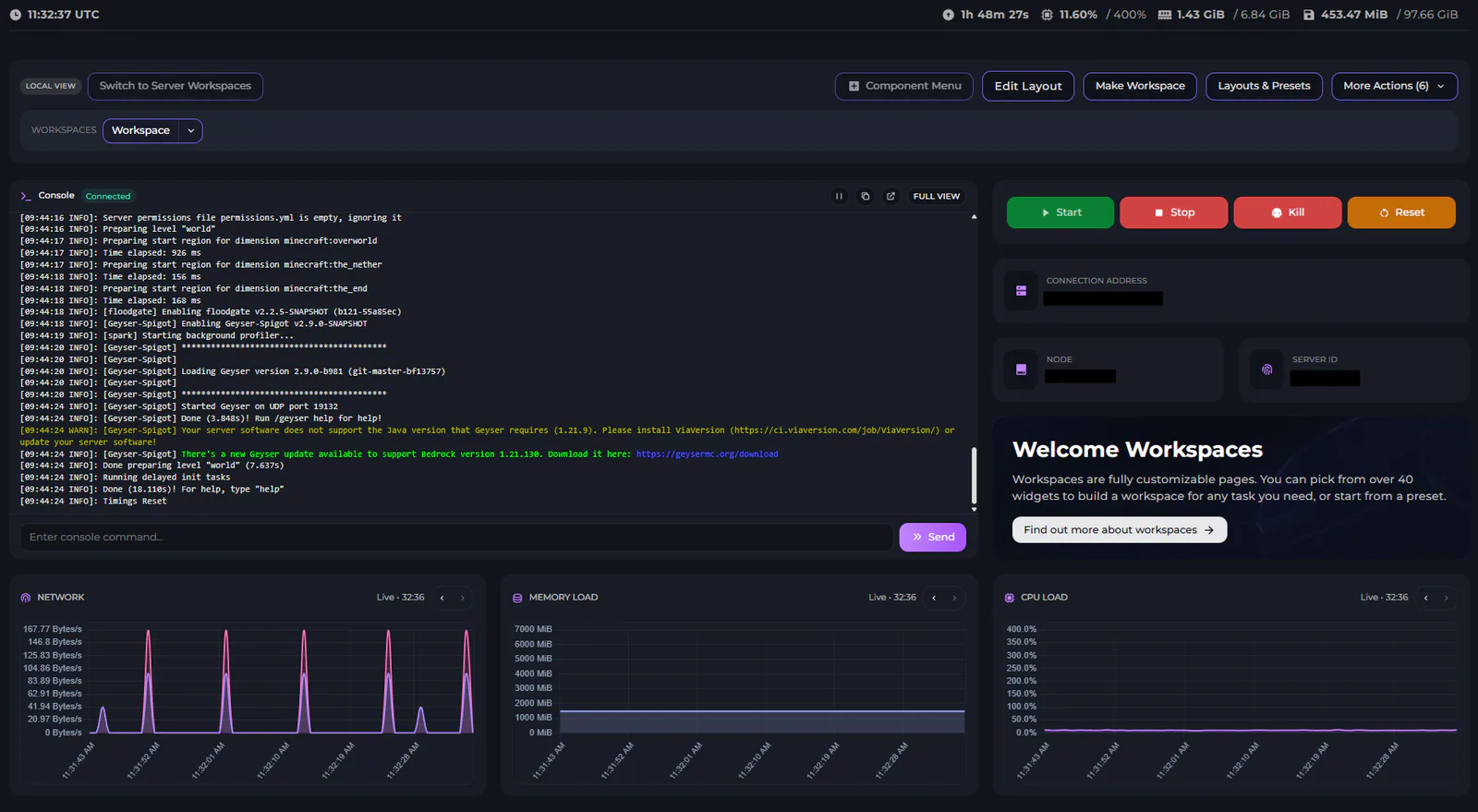
This is the “Workspace” Preset. This preset lets you see the Memory, CPU & Network Load, the Server Console and important server information.
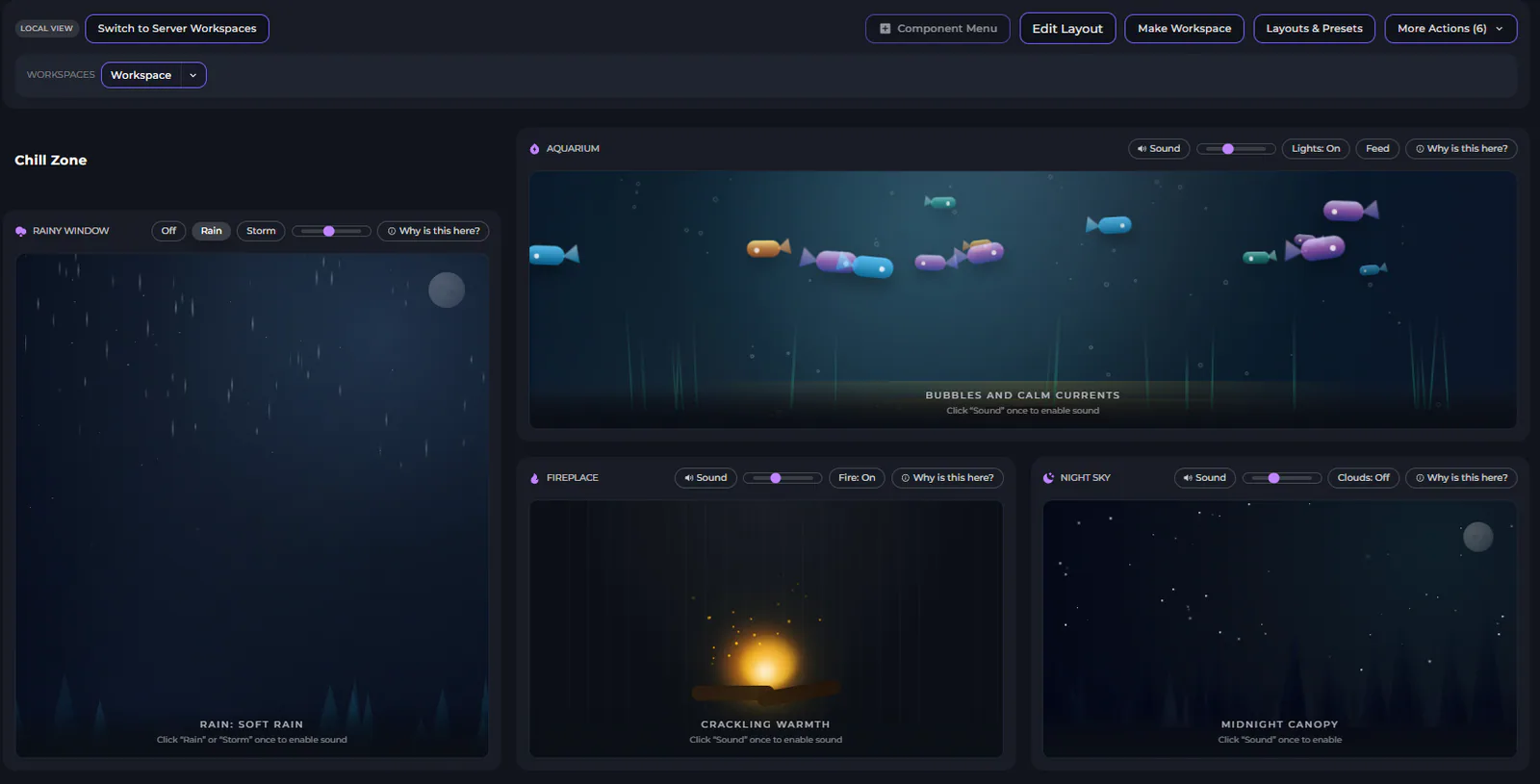
This is the “Chill Zone” Preset. This preset lets you sit and watch all of our calming, ambient widgets. This is one of the jokey workspaces we offer.
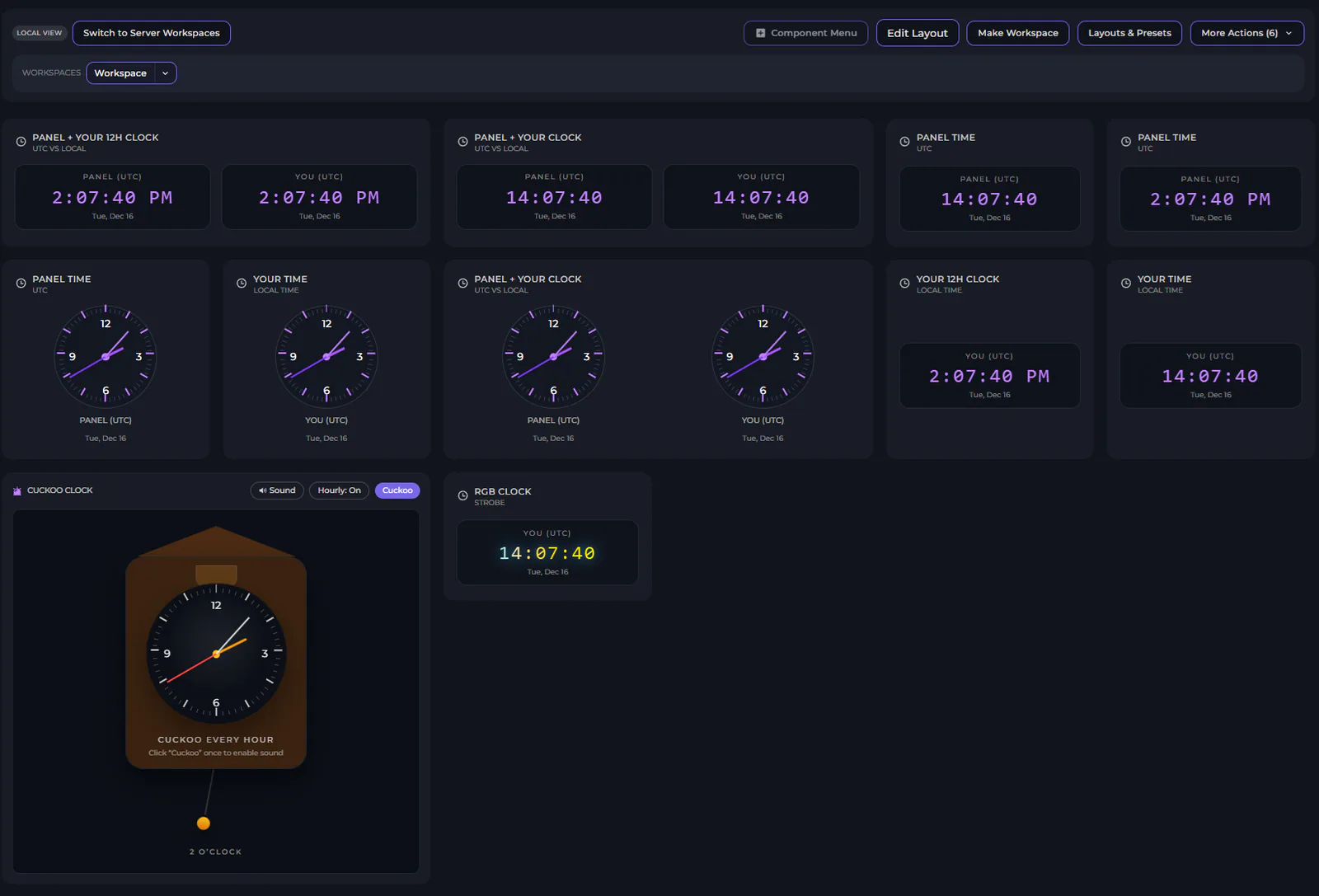
This is the “Clocks” Preset, it allows you to see all of the clock options we offer, this is another jokey workspace.
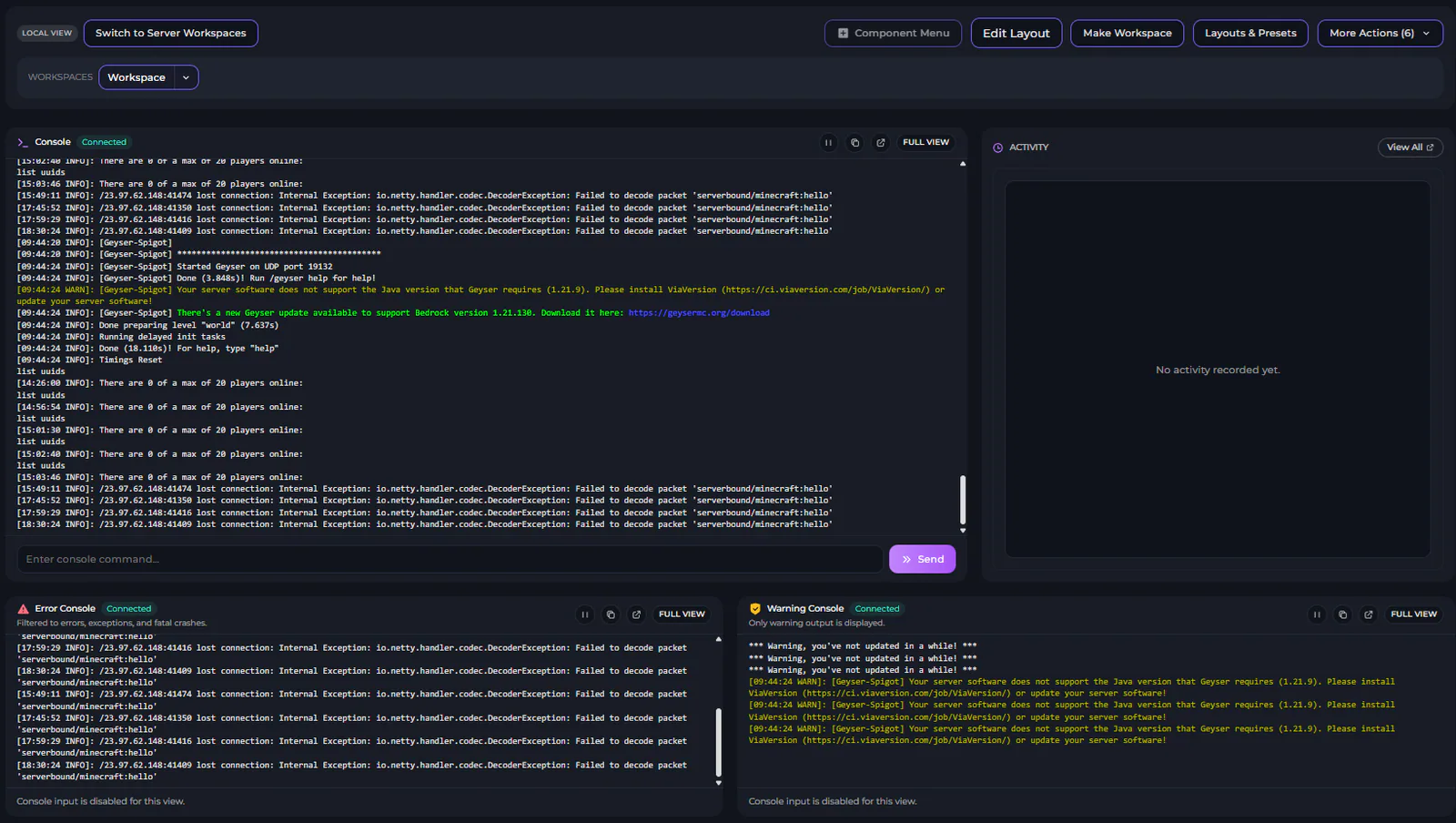
This is the “Watch Point” Preset, allowing you to see the Console and more specifically the Error and Warning Consoles and the Activity log.
Workspaces include a huge amount of customisability for your control panel, you can set Local layouts and Server layouts, if you have other people that work on your server, you can customise how it will look for them as well.
We have created over 60 widgets for you to use, here is a list of all of the widgets and what they do:
Widget | What They Do |
|---|---|
Active Schedules | Run or Disable Schedules without leaving the Overview. |
Activity Log | Shows the five most recent events with a quick link to the full log. |
Aquarium | A calming aquarium with fish, bubbles and optional ambient sound. |
Backup Manager | Create new backups and restore existing ones. |
Backups Mini Stat | Shows how many backup slots remain before hitting the limit. |
Connection Info | Shows the current address players should use to join. |
Console | Embedded server console with live output and command entry. |
CPU Graph | Historical CPU utilisation graph with scrolling controls. |
CPU Mini Stat | Compact CPU meter showing live usage vs limit. |
Crash Manager | Summarises the latest captured crash and links to the full crash manager. |
Cuckoo Clock | A wooden-style analog clock with an hourly cuckoo and a summon button. |
Custom Link Button | Launch a user-defined link after confirming the destination. |
Databases Mini Stat | Quickly see how many databases are created vs allowed. |
Divider | A resizable horizontal divider to break up layouts. |
Error Console | Console filtered to show only error lines. |
Fireplace | A cozy fireplace with optional crackling sounds. |
Force Stop Button | Single force stop button for emergency use. |
Go Faster Box | A completely pointless RGB box. Makes everything go faster. |
Minecraft Chat | Live in-game chat feed with send support. |
Mod Manager | Quickly toggle, delete, or scan Minecraft Mods. |
Modpack Status | Shows the installed modpack and whether updates are available. |
Network Graph | Inbound and Outbound traffic plotted over time. |
Network In Mini | Live inbound bandwidth consumption. |
Network Out Mini | Live outbound bandwidth consumption. |
Next Schedule | Shows the next scheduled task with an ETA. |
Night Sky | Twinkling stars with option forest ambience and a clouds toggle. |
Panel + Your 12h Clock | See UTC and your timezone with AM/PM indicators. |
Panel + Your 24h Clock | Shows UTC alongside your timezone in a 24-hour format. |
Panel + Your Analog Clock | Compare UTC panel time with your personal timezone. |
Panel 12h Clock | UTC panel clock rendered with AM/PM. |
Panel 24h Clock | UTC digital clock presented in a 24-hour format. |
Panel Analog Clock | UTC analog clock that mirrors the panel time. |
Pinned File Editor | Load and edit a specific file without leaving the overview. |
Pinned Folders | Access frequently used directories in one click. |
Pinned Split | Pin a split server and see its resource allocation. |
Player Login Feed | Minecraft join/leave messages only. |
Players Online Mini | Shows the current player count with the slot limit. |
Power Controls | Full set of start, restart, stop and force stop buttons. |
Rainy Window | Animated raindrops with optional ambient sound and stormy thunder. |
RAM Graph | Historical memory usage with zoom controls. |
RAM Mini Stat | Compact memory meter showing live usage vs allocation. |
Restart Button | Single restart button for quick access. |
RGB Strobe Clock | Your 24h digital clock with a strobing RGB effect. |
Server ID | Displays the internal server identifier. |
Server Metadata | Connection info, server ID and node in a single widget. |
Server Node | Shows which node is hosting this server. |
Snow Globe | Slow drifting snow with a gentle bell and a shake burst. |
Split List | Lists all split servers with quick navigation links. |
Start Button | Single start button for quick access. |
Stop Button | Single stop button for quick access. |
Storage Mini Stat | Compact storage usage against your disk quota. |
Storage Overview | Shows disk usage and highlights warnings from the storage manager. |
Text Note | Add a personal note or reminder to your layout. |
Title Text | Large heading text you can customise per layout. |
Train Window | Parallax scenery from a train window with option rail ambience. |
Uptime Mini Stat | Readable uptime counter that mirrors the console. |
Warning Console | Console feed filtered to show warnings. |
Workspace Welcome | Introduce workspaces with a rich hero banner and a quick link to the intro guide. |
World Overview | Quick view of detected worlds and backup status. |
World Stats | Aggregated metrics across your Minecraft worlds. |
Your 12h Clock | Personal 12-hour digital clock with AM/PM. |
Your 24h Clock | Digital clock locked to your timezone (24-hour). |
Your Analog Clock | Analog clock locked to your configured timezone. |
Instances
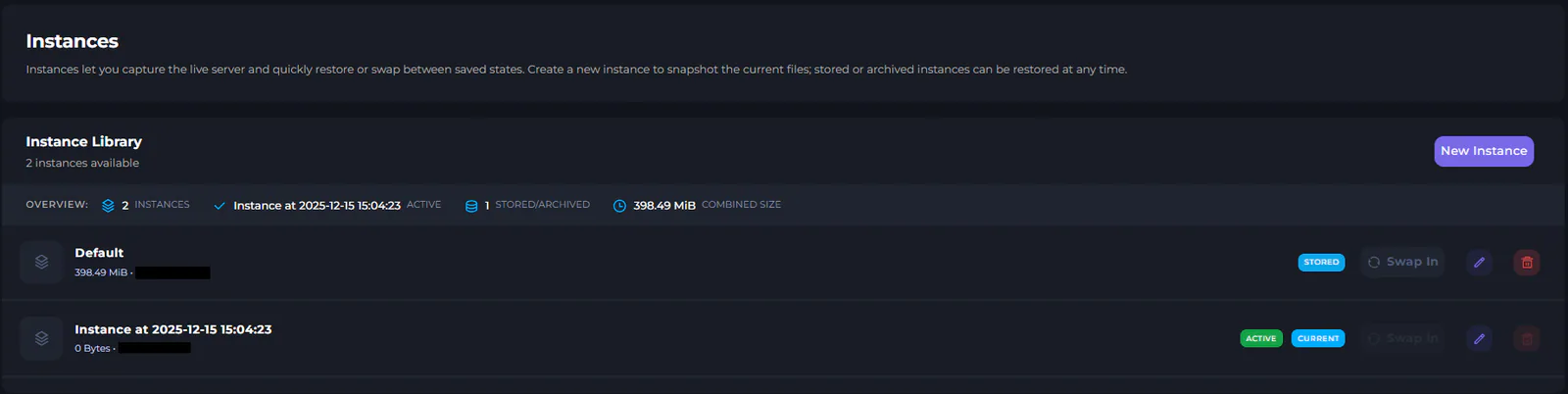
This is our Instances system, it allows you to switch between different “saves”, meaning you can have multiple play-throughs of the same game happening on the same server.
NBT Editor
There are two stand-out features of the NBT Editor that are cool for us to show off, we’ll go through both of them!
3D Chunk View
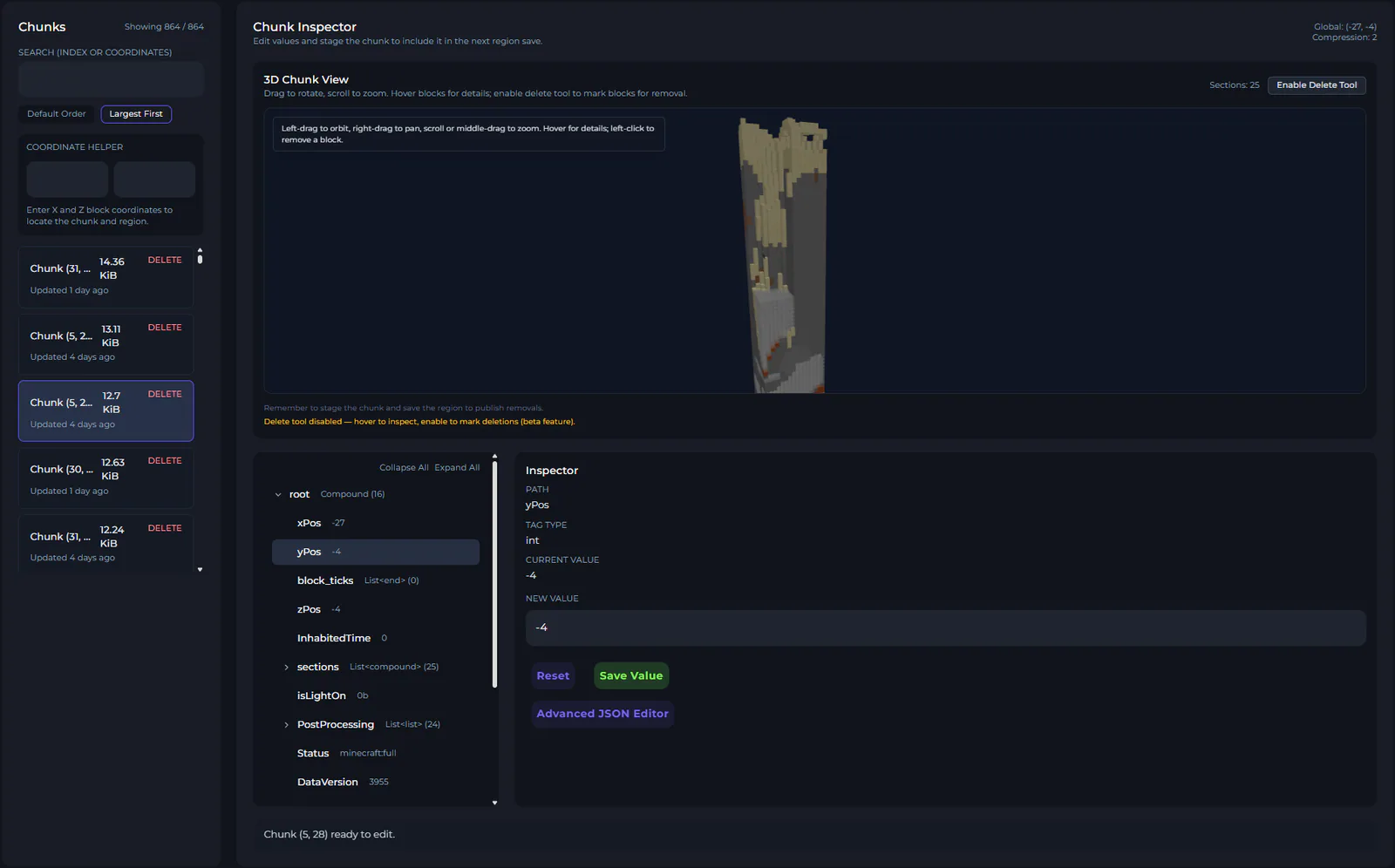
This is our 3D Chunk View, you can see the entire chunk and even edit the blocks, if you have a corrupt chunk, you can remove the corruption and save and continue.
Player Manager
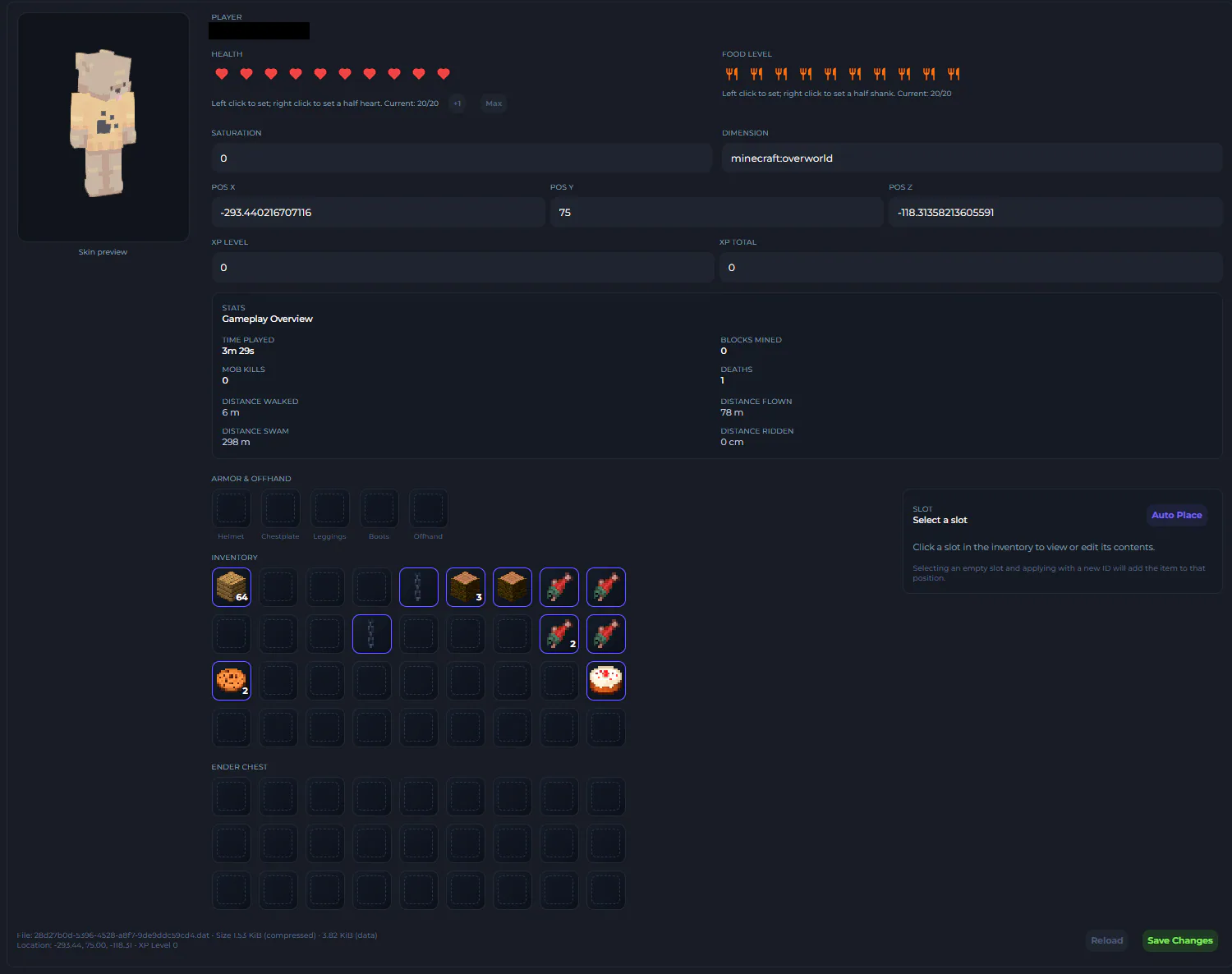
Similar to the 3D Chunk View, the Player Manager has a unique User Interface. The Player Manager allows you to see the user’s skin, inventory, enderchest, statistics and health/hunger. All of this information is editable and you can move items around in inventories.
Modpack Importer
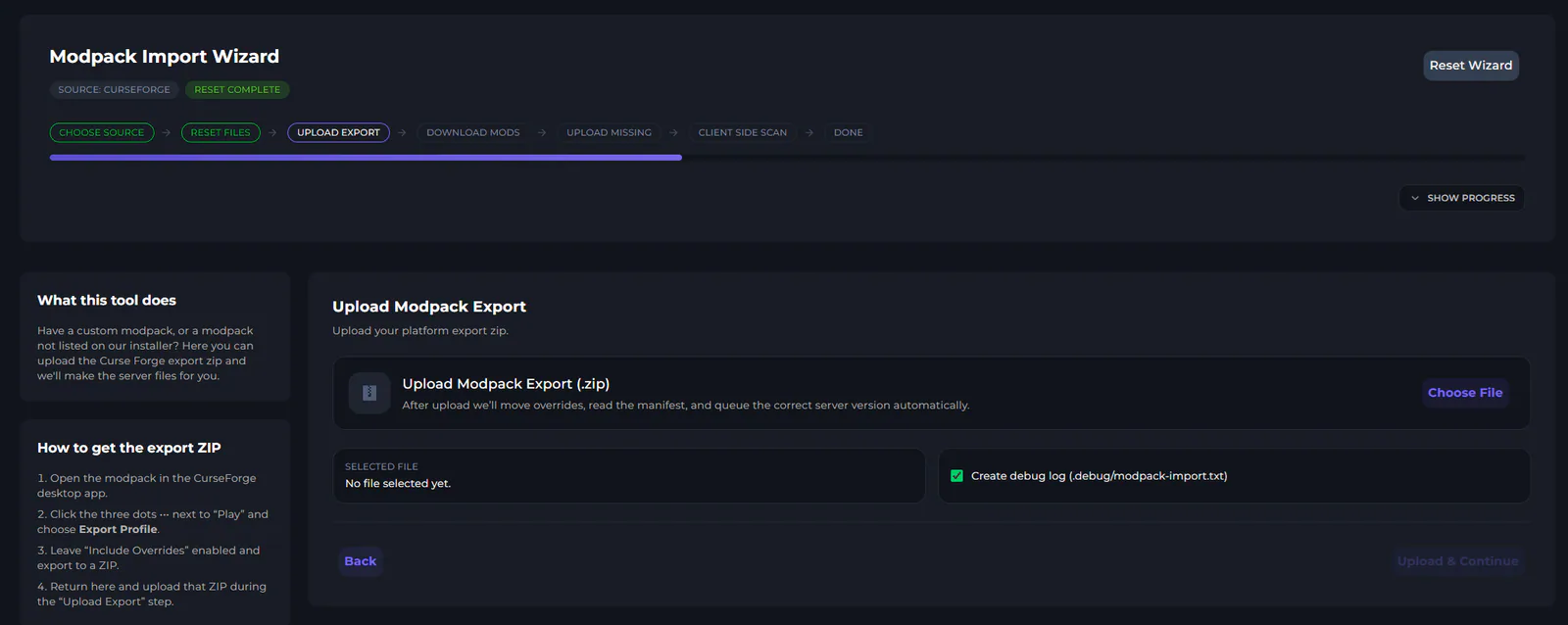
The Modpack Importer allows users to import Modpacks from Curseforge, if there is a modpack that we don’t currently have, you can upload it manually in a simplified way.
This currently only supports Curseforge but Modrinth support will be coming soon.
Crash Manager
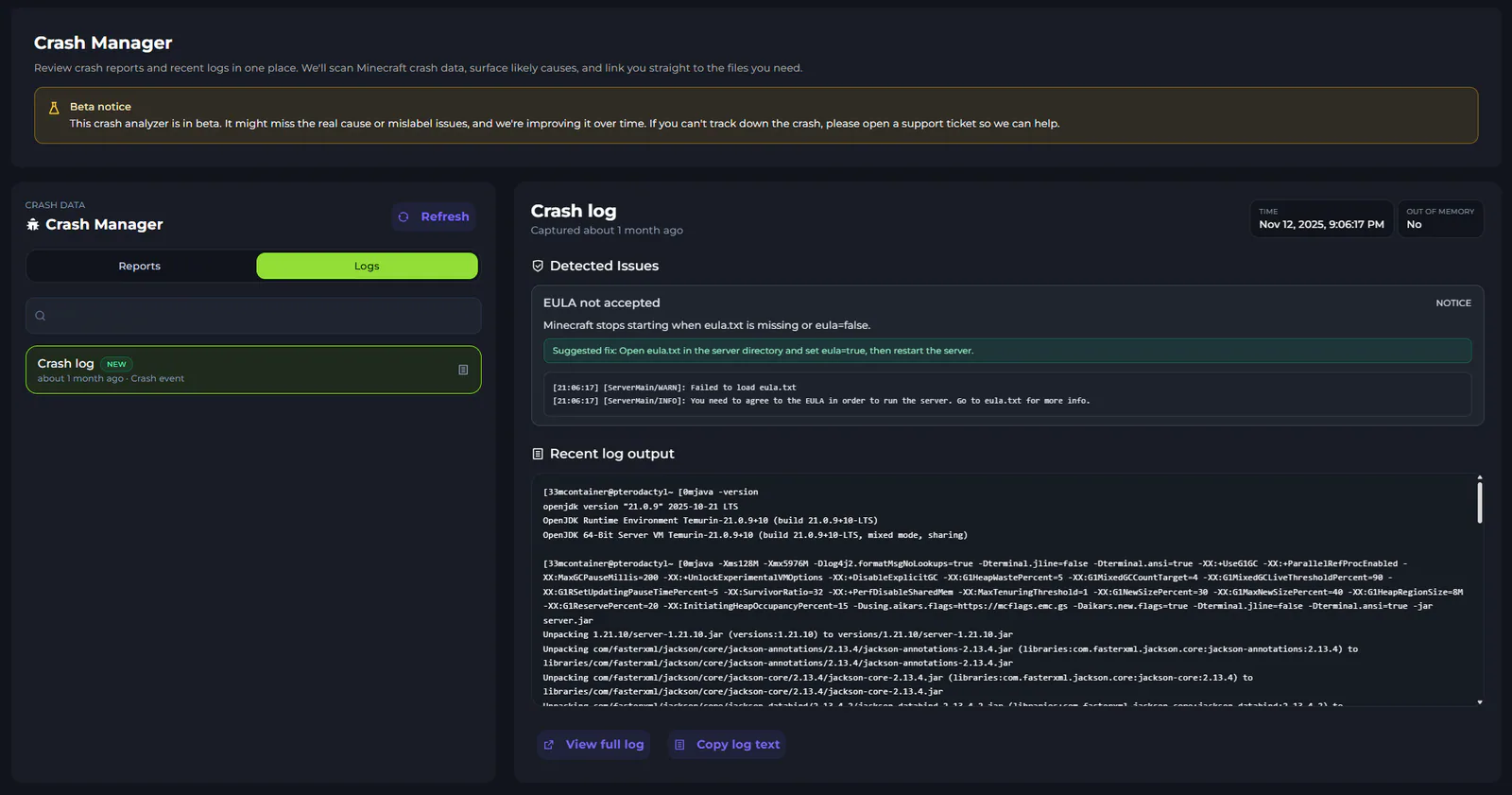
Though this feature is still in beta, it was worth showcasing due to how useful it will be, the Crash Manager will check your recent crash-log and parse the crash reason as close to correct as it can. This is not a fool proof solution yet as all server crashes have their nuance but as we get more information from crashes, the more correct the answers will get.
Quick Setups
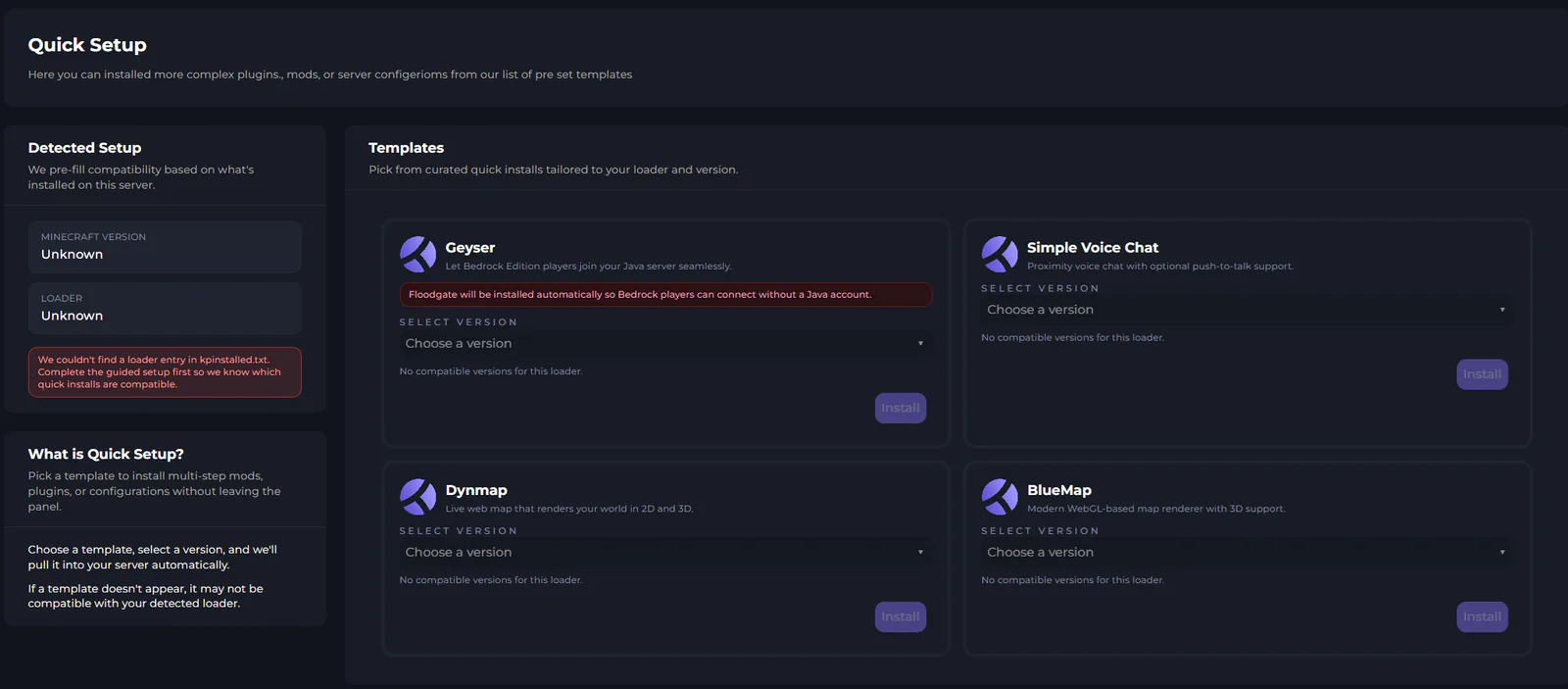
We currently offer a few options for Quick Setups, specifically for Minecraft Plugins or Mods, but we are hoping to expand this in the future to work with other games and have more options for Minecraft.
What’s Next?
If you don’t have a server with us already, consider buying one today! You can check out all of these new features without breaking the bank. Get the most affordable and feature-rich server hosting today at Kinetic Hosting.
If you do get a server with us, come and say hi in the discord! We’re always around to talk and help if you need it!
Thank you for reading and enjoy Panel 6!
Start Your Own Server
Looking for a game server? Get set up in a few moments. With our one-click installers and simple packages.
Related Posts

Panel 6.11 Update Change Log
Panel update 6.11 is live on all nodes. It comes with bug fixes, new server folders, and a new mobile text editor. The update was planned to be bigger and include Rust auto-wipe features, and more Minecraft start-up options, but this has been pushed to 6.12 that will drop next week.
Chris20 February 2026
Changes To Panel Updates
We launched the Kinetic Panel back in 2022, and up until now, most features have been added through major updates. This approach sometimes meant that features were completed but had to wait for other features to be finalized before release. While this was unavoidable in some cases, such as with the significant UI reworks in Panel 3 and Panel 4, it has occasionally left features you could have been using just sitting there.
Chris19 August 2024
Panel 6.20 Update Change Log
Due to working on Panel 7 we nearly went all May without a panel and update, we can't have that. So 6.20 is now live on all nodes, with a full rework to the schedules and upgrades to our Rust Auto Wipe feature. They're now more reliable, easy to setup, show in your timezone, and have a lot more options.
Chris30 May 2026
Panel 26.26.0 Update Change Log
Big update for palworld today, along with a few other changes. Palworld now has a mod installer, world manager, and a world import tool.
Chris16 July 2026
Panel 6.10 Update Change Log
6.10 is live on all nodes, and its a big one. The update comes with a new mobile UI built form the ground up, markers for the world map, tools box, minecraft server health check, and a spark profiler analyzer
Chris16 February 2026

You Can Now Split More Than Ever
Starting today, we’re increasing our default split limit from 2 to 4. Our Split Tool has been one of our most well-received features. The ability to split a single plan into multiple servers was one of the features you highlighted most in our feedback forms.
Chris2 February 2026