
In this guide
Setting up Voting on your Minecraft Server using NuVotifier
What is NuVotifer?
NuVotifer is a Minecraft server plugin which allows players to vote for your server online. This guide will show you how to install it to your server.
If you're using a proxy, you will need to install it there. But if you're not using a proxy, you will need to upload the plugin to your plugins folder.
Using A Proxy?
If you're using a proxy you'll need to do a few more steps. You can find more info on this here: NuVotifier Setup Guide
Login to your Kinetic Panel
Stop your server by clicking the power button, then clicking the square icon.
-1767383729764.png)
Locate and open your file manager.
-1770311095747.png)
In the file manager, find and open your Plugins folder.
-1767636321627.png)
Upload your NuVotifier file to the plugins folder by either dragging and dropping it there, or click "Upload" on the top right of the screen, and select the file there.
-1767463079847.png)
-1767642194572.png)
Start your server so that the plugin can generate it's required files.
-1767462125511.png)
Once the server has finished starting up, stop your server again.
Go to the "Network and Ports" section.
-1770314405199.png)
In the Network and Ports menu, you will need to open a new port, You can do so by clicking the "Open port" button on the top right of the screen.
-1767636907514.png)
You will then see that a new additional port has been created. You will need to copy that port.
-1767636932543.png)
After you're copied the port, go back to your file manager, and go back to the plugins folder.
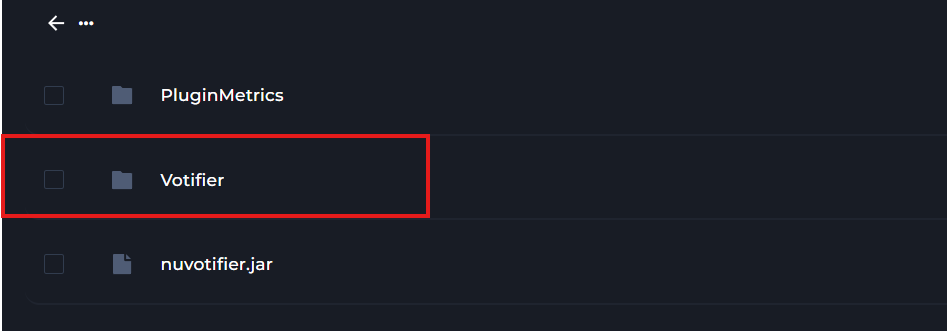
In the plugins folder, you will find the configuration file for NuVotifier, you will need to open it.
-1767642674543.png)
In the config file, find the line that says "Port", and change the port to the one you copied earlier.
-1767642700511.png)
Start your server.
Installing Voting Plugin
The next plugin we're going to install is Voting Plugin.
You can download it here: Voting Plugin Download
Stop your server by clicking the power button, then click the square icon.
Go to your file manager.
Go to your plugins folder.
Upload the Voting Plugin the same way you installed NuVotifier.
-1767644861450.png)
Start your server.
Once your server has finished starting, stop your server.
Go back to your Network and Ports page, and create another new port like before. Then, copy the port.
-1767646472089.png)
Go to your plugins folder in file manager, and go into the new Voting Plugin folder.

From there, open the config file for Voting Plugin.
-1767646807814.png)
In the config file, find "port", and enter the port that you copied earlier.
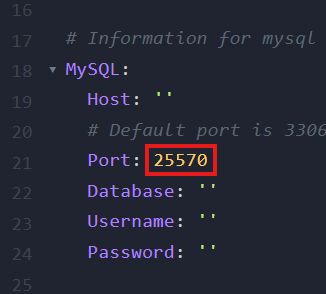
Save the document, and start your server.
-1767637211792.png)
Setting Vote Sites
You now need to set the vote sites you'll be using. More info can be found Here
After you've set those, you then need to set the rewards. Likewise, more info can be found here: Wiki
Linking To Voting Sites
Now you need to link our server to voting sites. For this, choose a voting site you want to use. Every voting site will be different in its layout.
Make sure the IP is set to your server IP. And make sure to voting port is set to the port you opened.
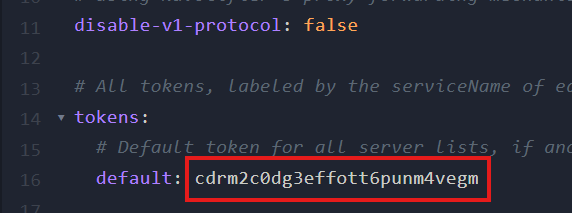
Then set the key to the secret key. This can be found in the NuVotifer config file, which you opened earlier:
You're All Set
Test the voting system by voting, and you should be all done. If you don't get the rewards then recover the steps and make sure you haven't missed anything. Also, check to make sure the correct key has been put into the voting site. NuVotifier will list two in its config.