How to use Nbt Editor
Last updated 14 Dec 2025
Need a game server?
Spin one up fast with our feature-rich panel and seriously low prices.
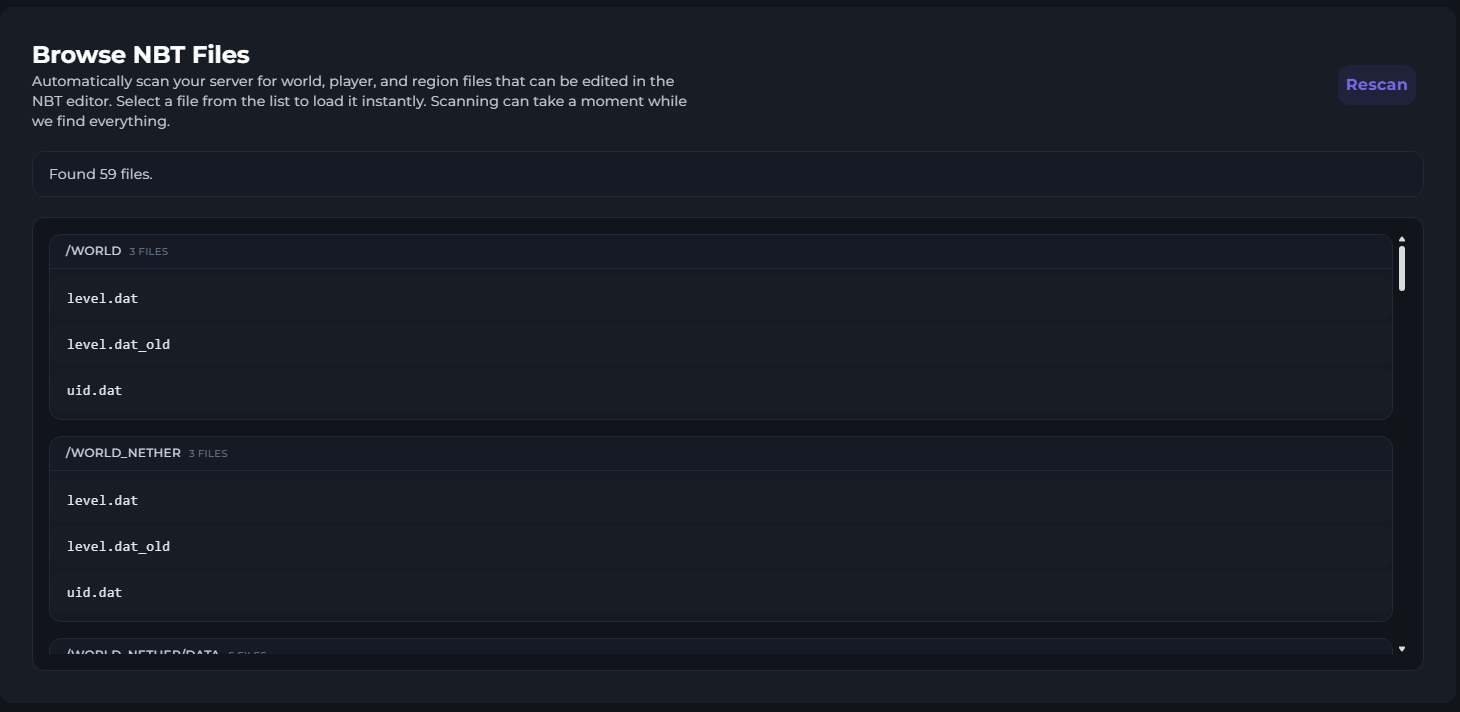
The editor page shows all Player and Region files that can be edited.
Not all files are supported by the editor. For some, such as level.dat, you will need to edit as JSON
Rescan - Depending on the world size, this can take a while.
Inline Editor
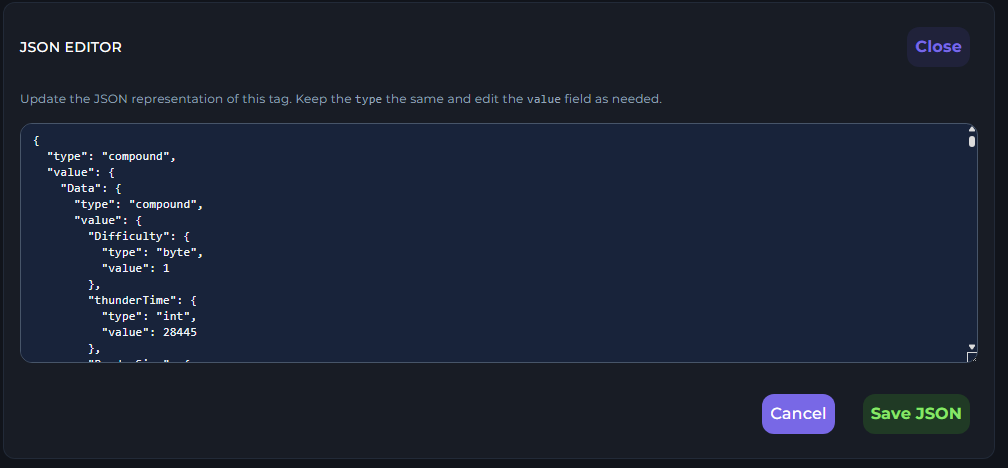
This is the inline editor. You can edit the file & Save it.
Chunk Inspector
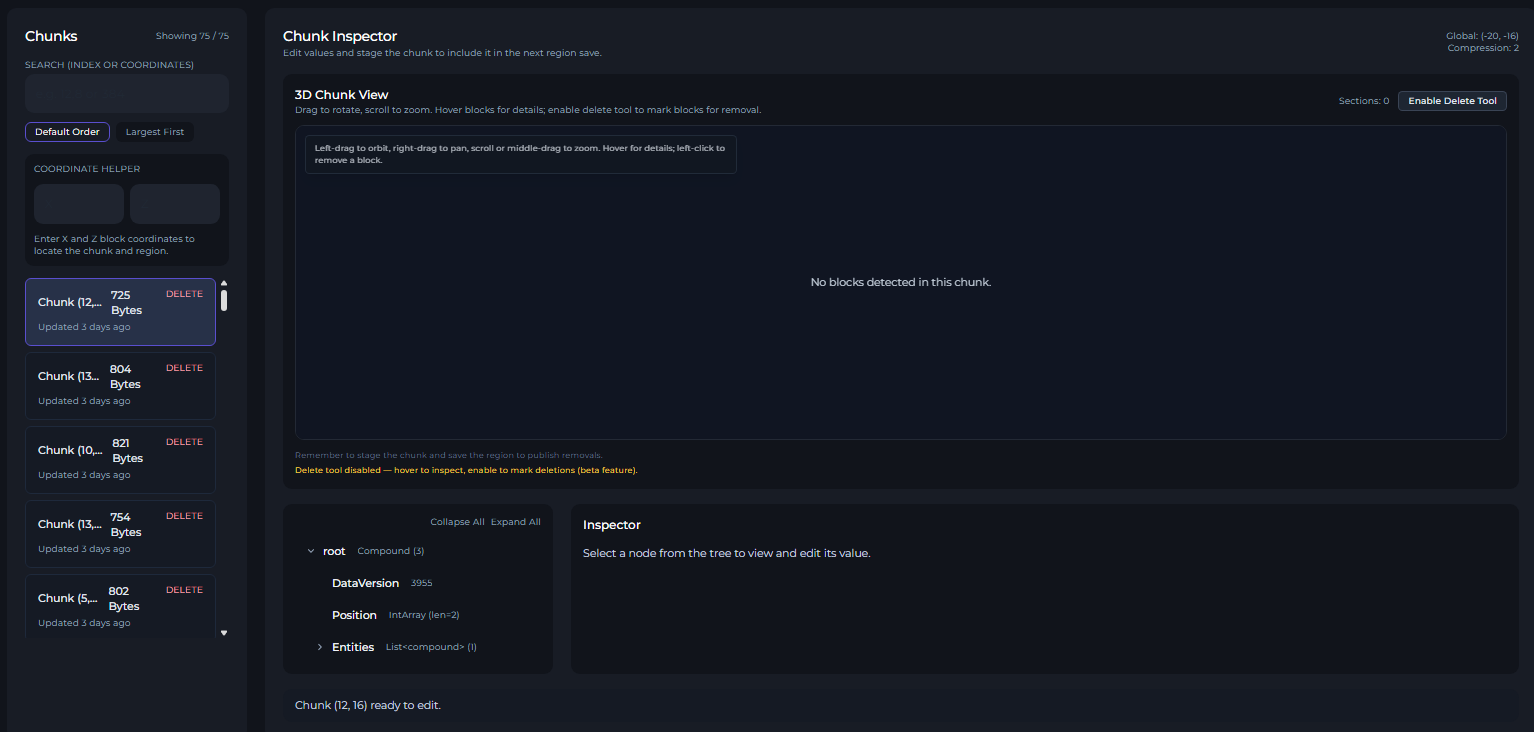
This is the chunk Inspector. Here, you can see the chunks of the selected region. In this panel, you can
Search Cords - Entering Cords into this will bring the 3d Chunk view to this chunk
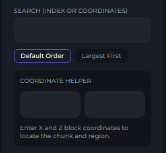
Delete Chunks - Here, you can delete chunks. This will remove the chunk from the world.
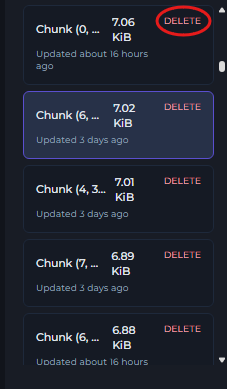
View Chunks - On the same menu as above, you can select the region you are currently viewing. This will then appear in the 3D Viewer.
And the inspector.3D Viewer - This interactive view lets you explore a chunk. You can zoom in and remove blocks by enabling the delete tool.
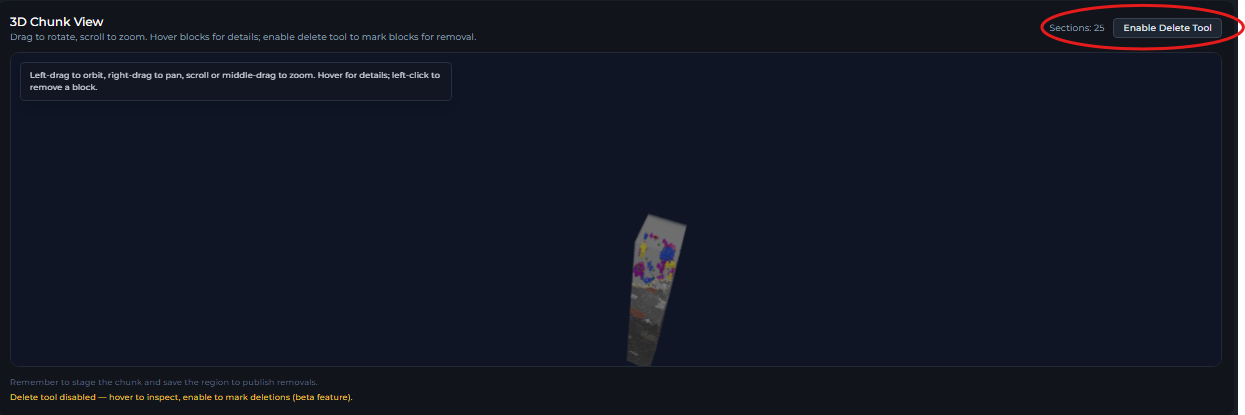
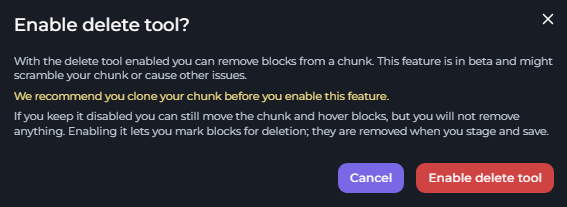
Enabling this will display a window. The delete tool is powerful, it lets you remove blocks from a chunk. This is very helpful in deleting blocks causing crashes
Once enabled, you can left-click blocks on the 3D View to remove them.
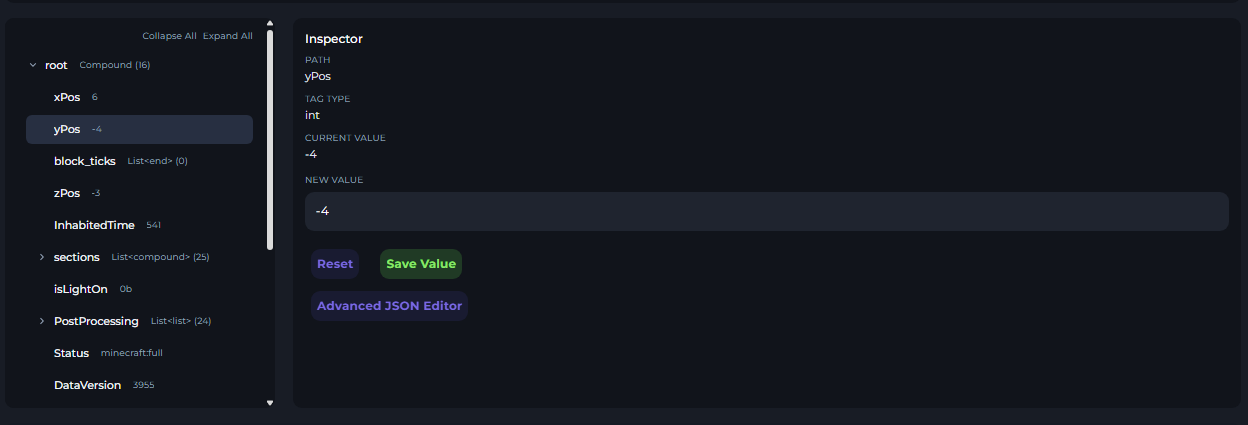
Inspector - Here you can view and edit component values in chunks. This will display the value type, its current value, and the new value.
Saving the chunk
Once you have edited a chunk, you will have an orange box. To remind you, you need to stage & then save.
