How to add Addons to a Minecraft Bedrock Server
Last updated 08 Jun 2025
Need a game server?
Spin one up fast with our feature-rich panel and seriously low prices.
Minecraft Bedrock has something called "Addons", These are similiar to Mods which you would get for the Minecraft Java Edition. These Addons can add new content into Minecraft Bedrock edition, in this guide, we'll be covering on how to add these addons to your server.
Before we begin, it's Impotant to note that Minecraft Marketplace addons will not work on a Minecraft Bedrock Dedicated Server, you will only be able to use Addons from CurseForge
Loading addons to your existing world on your Bedrock server
When you download an addon pack, the file you downloaded may be a .mcpack file. This must be extracted on your computers files in order to prepare them to be uploaded to your server.
To do this, you can use 7zip to extract the files.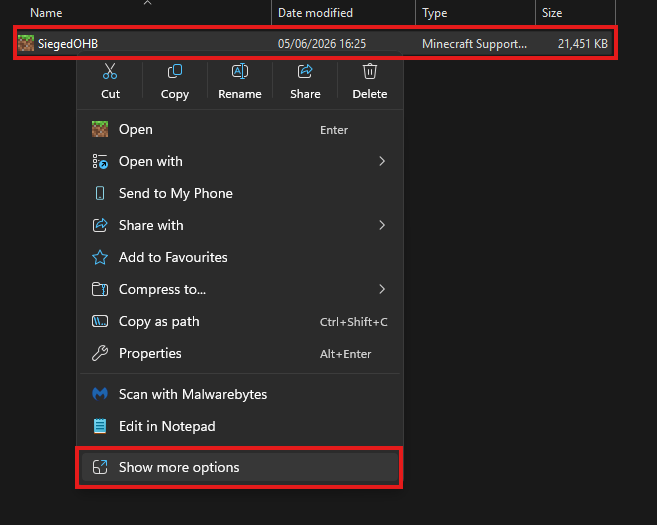
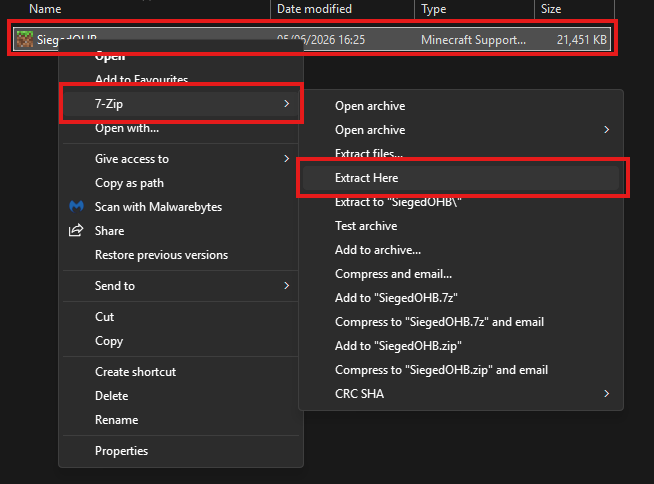
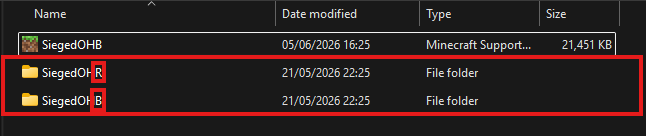
After the file has been extracted, you'll find two folders. A resource pack folder, and a behavior pack folder. You will need these for later.
Login to your Kinetic Panel.
Stop your server.
-1767383729764.png)
Go to File Manager.
-1770486606909.png)
In your file manager, you'll see a behavior packs folder. Open it, and upload the behavior pack folder you recently created.

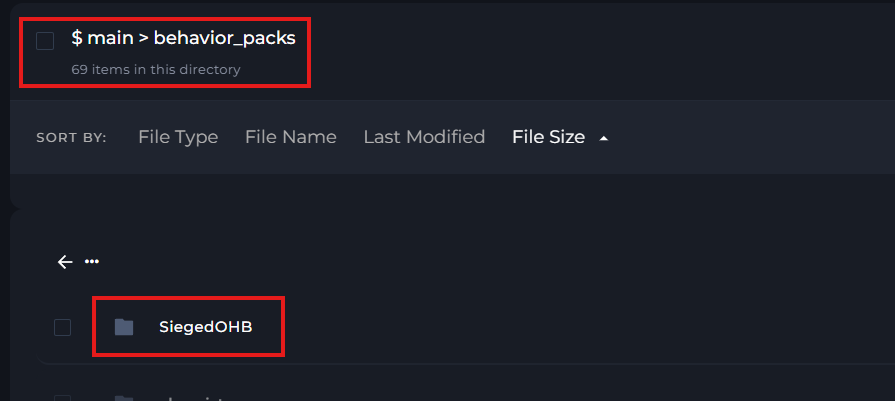
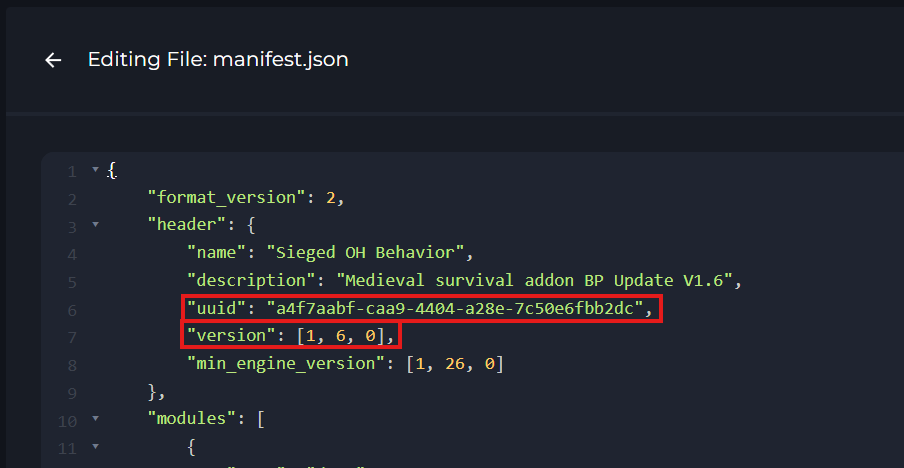
Once you've uploaded your behavior pack folder, open it, and then open it's manifest.json file. In the file, you will find the packs UUID and version number. It's extremely important to save these details, as you will need them for later.
It's recommended that you copy and paste these details to your computers notes.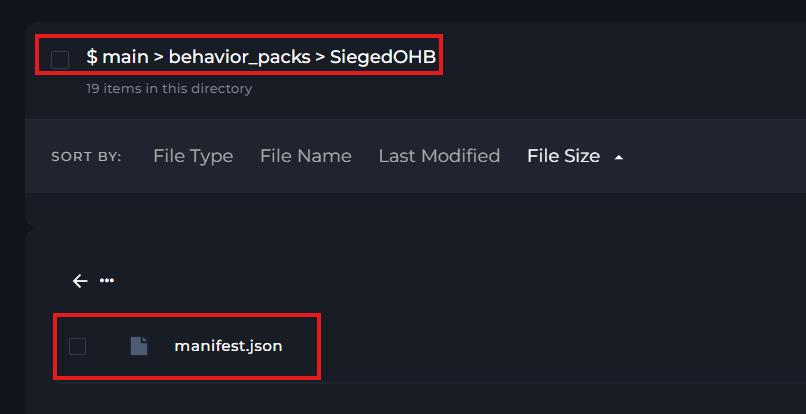
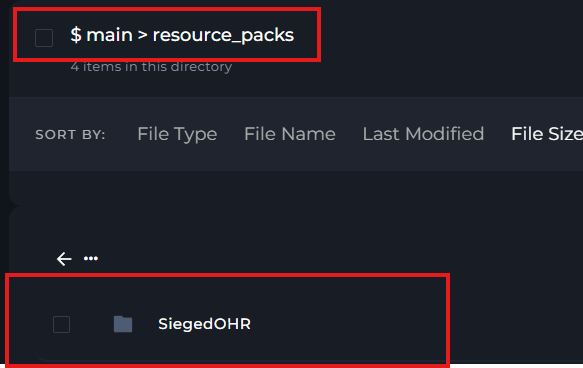
Now, go back to your main file directory, and find your resource pack folder. Open it, then upload the resource pack folder you created.

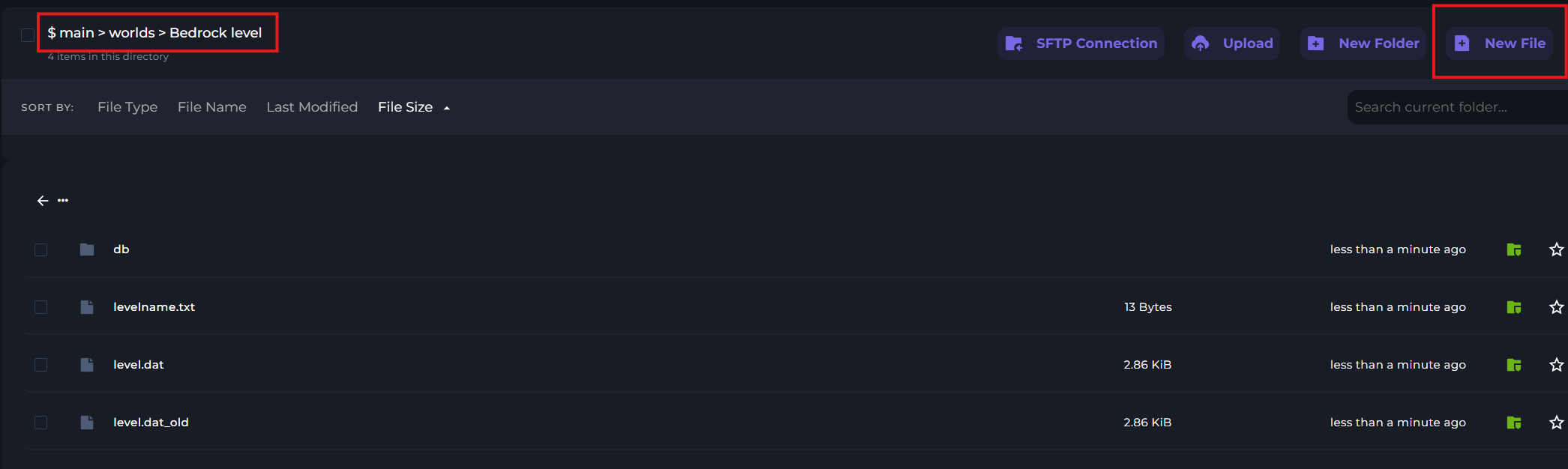
Once that's been done, go to "Worlds", then your world folder, and create a new file. In the file, you will need to paste the following line of code:
[
    {
        "pack_id" : "Paste uuid from manifest.json here",
        "version" : [ 0, 0, 0 ]
    }
]
In the code, input the UUID of the behaviour pack you recently copied, and input it's version number as well. If you have multiple behavior packs you wish to apply to your server, input the code like this:
[
    {
        "pack_id" : "Paste uuid from manifest.json here",
        "version" : [ 0, 0, 0 ]
    },
    {
        "pack_id" : "Paste uuid from manifest.json here",
        "version" : [ 0, 0, 0 ]
    }
]
As you can see, there is a "," separating each line of code, instead of a "]". You can have more than two of these, but once you've inputted all the UUID's of your behavior packs, the code must end with "]" as shown above.
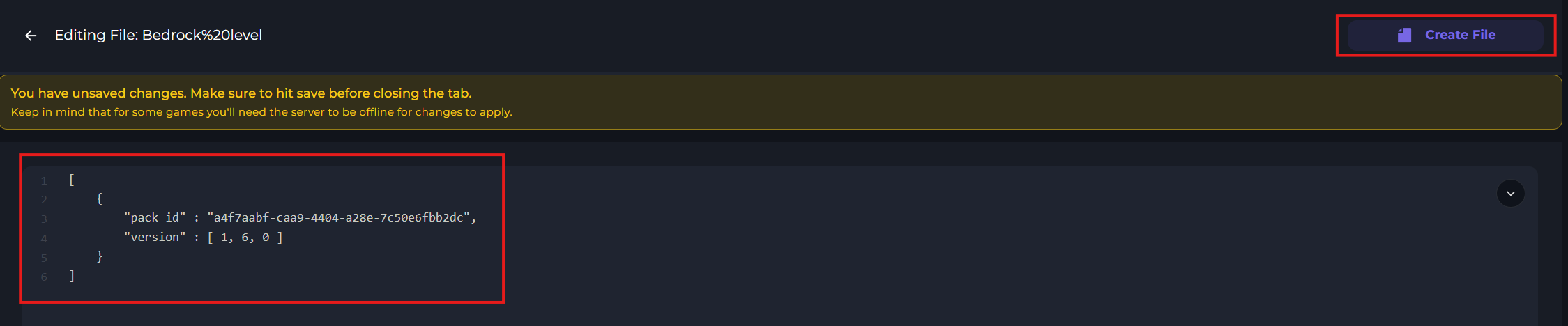
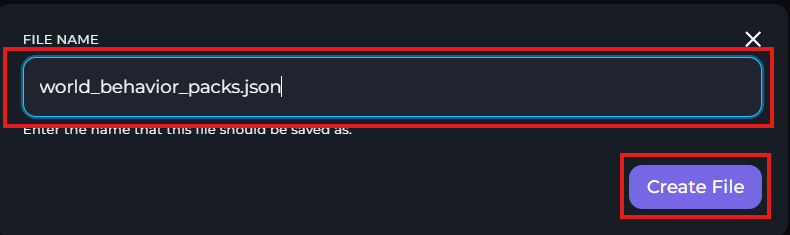
Once you've finished making these changes, click "Create File", and save the file as "world_behavior_packs.json".
Start your server.
-1767462125511.png) noticeIf it appears that the behavior packs are not working, double check and ensure that the UUID's and version numbers have been inputted correctly. Otherwise, feel free to contact support staff.
noticeIf it appears that the behavior packs are not working, double check and ensure that the UUID's and version numbers have been inputted correctly. Otherwise, feel free to contact support staff.
Getting the Addons loaded to your Bedrock client
1 You'll first want to head to CurseForge and download the addons of your choice.
2 Now, you should have the addons downloaded, navigate to where your downloaded files are.
3 Next, you'll want to open up Minecraft Bedrock Edition.
4 Head back to your Downloads folder, you're to Double-Click or Open the Addon.
5 You will get a notification in Minecraft Bedrock saying the addon has been Imported.

Enabling the Addons in your Bedrock game
Now that you have the addons imported, you'll now need to enable them in your Minecraft Bedrock Edition World.
1 You'll now want to navigate through the Minecraft Bedrock Menu until you see the Worlds screen.
2 You'll want to Create a New World, and head to the Resource packs and Behavior packs, you'll want to click on Available and you should see your packs there.

3 Next. click on the Activate button to enable the packs.

4 You should now join your world atleast once, just to make sure everything is loading as it should be.
Common Mistakes
From there, you should be all set with the Minecraft Bedrock Addons working on your server, just join the server & make sure everything is there. If they are not working, you can refer to some tips below.
Minecraft Version - Always make sure the Addons you are using are for the version that your server supports, if they are not, they might not work.
World Not Working - It's important you have the same Level Name as the world you uploaded, as the world will have the packs loaded.